
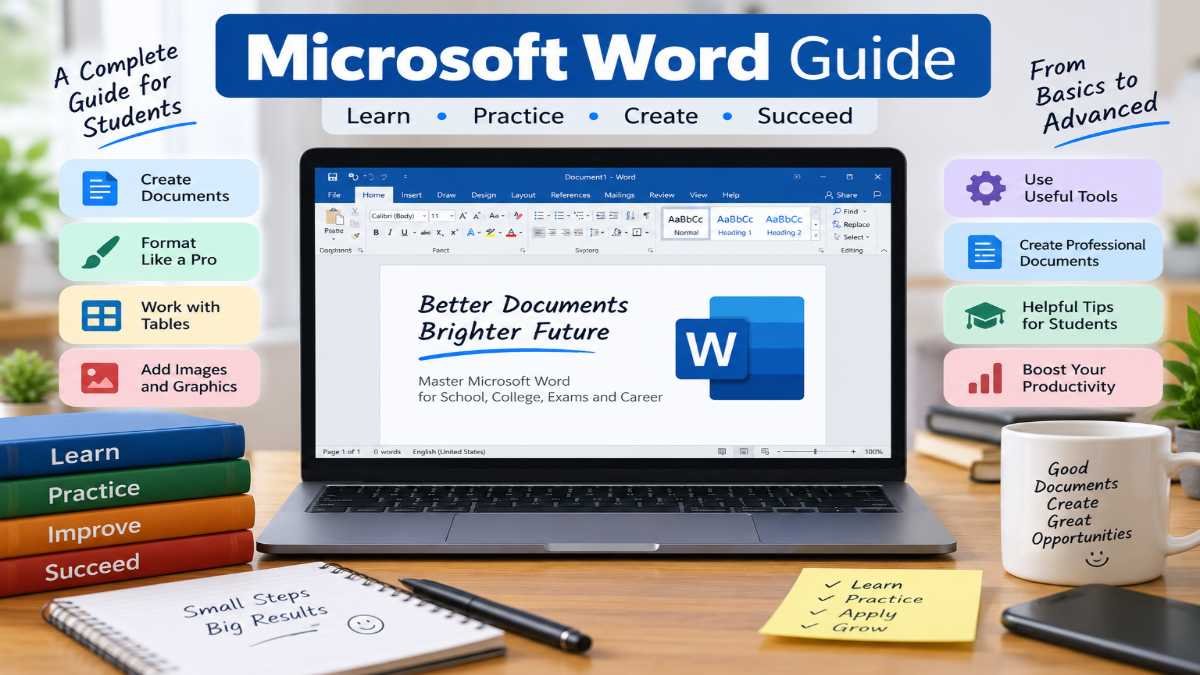
Microsoft Word is one of the most widely used word-processing applications for creating, editing, formatting, saving, and printing documents. Students use it for assignments, projects, practical files, resumes, research work, applications, and notes. Teachers use it for lesson plans, question papers, worksheets, notices, and educational documents. Job seekers also use Microsoft Word to prepare resumes, cover letters, applications, and other professional documents.
This Microsoft Word Guide explains Microsoft Word from the basics to more useful intermediate features in simple English. Whether you are opening Word for the first time or already know the basics, this guide can help you understand the important tools, commands, formatting options, shortcuts, and practical uses of Microsoft Word.
Instead of learning Word by memorizing every button, it is better to understand what each feature does, when to use it, and how it can improve a document. Once these concepts become clear, creating professional-looking documents becomes much easier.
What Is Microsoft Word?
Microsoft Word is a word-processing software application developed by Microsoft. It is designed for creating and working with text-based documents.
A word processor allows users to:
- Type and edit text
- Change fonts and text sizes
- Format paragraphs
- Create tables
- Insert pictures and shapes
- Add page numbers
- Create headers and footers
- Check spelling and grammar
- Add references and citations
- Create resumes and reports
- Print documents
- Save documents in different file formats
- Collaborate on documents
Microsoft Word is part of Microsoft 365 and has also been available as part of Microsoft Office suites.
The exact features and interface can differ between Word versions, such as desktop Word, Word for the web, and different Microsoft 365 releases. However, the fundamental concepts remain similar.
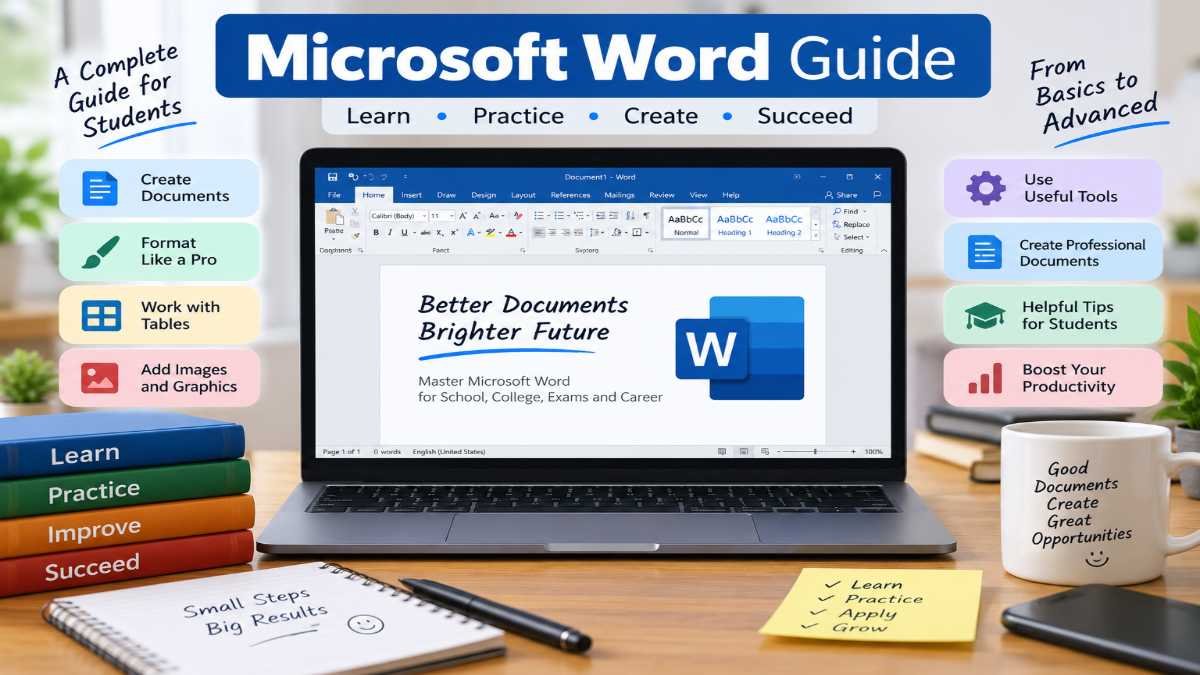
Microsoft Word Guide: Basic Overview
Before learning individual tools, it is useful to understand the main parts of the Word interface.
| Word Feature | Main Purpose |
|---|---|
| Document Area | Where you type and edit content |
| Ribbon | Contains Word’s commands and tools |
| Tabs | Organize commands into categories |
| Quick Access Toolbar | Provides quick access to commonly used commands |
| Status Bar | Shows document information |
| Navigation Pane | Helps search and navigate through a document |
| Ruler | Helps control margins, indents, and tab stops |
| Scroll Bar | Moves through the document |
| Zoom Control | Changes how large the document appears on screen |
The names or arrangement of some interface elements can vary depending on the version and device.
Why Is Microsoft Word Important for Students?
Microsoft Word is particularly useful in education because students regularly need to produce written documents.
For example, a student may need to prepare:
- School assignments
- College projects
- Practical files
- Seminar reports
- Research papers
- Lab reports
- Class notes
- Applications
- Resumes
- Cover letters
- Project certificates
- Question-and-answer documents
- Presentations converted into documents
- Internship reports
Learning Word also develops digital document skills, which are useful beyond school or college.
A student who understands basic formatting can create a document that is easier for teachers, examiners, recruiters, and other readers to understand.
How to Open Microsoft Word
The exact steps depend on the device and operating system.
On a Windows computer, a common method is:
- Open the Start menu.
- Search for Microsoft Word.
- Select Microsoft Word.
- Choose Blank Document to start a new document.
You can also open an existing .docx file by double-clicking it if Microsoft Word is installed and associated with that file type.
Understanding the Microsoft Word Interface
When you open a blank document, you will see several important areas.
1. Title Bar
The title bar generally displays the name of the current document and information about the application.
If the document has not yet been saved, Word may display a temporary document name.
2. Ribbon
The Ribbon contains many of Word’s commands.
Common tabs include:
- Home
- Insert
- Draw
- Design
- Layout
- References
- Mailings
- Review
- View
The available tabs can vary depending on the Word version, platform, and document context.
3. Home Tab
The Home tab contains many frequently used formatting tools.
It generally includes:
- Clipboard commands
- Font formatting
- Paragraph formatting
- Styles
- Editing tools
For beginners, the Home tab is one of the most important places to learn.
4. Insert Tab
The Insert tab allows you to add objects to a document.
Examples include:
- Tables
- Pictures
- Shapes
- Icons
- Charts
- Links
- Headers
- Footers
- Page numbers
- Text boxes
- Symbols
5. Layout Tab
Layout tools help control the structure of the page.
You can generally modify:
- Margins
- Orientation
- Paper size
- Columns
- Indentation
- Paragraph spacing
6. Review Tab
The Review tab is especially useful for editing and collaborative work.
It may provide tools for:
- Spelling and grammar
- Comments
- Track Changes
- Document comparison
- Language settings
7. View Tab
The View tab controls how the document is displayed.
It can provide options for:
- Print Layout
- Reading-related views
- Navigation Pane
- Zoom
- Multiple document windows
How to Type and Edit Text in Microsoft Word
The simplest use of Word is typing text.
Click inside the document and start typing.
You can use the keyboard to enter:
- Letters
- Numbers
- Punctuation
- Symbols
- Spaces
If you make a mistake, you can use Backspace or Delete.
Backspace vs Delete
Backspace generally removes the character to the left of the cursor.
Delete generally removes the character to the right of the cursor.
Understanding this small difference can make editing faster.
How to Select Text in Microsoft Word
Before changing formatting, you normally need to select the text.
You can select text using:
- Mouse
- Touchpad
- Keyboard
- Shift key with arrow keys
For example, to make one word bold:
- Select the word.
- Go to the Home tab.
- Click Bold.
You can also use keyboard shortcuts.
Ctrl + A selects all content in the document.
Microsoft Word Font Formatting
Font formatting changes the appearance of text.
Important font options include:
- Font type
- Font size
- Bold
- Italic
- Underline
- Font color
- Text highlighting
- Text effects in supported versions
Bold
Bold text is darker and more prominent.
Example:
Important Notice
Bold is useful for headings, important terms, and key points.
Italic
Italic text is slanted.
It is commonly used for emphasis, titles, or certain types of references depending on the required style.
Underline
Underline places a line below text.
It can be useful for selected emphasis, but excessive underlining can make documents harder to read.
Choosing the Right Font
Microsoft Word provides many fonts.
For academic and professional documents, choose a font that is:
- Easy to read
- Consistent
- Appropriate for the assignment
- Compatible with the institution’s requirements
If your school, college, examination authority, or employer specifies a particular font, follow that requirement.
Do not change fonts repeatedly throughout a document without a reason.
Font Size and Document Readability
Font size determines how large text appears.
A typical academic document might use a readable body-text size, but there is no universal size requirement. Always follow the instructions provided by your institution.
Headings can generally be larger than normal paragraph text.
For example:
Main Heading
Normal body text can use a smaller size than the heading.
The important principle is consistency.
Paragraph Formatting in Microsoft Word
Paragraph formatting controls how text is arranged within a document.
Important paragraph features include:
- Alignment
- Line spacing
- Paragraph spacing
- Indentation
- Bullets
- Numbering
Text Alignment
Microsoft Word generally provides four common alignment options.
| Alignment | Meaning | Common Use |
|---|---|---|
| Left | Text starts from the left margin | Normal paragraphs |
| Center | Text is centered | Titles |
| Right | Text aligns to the right | Dates or specific layouts |
| Justify | Text aligns with both margins | Some reports and formal documents |
Left Alignment
This is the standard alignment for many documents.
Center Alignment
Center alignment is often useful for titles.
Right Alignment
Right alignment can be used for specific design requirements.
Justified Alignment
Justification adjusts spacing between words so that text aligns with both the left and right margins.
It can be useful in some formal documents, but readability should always be considered.
Line Spacing
Line spacing controls the vertical distance between lines of text.
Common options include:
- Single
- 1.15
- 1.5
- Double
The correct choice depends on the document requirements.
For an academic assignment, if your institution specifies 1.5 or double spacing, follow those instructions.
Paragraph Spacing
Paragraph spacing adds space before or after paragraphs.
This is generally better than pressing Enter repeatedly to create visual gaps.
For example, instead of:
Paragraph 1
Enter
Enter
Enter
Paragraph 2
use paragraph spacing through Word’s formatting controls.
This creates a cleaner and more maintainable document.
Microsoft Word Guide to Styles
Styles are one of the most useful features for creating organized documents.
A style is a predefined combination of formatting settings.
Common styles include:
- Normal
- Title
- Subtitle
- Heading 1
- Heading 2
- Heading 3
Instead of manually formatting every heading, you can apply a heading style.
For example:
Heading 1: Chapter 1 – Introduction
Heading 2: Background
Heading 3: Research Method
This creates a document structure that Word can understand.
Why Are Heading Styles Important?
Heading styles are particularly useful for long assignments, reports, dissertations, and projects.
They can help you:
- Keep formatting consistent
- Create a table of contents
- Navigate using the Navigation Pane
- Modify multiple headings efficiently
- Improve document organization
A common beginner mistake is making headings bold and large manually but not applying actual heading styles.
For short documents this may not matter much, but for long documents it can become inconvenient.
How to Create a Table of Contents
A properly structured document can have an automatically generated table of contents.
A typical process is:
- Apply Heading 1 to major sections.
- Apply Heading 2 to subsections.
- Apply additional heading levels where necessary.
- Place the cursor where the table of contents should appear.
- Open the References tab.
- Choose Table of Contents.
- Select an automatic table.
If you later change page positions, you can update the table.
This is much more efficient than manually typing page numbers.
Working With Tables in Microsoft Word
Tables are useful when information needs to be organized into rows and columns.
For example:
| Subject | Marks | Grade |
|---|---|---|
| English | 82 | A |
| Mathematics | 91 | A+ |
| Science | 87 | A |
Tables can be used for:
- Timetables
- Marksheets
- Project information
- Comparison charts
- Research data
- Lists
- Schedules
- Job information
- Study plans
How to Insert a Table
A common method is:
- Open the Insert tab.
- Select Table.
- Choose the required number of rows and columns.
- Enter your information.
You can later add or delete rows and columns.
How to Format a Table
After inserting a table, you can modify:
- Borders
- Shading
- Cell alignment
- Row height
- Column width
- Text formatting
- Table styles
Avoid making tables unnecessarily complicated.
A simple table is usually easier to read than one containing too many colors, borders, and formatting effects.
Inserting Pictures in Microsoft Word
Pictures can make educational documents more useful when they provide meaningful information.
You can insert images for:
- Diagrams
- Maps
- Charts
- Screenshots
- Project illustrations
- Scientific figures
A common process is:
- Open Insert.
- Select Pictures.
- Choose the source.
- Select the image.
- Insert it into the document.
After inserting an image, you can usually resize it and control how text flows around it.
Understanding Text Wrapping
Text wrapping determines how text behaves around an image.
Common options may include:
- In Line with Text
- Square
- Tight
- Through
- Top and Bottom
- Behind Text
- In Front of Text
For most beginner documents, In Line with Text or Square is often easier to manage.
Be careful with Behind Text and In Front of Text, because they can make document editing confusing if used without understanding the layout.
Adding Shapes and Icons
Word can also contain visual elements such as:
- Arrows
- Rectangles
- Circles
- Lines
- Callouts
- Icons
These can be useful for diagrams, flowcharts, educational illustrations, and project documents.
Use visual elements only when they improve understanding.
Microsoft Word Guide to Headers and Footers
Headers appear in the upper portion of pages.
Footers appear in the lower portion.
They can contain information such as:
- Document title
- Student name
- Institution name
- Chapter name
- Page numbers
- Date
For example, a college report may have the report title in the header and page numbers in the footer.
How to Add Page Numbers
Page numbers are particularly useful for long documents.
A typical method is:
- Open the Insert tab.
- Select Page Number.
- Choose the desired location.
- Select a suitable format.
Some documents require special page-numbering arrangements, such as Roman numerals for introductory pages and Arabic numbers for the main content. Word provides tools for creating such layouts using sections.
Microsoft Word Sections
A section allows different parts of a document to have different formatting or page-layout settings.
Sections can be useful when you need:
- Different headers
- Different footers
- Different page numbering
- Different orientations
- Different margins
For example, a report might contain mostly portrait pages but require one landscape page for a wide table.
Section breaks make this possible without changing the entire document.
Page Setup in Microsoft Word
Page setup controls how the document is arranged on the physical page.
Important settings include:
- Margins
- Orientation
- Size
- Columns
- Breaks
Portrait vs Landscape Orientation
Portrait orientation is taller than it is wide.
It is commonly used for:
- Essays
- Assignments
- Letters
- Reports
Landscape orientation is wider than it is tall.
It can be useful for:
- Wide tables
- Large diagrams
- Certain charts
- Presentation-style pages
Understanding Margins
Margins are the blank spaces around the edges of a page.
Word usually provides preset margin options, but you can also create custom margins.
If an institution gives specific margin requirements, use those measurements.
Avoid reducing margins simply to fit more text onto a page unless the document instructions allow it.
Page Breaks vs Pressing Enter
A page break tells Word that the next content should begin on a new page.
Instead of pressing Enter many times to push text onto another page:
- Place the cursor where the new page should begin.
- Insert a page break.
This keeps the document structure stable when content changes.
Microsoft Word Guide to Find and Replace
The Find feature helps locate specific words or phrases.
The Replace feature allows you to substitute one piece of text with another.
For example, suppose a 50-page project uses the term:
Computer Application
but you decide it should be:
Computer Applications
Instead of manually finding every occurrence, Find and Replace can help update the document.
This is particularly useful for long documents.
Spelling and Grammar Tools
Microsoft Word includes tools that can identify certain spelling, grammar, and writing issues.
However, automated suggestions are not always correct.
Students should treat these tools as assistance, not as a replacement for proofreading.
A grammatically possible sentence can still be inappropriate because of:
- Incorrect meaning
- Wrong technical terminology
- Poor context
- Ambiguous wording
- Factual errors
Always read the final document yourself.
Microsoft Word Guide to Track Changes
Track Changes records modifications made to a document.
This is useful when:
- A teacher reviews an assignment
- An editor revises a document
- Multiple people collaborate
- A student receives corrections
Instead of simply changing text without a record, Track Changes can show what was inserted, deleted, or modified.
Comments in Microsoft Word
Comments allow users to attach notes to specific parts of a document.
For example, a teacher might add a comment:
Provide a source for this statement.
A student can then address the comment.
Comments are useful for feedback because they keep discussion connected to the relevant part of the document.
Microsoft Word Guide to Word Count
Word Count shows information about the document’s content.
It can help students check whether an assignment meets a required word limit.
For example:
Required length: 2,000 words
After writing, you can check Word’s word-count information to see whether your document is approximately within the required range.
Remember that institutions may have different rules about what counts toward the word limit.
How to Insert a Hyperlink
A hyperlink allows readers to click text and open another location, such as:
- A website
- An email address
- Another location in the document
- A file or supported destination
Instead of displaying a long web address, you can use descriptive text.
For example:
Official Website
This often produces a cleaner document.
Using Bookmarks
Bookmarks allow you to mark specific locations in a document.
They can be useful in large documents where you need to return to important sections quickly.
Bookmarks can also support internal navigation in suitable documents.
Footnotes and Endnotes
Footnotes provide additional information or references at the bottom of a page.
Endnotes place notes in a designated section, often toward the end of a document.
They are useful for:
- Academic writing
- Research
- Explanations
- Citations
- Source information
The citation method required depends on the academic style or institution.
Microsoft Word and Citations
Word provides features that can assist with managing citations and bibliographies.
Students working on research projects may need to record sources such as:
- Books
- Journal articles
- Websites
- Reports
However, citation requirements vary between styles such as APA, MLA, Chicago, and institutional formats.
Do not assume that one citation format is suitable for every assignment.
Saving a Microsoft Word Document
Saving your work regularly is important.
A standard modern Word document generally uses the .docx extension.
Other formats may be available depending on the version and features being used.
Common document-related formats include:
| Format | General Purpose |
|---|---|
.docx | Modern Word document |
.doc | Older Word document format |
.pdf | Fixed-layout sharing/printing |
.txt | Plain text |
.rtf | Rich Text Format |
Use the format requested by your teacher, college, employer, or other recipient.
Why PDF Is Useful for Sharing
PDF is often useful when you want the document’s layout to remain consistent across devices.
For example, after completing a college assignment, you may be asked to submit it as a PDF.
Before converting, carefully check:
- Page breaks
- Images
- Tables
- Page numbers
- Headers
- Footers
- Fonts
- Spacing
A document that looks correct in Word should still be reviewed after exporting to PDF.
Microsoft Word Keyboard Shortcuts
Keyboard shortcuts can significantly improve productivity.
Here are some commonly used shortcuts:
| Shortcut | Function |
|---|---|
| Ctrl + A | Select all |
| Ctrl + B | Bold |
| Ctrl + C | Copy |
| Ctrl + F | Find |
| Ctrl + H | Replace |
| Ctrl + I | Italic |
| Ctrl + K | Insert hyperlink |
| Ctrl + N | New document |
| Ctrl + O | Open document |
| Ctrl + P | |
| Ctrl + S | Save |
| Ctrl + U | Underline |
| Ctrl + V | Paste |
| Ctrl + X | Cut |
| Ctrl + Y | Redo |
| Ctrl + Z | Undo |
These are among the most useful shortcuts for beginners.
Important Advanced Shortcuts for Students
Students who use Word regularly can learn additional shortcuts.
| Shortcut | Use |
|---|---|
| Ctrl + Enter | Insert page break |
| Ctrl + Home | Move to document beginning |
| Ctrl + End | Move to document end |
| Ctrl + Left Arrow | Move by word |
| Ctrl + Right Arrow | Move by word |
| Ctrl + Backspace | Delete previous word |
| Ctrl + Delete | Delete next word |
| Shift + Arrow | Select text |
| Ctrl + Shift + Left Arrow | Select previous word |
| Ctrl + Shift + Right Arrow | Select next word |
Shortcut availability can vary by operating system and Word version.
Microsoft Word Guide for Creating a College Assignment
A good assignment should be organized before you begin formatting.
A practical structure can be:
- Cover page
- Introduction
- Main content
- Subsections
- Examples or analysis
- Conclusion
- References
Then apply consistent formatting.
Step 1: Create the document
Open Word and start a blank document.
Step 2: Set the page layout
Check the required:
- Paper size
- Margins
- Orientation
- Spacing
Step 3: Create headings
Use Word’s heading styles.
Step 4: Write the content
Focus on accurate information and logical organization.
Step 5: Add tables or images
Use them only when they improve understanding.
Step 6: Proofread
Check:
- Spelling
- Grammar
- Facts
- Formatting
- References
Step 7: Save
Save the editable Word document.
Step 8: Export if required
Create a PDF if your institution requests one.
How to Create a Professional Resume in Microsoft Word
Word can also be used to create resumes.
A simple resume may contain:
- Name and contact information
- Professional summary
- Education
- Skills
- Experience
- Projects
- Certifications
- Achievements
Students should avoid filling a resume with unnecessary information.
A good resume should make important information easy to locate.
Use:
- Clear headings
- Consistent spacing
- Simple formatting
- Readable fonts
- Bullet points
Do not add information you cannot support or explain during an interview.
Microsoft Word for Competitive-Exam Aspirants
Competitive-exam aspirants can use Word for more than document writing.
It can help with:
Study Notes
Create structured notes using headings, tables, and bullet points.
Vocabulary Lists
Create tables containing:
| Word | Meaning | Example |
|---|---|---|
| Accurate | Correct | The information is accurate. |
| Essential | Necessary | Practice is essential for improvement. |
Revision Sheets
Create one-page revision documents for:
- Formulas
- Important dates
- Definitions
- Rules
- Short tricks
Mock Questions
Create practice question sets and answer keys.
Current-Affairs Notes
Organize information by:
- Date
- Topic
- Organization
- Important fact
Always verify current information from reliable sources before using it for exam preparation.
Microsoft Word for Teachers
Teachers can use Word to create:
- Question papers
- Lesson plans
- Worksheets
- Notices
- Assignments
- Student feedback
- Certificates
- Study material
- Attendance-related documents
- Educational handouts
Tables can be particularly useful for organizing schedules and classroom information.
Microsoft Word for Parents
Parents may also find Word useful for:
- School applications
- Permission letters
- Project assistance
- Educational worksheets
- Simple reports
- Notices
- Printable study material
Basic Word knowledge can therefore be useful even outside professional workplaces.
Common Mistakes Beginners Make in Microsoft Word
Learning what not to do is just as important as learning the tools.
1. Using Multiple Spaces for Alignment
Beginners sometimes press Space repeatedly to position text.
This is unreliable.
Use:
- Alignment
- Tabs
- Tables
- Indentation
depending on the situation.
2. Pressing Enter Repeatedly
Do not press Enter 10 times to move text to another page.
Use a page break.
3. Manually Formatting Every Heading
For longer documents, use Styles.
4. Using Too Many Fonts
A document containing many fonts can look inconsistent.
Use a small, consistent set of formatting choices.
5. Excessive Colors
Academic and professional documents generally benefit from restrained formatting.
6. Ignoring Page Breaks
Unexpected blank pages or split sections can make a document look unprofessional.
7. Not Saving Regularly
A computer problem can cause lost work.
Save frequently and consider maintaining a backup.
8. Trusting Grammar Suggestions Completely
Automated tools can miss context and factual errors.
Always proofread.
9. Forgetting to Check the Final PDF
Formatting can change during export.
Review the final file before submission.
How to Make a Microsoft Word Document Look Professional
Professional formatting does not mean adding as many design elements as possible.
Instead, focus on consistency.
Use a clear hierarchy
Make it obvious which text is:
- Title
- Main heading
- Subheading
- Normal paragraph
- Caption
- Reference
Maintain consistent spacing
Use paragraph and style settings rather than manually adding blank lines.
Use tables carefully
Tables should organize information, not make the page unnecessarily complicated.
Keep alignment consistent
Randomly centered or right-aligned paragraphs can make a document difficult to read.
Proofread before submission
Even a beautifully formatted document can appear poor if it contains spelling, grammar, or factual mistakes.
Microsoft Word vs Google Docs
Both Microsoft Word and Google Docs are widely used for document creation.
| Feature | Microsoft Word | Google Docs |
|---|---|---|
| Word processing | Yes | Yes |
| Offline desktop use | Strong | Available with appropriate setup |
| Collaboration | Available | Strong |
| Advanced document features | Extensive | Extensive, but different |
| Microsoft Office integration | Strong | Can work with Office formats |
| Browser access | Available | Strong |
| Formatting controls | Extensive | User-friendly |
| File formats | Broad support | Supports common document formats |
Neither tool is universally required for every task.
Students should learn the application required by their school, college, workplace, or project.
Microsoft Word vs Notepad
Microsoft Word and Notepad serve different purposes.
| Feature | Word | Notepad |
|---|---|---|
| Rich formatting | Yes | Limited/plain text |
| Tables | Yes | No traditional Word-style tables |
| Images | Yes | No typical rich-document support |
| Page layout | Extensive | Minimal |
| Academic reports | Suitable | Not designed for this |
| Simple text | Yes | Excellent |
Use Notepad when you need simple plain text. Use Word when document formatting and structure matter.
Tips to Learn Microsoft Word Faster
You do not need to memorize every feature at once.
Use a progressive learning approach.
Level 1: Basic Skills
Learn:
- Typing
- Selecting text
- Copy and paste
- Save
- Open
- Undo
- Basic formatting
Level 2: Document Formatting
Learn:
- Paragraph alignment
- Line spacing
- Styles
- Tables
- Images
- Page setup
Level 3: Academic Skills
Learn:
- Table of contents
- Page numbers
- References
- Footnotes
- Citations
- Sections
Level 4: Advanced Productivity
Learn:
- Track Changes
- Comments
- Find and Replace
- Templates
- Mail Merge
- Advanced navigation
This approach prevents beginners from becoming overwhelmed.
A Practical Microsoft Word Learning Exercise
If you want to learn Word through practice, create a five-page student project.
Page 1
Create a title page.
Include:
- Project title
- Student name
- Class/course
- Institution
- Date
Page 2
Write an introduction using headings.
Page 3
Create a table containing relevant information.
Page 4
Insert an image or diagram and add a caption.
Page 5
Create a conclusion and references section.
Then practice:
- Applying heading styles
- Adding page numbers
- Creating a table of contents
- Checking word count
- Using Find and Replace
- Saving the file
- Exporting to PDF
This single exercise teaches many important Word skills.
Important Microsoft Word Features Students Should Remember
If you are preparing for a computer-awareness exam, interview, or basic computer test, remember these concepts:
- Microsoft Word is a word-processing application.
- Modern Word documents commonly use the
.docxextension. - Word supports text formatting.
- Word can create and format tables.
- Word can insert images and other objects.
- Word supports headers and footers.
- Page numbers can be inserted into documents.
- Styles help maintain consistent formatting.
- Heading styles can support automatic tables of contents.
- Find and Replace helps modify repeated text.
- Track Changes records document modifications.
- Comments can be used for feedback.
- Word Count helps monitor document length.
- Page breaks are preferable to repeated Enter presses for starting new pages.
- Keyboard shortcuts can improve productivity.
Microsoft Word Guide for Computer Exams
Microsoft Word is also relevant to many basic computer-awareness and computer-literacy examinations.
Questions may ask about:
- Word-processing software
- File extensions
- Keyboard shortcuts
- Formatting
- Tables
- Headers and footers
- Page setup
- Find and Replace
- Spell checking
- Mail Merge
- Document views
Example Question
Which shortcut is commonly used to save a Word document?
Answer: Ctrl + S
Another Example
Which feature is useful for automatically generating a table of contents from properly formatted headings?
Answer: Word’s Table of Contents feature, using heading styles.
Another Example
What is the commonly used extension for a modern Microsoft Word document?
Answer: .docx
The exact wording of competitive-exam questions can vary.
What Is Mail Merge in Microsoft Word?
Mail Merge is a feature used to create multiple personalized documents from a common template and a data source.
For example, an organization may need to create letters for 100 students.
Instead of manually creating every letter, Mail Merge can combine:
- A standard document
- A list of names and other information
The resulting documents can contain personalized details.
Mail Merge can be useful for:
- Letters
- Certificates
- Invitations
- Labels
- Envelopes
- Notices
It is an advanced feature, but it can save significant time when handling repetitive documents.
How Students Can Use Word More Efficiently
Efficiency comes from combining the right features.
For example, imagine you are creating a 30-page project.
Instead of manually formatting every page:
- Set basic page formatting.
- Use heading styles.
- Use paragraph spacing.
- Insert page numbers.
- Use a table of contents.
- Use captions for figures.
- Use consistent table formatting.
- Use Find and Replace for repeated corrections.
- Use the Navigation Pane to move between sections.
- Proofread before final submission.
This approach is faster and makes future editing much easier.
Microsoft Word and Document Accessibility
A good document should be usable by as many readers as possible.
Useful practices include:
- Use meaningful headings.
- Maintain sufficient text readability.
- Avoid relying only on color to communicate information.
- Add alternative text to meaningful images where appropriate.
- Use descriptive links.
- Keep document structure logical.
- Avoid excessively complicated layouts.
Accessibility becomes particularly important when documents are shared with large groups or published online.
How to Organize Large Documents
Large documents can become difficult to manage if they are not structured properly.
For a long report, use:
Heading 1
Chapter or major section
Heading 2
Subsection
Heading 3
Smaller topic
Then use the Navigation Pane to move between sections.
This is much easier than scrolling through dozens of pages.
Document Security and Privacy
When working with important documents, students should be careful about what they share.
Before sending a Word file:
- Check whether it contains personal information.
- Remove unnecessary comments.
- Review tracked changes.
- Check document properties when appropriate.
- Verify that the correct file is being sent.
- Use appropriate protection for sensitive documents.
For official or confidential documents, follow the security requirements of the relevant institution.
Microsoft Word Guide: Best Practices Checklist
Before submitting a document, use this checklist.
Content
- Is the information accurate?
- Are all required sections included?
- Are references included where required?
- Is the word count appropriate?
Formatting
- Is the font consistent?
- Are headings properly formatted?
- Is spacing consistent?
- Are margins correct?
- Are page numbers included if required?
Tables and Images
- Are tables readable?
- Are images clear?
- Are captions included where required?
- Are images positioned correctly?
Final Review
- Check spelling.
- Check grammar.
- Check page breaks.
- Check headers and footers.
- Check the table of contents.
- Review the final PDF if one is required.
Frequently Asked Questions About Microsoft Word Guide
1. What is Microsoft Word used for?
Microsoft Word is primarily used to create, edit, format, save, share, and print text-based documents. Students use it for assignments, projects, reports, notes, resumes, and other academic work.
2. Is Microsoft Word useful for students?
Yes. Students can use Word to create assignments, projects, research documents, study notes, resumes, tables, reports, and other educational documents.
3. What is the difference between Microsoft Word and a text editor?
Microsoft Word is a full-featured word processor with formatting, tables, images, page layouts, styles, references, and many other document-management features. A basic text editor is generally designed primarily for plain text.
4. What is the default Word file extension?
Modern Microsoft Word documents commonly use the .docx file extension. Older versions of Word commonly used .doc.
5. What is the shortcut key for saving a Word document?
Ctrl + S is commonly used to save a Word document on Windows.
6. What is the use of Ctrl + Z in Microsoft Word?
Ctrl + Z commonly performs Undo, allowing you to reverse the most recent action.
7. How can I create a table of contents in Word?
Apply Word’s built-in heading styles to your document headings and then use the Table of Contents feature under the References tab.
8. How can students make a Word document look professional?
Use consistent fonts, heading styles, spacing, margins, alignment, page numbers, and tables. Avoid excessive colors, decorative elements, and manual spacing.
9. What is Track Changes in Microsoft Word?
Track Changes records edits made to a document. It is useful when teachers, editors, or collaborators need to review modifications.
10. What is Mail Merge in Microsoft Word?
Mail Merge allows users to combine a common document template with a data source to produce personalized documents, letters, labels, envelopes, or similar materials.
11. Can Microsoft Word create a PDF?
Word versions that support PDF export can generally save or export a document as a PDF. The exact process may vary by platform and version.
12. Should students use Microsoft Word for resumes?
Yes. Word can be used to create clear and professionally structured resumes. Students should focus on accurate information, readable formatting, relevant skills, education, projects, and experience.
Conclusion
This Microsoft Word Guide shows why Word remains an important digital document tool for students, teachers, job seekers, and general users. Its usefulness goes far beyond simply typing text. Word provides tools for formatting, tables, images, page layouts, headings, references, collaboration, document review, and professional document creation.
For beginners, the best approach is to first learn the fundamentals: typing, selecting text, saving files, formatting text, paragraph alignment, tables, page setup, and keyboard shortcuts. Once these skills become comfortable, move to more advanced features such as styles, automatic tables of contents, sections, citations, Track Changes, comments, and Mail Merge.
Students should also remember that good documents are not created by adding as many formatting effects as possible. A strong document is usually clear, organized, readable, accurate, and consistent.
If you practice by creating real assignments, reports, resumes, and study notes, you will learn Microsoft Word much faster than by memorizing individual buttons. These skills can support academic work today and remain useful in college, competitive examinations, internships, and professional workplaces.
The most important lesson from this Microsoft Word Guide is simple: learn the features according to the problems you need to solve. Once you understand how Word’s tools work together, you can create everything from a basic one-page application to a structured multi-page academic report with much greater confidence.
15 thoughts on “Microsoft Word Guide: Complete Guide for Students and Beginners”