
Microsoft Excel can do much more than adding numbers and creating tables, but many users spend unnecessary time clicking through menus for simple tasks. Learning the right Excel Keyboard Shortcuts can make everyday work faster, smoother, and easier, especially when you regularly handle spreadsheets, assignments, reports, marksheets, financial data, or office records.
A keyboard shortcut is simply a combination of keys that performs an action without requiring you to search through Excel’s menus. For example, Ctrl + C copies selected content, Ctrl + V pastes it, and Ctrl + Z reverses the last action. These shortcuts may look small, but when you use them repeatedly, they can save a surprising amount of effort.
For students, Excel shortcuts can make practical assignments and data-entry tasks quicker. Competitive-exam aspirants can use them while practicing computer awareness. Teachers can work more comfortably with marksheets and attendance records, while office users can navigate large workbooks, format reports, and analyze data with fewer mouse clicks.
The good news is that you do not need to memorize hundreds of shortcuts at once. Start with the most common commands, practice them for a few days, and gradually add shortcuts for formatting, navigation, formulas, and data management.
See More:-
- MS Word Tutorial
- MS Excel Tutorial
- MS PowerPoint Tutorial
- MS OneNote Turorial
- Excel Basic Functions: Complete Guide, Formulas, Examples & Tips
- How to use VLOOKUP and XLOOKUP in Excel Step by Step
- How to Remove Duplicate Data in Excel – Easy Step-by-Step Guide
What Are Excel Keyboard Shortcuts?
Excel Keyboard Shortcuts are combinations of keyboard keys that allow users to perform common actions in Microsoft Excel quickly without relying on menus or the mouse. They can be used for copying data, navigating worksheets, formatting cells, inserting formulas, selecting ranges, managing workbooks, and many other tasks.
For example, pressing Ctrl + S saves the workbook, while Ctrl + F opens the Find feature. These commands provide a direct way to perform an action that might otherwise require several clicks.
Some shortcuts use two keys, while others combine three or more keys. Excel also has shortcuts that behave differently depending on the version of Excel, operating system, selected cell, or current mode.
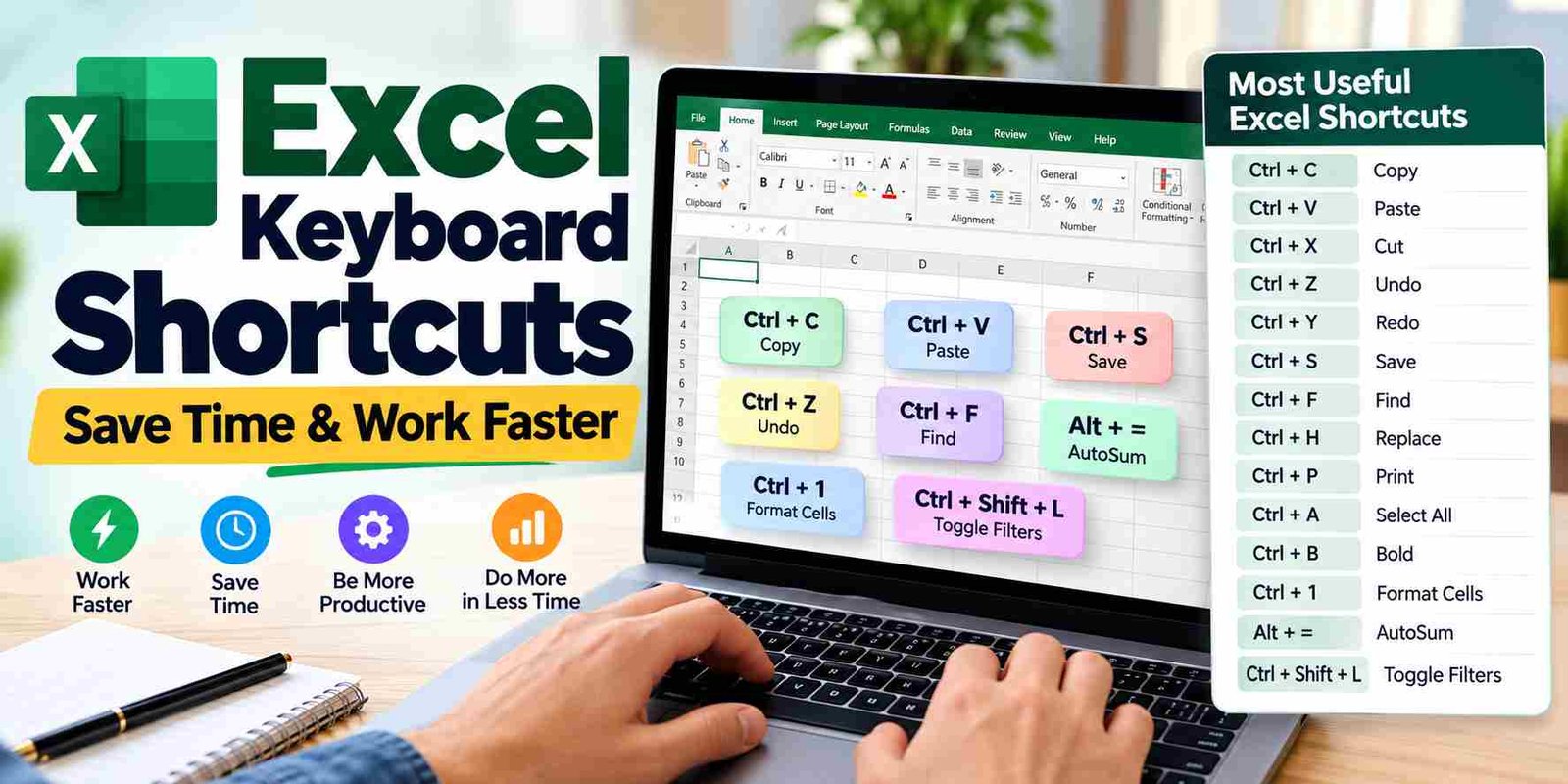
Here are a few common examples:
| Shortcut | Action |
|---|---|
| Ctrl + C | Copy |
| Ctrl + X | Cut |
| Ctrl + V | Paste |
| Ctrl + Z | Undo |
| Ctrl + Y | Redo |
| Ctrl + S | Save workbook |
| Ctrl + F | Find |
| Ctrl + H | Replace |
| Ctrl + P | |
| Ctrl + A | Select data or current region |
| Ctrl + B | Bold |
| Ctrl + I | Italic |
| Ctrl + U | Underline |
The value of shortcuts comes from repetition. Saving a workbook once with Ctrl + S is convenient, but using keyboard commands throughout an hour of spreadsheet work can make your overall workflow considerably more efficient.
Why Are Excel Keyboard Shortcuts Important?
Excel shortcuts are useful because many spreadsheet tasks are repeated again and again. Moving between cells, entering information, formatting headings, copying formulas, and checking data can become much faster when you rely on the keyboard.
They reduce unnecessary mouse movement
Suppose you have just entered data into a cell and want to move to the next cell, format a heading, copy a value, or find a particular entry. Reaching for the mouse each time interrupts your workflow.
Keyboard commands keep your hands closer to the main working area of the keyboard and can make repeated operations feel more natural.
They make repetitive work easier
Imagine entering marks for 50 students or updating a monthly sales report. You may need to copy formulas, adjust formatting, search for names, and move through long rows and columns.
A combination of navigation, editing, and formatting shortcuts can significantly simplify such tasks.
They are useful for beginners as well as advanced users
You do not need to be an Excel expert to use shortcuts. Basic commands such as copy, paste, save, undo, find, and formatting are easy to learn.
More advanced users can add shortcuts for selecting ranges, filling formulas, inserting cells, opening formatting dialogs, and navigating large worksheets.
Most Useful Excel Keyboard Shortcuts for Daily Work
The following shortcuts are among the most useful commands for regular Excel work. They are particularly helpful when working with tables, assignments, office records, or large datasets.
Ctrl + C — Copy
Ctrl + C copies the selected cell, range, text, formula, or other supported content.
For example, suppose cell A2 contains a student’s name and you want to copy it to another location. Select A2, press Ctrl + C, move to the destination cell, and press Ctrl + V.
The original content remains in the source location.
Ctrl + X — Cut
Ctrl + X removes the selected content from its current location so that it can be pasted somewhere else.
This is useful when rearranging data. For example, you may move a column, heading, or block of cells to another location.
Ctrl + V — Paste
Ctrl + V pastes copied or cut content into the selected destination.
It is one of the most frequently used Excel shortcuts.
The pasted result may include values, formulas, formatting, or other elements depending on what was copied and how it is pasted.
Ctrl + Z — Undo
Made a mistake? Ctrl + Z reverses the most recent action.
It is particularly useful when you accidentally delete content, apply unwanted formatting, or perform an operation you did not intend to make.
You can press Ctrl + Z repeatedly to undo a sequence of supported recent actions.
Ctrl + Y — Redo
Ctrl + Y reapplies an action that was previously undone or repeats certain operations.
A simple way to remember the pair is:
- Ctrl + Z = Undo
- Ctrl + Y = Redo
Ctrl + S — Save
Ctrl + S saves the current workbook.
Developing a habit of saving your work regularly can help reduce the risk of losing changes because of unexpected interruptions.
Ctrl + F — Find
Ctrl + F opens the Find tool.
Suppose a worksheet contains hundreds of names and you need to locate “Rahul Sharma.” Instead of scanning every row, use Ctrl + F and enter the name.
This is especially useful when working with large datasets.
Ctrl + H — Replace
Ctrl + H opens Find and Replace.
For example, you may need to replace one spelling throughout a worksheet. Rather than editing each occurrence manually, Find and Replace can help you locate and replace matching entries.
Always check the replacement criteria carefully before using a Replace All operation.
Ctrl + P — Print
Ctrl + P opens the print interface.
From there, you can review printing settings, page ranges, orientation, and printer options before printing your worksheet or workbook.
Ctrl + A — Select All
Ctrl + A selects the current data region in many Excel situations. Pressing it again can expand the selection in certain contexts.
This is useful when applying formatting or performing operations on a dataset.
Ctrl + B — Bold
Ctrl + B applies or removes bold formatting.
It is useful for headings, totals, important labels, and other content that needs visual emphasis.
Ctrl + I — Italic
Ctrl + I applies or removes italic formatting.
Ctrl + U — Underline
Ctrl + U applies or removes underline formatting.
These three formatting shortcuts are easy to learn and are commonly used in Excel as well as many other Microsoft applications.
Excel Keyboard Shortcuts for Navigation
Navigation becomes increasingly important as a worksheet grows. A sheet with 20 rows is easy to move around, but a dataset containing thousands of records requires faster methods.
Arrow Keys
The arrow keys move the active cell one cell at a time.
- Up Arrow — Move up one cell
- Down Arrow — Move down one cell
- Left Arrow — Move left
- Right Arrow — Move right
These are basic but essential.
Ctrl + Arrow Key
Ctrl + Arrow Key moves quickly to the edge of a contiguous data region.
For example, if a column contains continuous data from A1 through A500, selecting a cell within that range and pressing Ctrl + Down Arrow can move toward the bottom edge of the data region.
This is particularly useful for long lists.
Home
The Home key moves the active cell toward the beginning of the current row.
It is useful when working across wide worksheets.
Ctrl + Home
Ctrl + Home moves to the beginning of the worksheet, usually cell A1 or the first relevant starting location depending on worksheet state.
This is one of the easiest ways to return to the top-left area of a workbook.
Ctrl + End
Ctrl + End moves to the last used cell in the worksheet.
Remember that the last used cell can be affected by formatting or previously used content, so it does not always mean the bottom-right cell containing visible data.
Page Up and Page Down
These keys move the worksheet view up or down by a screen-sized amount.
They are useful when reviewing long sheets.
Ctrl + Page Up
Ctrl + Page Up moves to the previous worksheet tab.
Ctrl + Page Down
Ctrl + Page Down moves to the next worksheet tab.
These shortcuts are useful when a workbook contains multiple worksheets such as January, February, March, and so on.
Excel Shortcuts for Selecting Data
Selecting data efficiently is an important Excel skill.
Shift + Arrow Key
Hold Shift while pressing an arrow key to extend the current selection.
For example, selecting A1 and pressing Shift + Right Arrow can extend the selection to include the next cell.
This is useful for selecting a small range.
Ctrl + Shift + Arrow Key
Ctrl + Shift + Arrow Key extends the selection quickly toward the edge of a contiguous data region.
For example, if you need to select a long list of entries in a column, this shortcut can save considerable time compared with dragging the mouse.
Shift + Spacebar
Shift + Spacebar selects the entire row containing the active cell.
This can be useful when formatting or deleting a complete row.
Ctrl + Spacebar
Ctrl + Spacebar selects the entire column containing the active cell.
This is handy when applying formatting or adjusting a column.
Ctrl + A for a data range
When your cursor is inside a structured dataset, Ctrl + A can select the current data area. Depending on the context, pressing it again may extend the selection.
For beginners, it is worth practicing this shortcut on sample data before using it on important worksheets.
Excel Keyboard Shortcuts for Editing Cells
Editing directly from the keyboard makes data entry more convenient.
F2 — Edit the Active Cell
F2 puts the active cell into edit mode.
This is useful when you want to modify part of an existing value or formula rather than completely replace the cell contents.
For example, if A1 contains Total Marks and you need to change it to Total Marks Obtained, F2 lets you edit the existing entry.
Esc — Cancel the Current Action
Esc cancels the current editing operation or closes certain active modes.
For example, if you start entering a formula and decide not to continue, pressing Esc can cancel the entry.
Enter
The Enter key confirms the current entry and usually moves the active cell downward according to the current worksheet behavior.
Tab
Tab confirms the entry and moves the active cell to the next column.
This makes Tab particularly useful when entering information across rows.
Alt + Enter — Line Break in a Cell
Alt + Enter inserts a line break within a cell while editing it.
For example, a cell can contain:
Subject Name
and
English
on separate lines.
This can be useful for addresses, notes, labels, or multi-line descriptions.
Excel Shortcuts for Formatting
Formatting helps readers understand spreadsheets quickly. The keyboard can handle many common formatting tasks.
Ctrl + 1 — Format Cells
Ctrl + 1 opens the Format Cells dialog box.
This is one of the most useful formatting shortcuts because it provides access to multiple settings such as number formats, alignment, borders, fonts, and protection.
Ctrl + Shift + $ — Currency Format
This shortcut applies a currency-style number format.
The exact display can depend on Excel’s regional and formatting settings.
Ctrl + Shift + % — Percentage Format
This applies percentage formatting to selected numbers.
For example, a value such as 0.25 can be displayed as 25% depending on the format.
Ctrl + Shift + # — Date Format
This applies a date format to selected cells.
Ctrl + Shift + @ — Time Format
This applies a time format.
Ctrl + Shift + ! — Number Format
This applies a number format with comma separators and decimal places based on Excel’s standard formatting behavior.
These number-formatting shortcuts are useful when working with financial reports, percentages, dates, and numerical datasets.
Excel Keyboard Shortcuts for Rows and Columns
Managing rows and columns efficiently can make large spreadsheets easier to maintain.
Ctrl + Shift + Plus (+)
This shortcut can open the Insert command for cells, rows, or columns depending on the current selection.
For example, selecting an entire row before using the shortcut can lead to insertion of a new row.
Ctrl + Minus (-)
This shortcut opens the Delete command for selected cells, rows, or columns.
Be careful when deleting data because an unintended selection can remove more information than expected.
Double-clicking boundaries
This is not a keyboard shortcut, but it is worth knowing alongside keyboard methods. Double-clicking the boundary of a column header can often AutoFit the column width according to the content.
Combining mouse and keyboard techniques is perfectly reasonable. Excel efficiency does not mean avoiding the mouse completely.
Excel Keyboard Shortcuts for Formulas
Excel becomes far more powerful when formulas are involved. Several shortcuts are useful when creating and working with formulas.
= — Start a Formula
A formula normally begins with an equal sign.
For example:
=SUM(A1:A10)
Although this is not technically a shortcut, understanding it is essential for Excel formula work.
F4 — Repeat or Change References
When editing a formula, F4 can cycle through different cell-reference styles.
For example:
A1
can become:
$A$1
then:
A$1
and:
$A1
depending on repeated use.
This is especially useful when copying formulas and deciding which row or column should remain fixed.
Alt + = — AutoSum
Alt + = inserts an AutoSum formula in many common situations.
For example, if you have numerical values in A1:A10 and select the cell below them, pressing Alt + = can suggest a SUM formula.
This shortcut is extremely useful for quickly calculating totals.
Ctrl + ` — Show Formulas
Ctrl + ` toggles the worksheet view between formula results and formulas.
The backtick key is generally located near the Esc key on many keyboards.
This feature is useful when checking formulas across a worksheet.
Excel Shortcuts for Copying and Filling Data
Repeated data entry is one area where shortcuts can save a lot of time.
Ctrl + D — Fill Down
Ctrl + D fills the selected range downward using the top cell’s content or formula.
For example, suppose A2 contains a formula and you want to copy that formula down through A20. Select the appropriate range and use Ctrl + D.
Ctrl + R — Fill Right
Ctrl + R fills the selected range toward the right using the leftmost cell.
This can be useful when extending a formula or repeating a value across columns.
Ctrl + C and Ctrl + V — Copy and Paste
The traditional copy-and-paste pair remains essential for moving formulas, values, and formatting.
However, remember that copying a formula can change relative references. For example, a formula referencing A1 may adjust when pasted to a different location.
Understanding relative and absolute references is therefore just as important as knowing the shortcut itself.
Excel Shortcuts for Worksheets
A workbook may contain many sheets, especially for monthly records, class sections, departments, or different categories of information.
Shift + F11
Shift + F11 inserts a new worksheet in many Excel versions.
Ctrl + Page Up
Move to the previous worksheet.
Ctrl + Page Down
Move to the next worksheet.
Using these shortcuts can be much quicker than repeatedly clicking worksheet tabs when several sheets are involved.
Excel Keyboard Shortcuts for Data Management
Large datasets often require sorting, filtering, and checking information.
Ctrl + Shift + L — Turn Filters On or Off
Ctrl + Shift + L toggles filters for a selected data range or table area.
For example, a student marksheet could contain columns such as:
| Name | Class | Subject | Marks |
|---|---|---|---|
| Amit | 10 | English | 78 |
| Neha | 10 | English | 91 |
| Ravi | 10 | English | 68 |
After applying filters, you can quickly display only the records that meet specific criteria.
This is particularly useful with large lists.
Alt + Down Arrow — Open a Drop-Down
Alt + Down Arrow can open a drop-down list in several Excel contexts, including certain data-validation lists or filter controls.
It is useful when you want to interact with list options without immediately reaching for the mouse.
Excel Shortcuts for Tables and Data Analysis
Excel tables make data easier to organize and analyze. Shortcuts can help you work faster once the data is structured.
When you work with a table, keyboard navigation can help you move among records without repeatedly scrolling or selecting areas manually.
For example, imagine a job-application tracking sheet with columns for:
- Candidate Name
- Application Date
- Post
- Status
- Document Verification
- Remarks
Using filters, selection shortcuts, copy and fill commands, and navigation shortcuts can make updating such a sheet far easier.
Keyboard shortcuts become particularly helpful when the same action needs to be repeated across hundreds of rows.
Excel Keyboard Shortcuts for Quick Access and Commands
Some keyboard combinations use the Alt key to access Excel’s ribbon commands.
Alt Key Tips
Pressing Alt in Excel displays Key Tips for ribbon commands.
The exact letters or sequences depend on your Excel version and current interface.
This provides a powerful way to navigate many Excel commands entirely from the keyboard.
For users who prefer keyboard-driven workflows, Alt-based commands can be worth learning after mastering the basic shortcuts.
A Practical Excel Shortcut Cheat Sheet
The following table gives you a compact collection of useful Excel Keyboard Shortcuts for everyday work.
| Shortcut | Function |
|---|---|
| Ctrl + C | Copy |
| Ctrl + X | Cut |
| Ctrl + V | Paste |
| Ctrl + Z | Undo |
| Ctrl + Y | Redo |
| Ctrl + S | Save |
| Ctrl + P | |
| Ctrl + F | Find |
| Ctrl + H | Replace |
| Ctrl + A | Select data/current region |
| Ctrl + B | Bold |
| Ctrl + I | Italic |
| Ctrl + U | Underline |
| Ctrl + 1 | Format Cells |
| F2 | Edit active cell |
| F4 | Change reference style/repeat supported actions |
| Alt + = | AutoSum |
| Ctrl + D | Fill Down |
| Ctrl + R | Fill Right |
| Ctrl + Shift + L | Toggle filters |
| Ctrl + Home | Move to beginning |
| Ctrl + End | Move to last used cell |
| Ctrl + Page Up | Previous worksheet |
| Ctrl + Page Down | Next worksheet |
| Shift + Spacebar | Select row |
| Ctrl + Spacebar | Select column |
| Shift + F11 | Insert worksheet |
| Alt + Enter | Insert line break in cell |
| Ctrl + ` | Show or hide formulas |
| Ctrl + Arrow | Move to edge of data region |
| Ctrl + Shift + Arrow | Select toward edge of data region |
Which Excel Shortcuts Should Beginners Learn First?
Trying to memorize everything immediately can be frustrating. A better approach is to learn shortcuts in groups.
Start with these 10
For a beginner, these commands provide a strong foundation:
- Ctrl + C — Copy
- Ctrl + V — Paste
- Ctrl + X — Cut
- Ctrl + Z — Undo
- Ctrl + Y — Redo
- Ctrl + S — Save
- Ctrl + F — Find
- Ctrl + A — Select
- Ctrl + B — Bold
- Ctrl + 1 — Format Cells
Once these feel natural, add navigation shortcuts such as Ctrl + Home, Ctrl + End, and Ctrl + Arrow.
Then move on to formulas, filtering, and advanced selection.
How to Memorize Excel Keyboard Shortcuts Easily
Memorizing shortcuts becomes easier when you connect each command with an action rather than trying to memorize random letters.
For example:
- C = Copy
- V = Paste
- X = Cut
- F = Find
- H = Replace
- S = Save
- P = Print
- B = Bold
- I = Italic
- U = Underline
You can also practice shortcuts while doing real work.
Instead of clicking Save every time, use Ctrl + S. Instead of selecting Copy from the menu, use Ctrl + C. After repeated practice, your fingers begin to remember the commands automatically.
Learn shortcuts by category
A useful learning sequence is:
Week 1: Copy, paste, cut, undo, redo, save
Week 2: Find, replace, select, navigation
Week 3: Formatting and worksheet management
Week 4: Formula and data-management shortcuts
You do not have to follow a rigid schedule. The main idea is to learn a small set at a time.
Practical Examples of Excel Keyboard Shortcuts
Example 1: Copying a formula
Suppose cell D2 contains:
=B2+C2
You want to apply the formula to rows 3 through 20.
Instead of copying the formula with the mouse, select the required range and use Ctrl + D where appropriate to fill downward.
Excel adjusts relative references as the formula is filled.
Example 2: Finding a student
Your worksheet contains 500 student records and you need to find “Priya.”
Press Ctrl + F, type the name, and search.
This is much quicker than manually scanning rows.
Example 3: Formatting an amount
Suppose a worksheet contains a column of financial amounts. Select the cells and use Ctrl + 1 to open Format Cells and choose an appropriate number or currency format.
This is useful when you need more control than a simple toolbar button provides.
Example 4: Reviewing formulas
You suspect that a calculation may be incorrect.
Use Ctrl + ` to display formulas instead of their calculated results. This can make it easier to inspect how different cells are calculating their values.
Common Mistakes When Using Excel Shortcuts
Shortcuts save time only when you use them carefully.
Using the wrong selection
A command may work correctly but produce an unexpected result if too many cells are selected.
For example, deleting or formatting an entire column when you intended to work on a small range can create unnecessary problems.
Forgetting that formulas may change
When you copy a formula, relative references can adjust.
For example, copying:
=A1+B1
one row down can result in:
=A2+B2
This is normally useful, but not always what you want. Use absolute references such as $A$1 when a specific reference needs to remain fixed.
Deleting instead of clearing
Keyboard commands can sometimes make deletion feel very quick. Before using them on important data, confirm exactly what is selected and what the command will do.
Learning too many shortcuts at once
Trying to memorize dozens of commands in a single session can make the process harder.
Start with the shortcuts you genuinely use.
Ignoring the mouse completely
There is no requirement to use only the keyboard. Some tasks are faster with a mouse, especially when selecting irregular areas or interacting visually with charts and formatting.
The goal is an efficient workflow, not a competition over how few mouse clicks you can make.
Excel Keyboard Shortcuts for Students
Students can use Excel shortcuts for assignments, project work, practical examinations, marksheets, attendance records, and data analysis.
For example, a student preparing a project may need to:
- Enter data
- Format headings
- Calculate totals
- Sort information
- Search for records
- Copy formulas
- Print a final report
Using basic keyboard commands reduces repetitive actions and helps students focus on the actual work.
For computer-awareness preparation, it is also useful to know common shortcuts and their purposes.
Questions may ask things such as:
Which shortcut is used to save a workbook?
Answer: Ctrl + S
Which shortcut opens Find?
Answer: Ctrl + F
Which shortcut opens Format Cells?
Answer: Ctrl + 1
Learning both the shortcut and its purpose is more useful than memorizing the key combination alone.
Excel Shortcuts for Office and Professional Work
Office users frequently work with repetitive spreadsheets. Consider an employee maintaining a monthly report.
The workflow may include:
- Opening the workbook
- Updating records
- Copying formulas
- Filtering entries
- Finding specific records
- Formatting totals
- Reviewing formulas
- Saving the updated file
- Printing or sharing the report
Many of these tasks have keyboard shortcuts.
For example, Ctrl + F helps locate an entry, Ctrl + Shift + L manages filters, Ctrl + D can fill formulas downward, Ctrl + 1 opens formatting settings, and Ctrl + S saves the workbook.
The advantage becomes clearer when the same operations are repeated every day.
How to Practice Excel Keyboard Shortcuts
The easiest way to improve is to practice directly inside Excel.
Create a simple worksheet with columns such as:
| Name | Subject | Marks | Grade |
|---|---|---|---|
| Aman | English | 78 | B |
| Neha | Maths | 92 | A |
| Ravi | Science | 85 | A |
Then practice:
- Copying rows
- Searching for names
- Applying bold formatting
- Selecting rows and columns
- Filling formulas
- Applying filters
- Moving between worksheets
- Showing formulas
- Saving the workbook
Repeat the same actions using the keyboard rather than the mouse.
You may initially feel slower. That is normal. The objective during practice is not maximum speed on day one. It is developing familiarity.
A Simple Strategy to Become Faster in Excel
A useful Excel workflow is to combine shortcuts rather than use them individually.
For example:
Ctrl + F → Find a record
Esc → Return to the worksheet
Ctrl + C → Copy the required value
Ctrl + Arrow → Move quickly through data
Ctrl + 1 → Format the selected cells
Ctrl + S → Save the workbook
Once these commands become familiar, you begin to move through a spreadsheet with less interruption.
The biggest improvement often comes not from memorizing the most shortcuts, but from identifying the tasks you perform repeatedly and learning the keyboard command for those tasks.
Important Points to Remember About Excel Shortcuts
Excel shortcuts can differ slightly depending on the operating system, Excel version, keyboard layout, and context in which the command is used.
Some shortcuts also behave differently on Windows and Mac. The shortcuts listed in this article primarily refer to the commonly used Windows version of Microsoft Excel.
Keep the following points in mind:
- Test unfamiliar shortcuts on sample data first.
- Save your workbook regularly.
- Be careful when using selection and deletion shortcuts.
- Learn the purpose of each shortcut instead of memorizing keys blindly.
- Use absolute references when formulas need fixed cells.
- Combine keyboard shortcuts with mouse actions when that is more practical.
- Focus first on shortcuts that match your daily tasks.
Frequently Asked Questions
What are Excel Keyboard Shortcuts?
Excel Keyboard Shortcuts are key combinations used to perform common Excel commands quickly. They can help with copying, pasting, formatting, navigating worksheets, searching data, entering formulas, and managing workbooks.
What is the most commonly used Excel shortcut?
There is no single shortcut that is useful for every task, but Ctrl + C, Ctrl + V, Ctrl + Z, and Ctrl + S are among the most frequently used commands in everyday spreadsheet work.
What is the shortcut to save an Excel file?
Ctrl + S is the standard shortcut for saving the current Excel workbook.
What is the shortcut to copy and paste in Excel?
Use Ctrl + C to copy selected content and Ctrl + V to paste it.
What does Ctrl + Z do in Excel?
Ctrl + Z undoes the most recent supported action. It is useful when you accidentally edit, delete, or format something incorrectly.
What does Ctrl + 1 do in Excel?
Ctrl + 1 opens the Format Cells dialog box, where you can manage settings such as number format, alignment, font, border, and protection.
What is the Excel shortcut for AutoSum?
Alt + = is commonly used to insert an AutoSum formula.
Which shortcut finds data in Excel?
Ctrl + F opens the Find feature, allowing you to search for text, numbers, or other matching content in a worksheet.
How can I select an entire row in Excel using the keyboard?
Press Shift + Spacebar to select the entire row containing the active cell.
How can I select an entire column in Excel?
Press Ctrl + Spacebar to select the entire column containing the active cell.
What shortcut shows formulas in Excel?
Ctrl + ` toggles the worksheet between displaying formula results and the formulas themselves.
Are Excel shortcuts the same on Windows and Mac?
Not always. Many Excel shortcuts differ between Windows and Mac, particularly those involving the Ctrl, Command, Option, and function keys. Always check the shortcut for the platform you are using.
Conclusion
Learning Excel Keyboard Shortcuts is one of the simplest ways to make spreadsheet work more comfortable and efficient. You do not need to memorize every available command. Start with the shortcuts you use most often, such as Ctrl + C, Ctrl + V, Ctrl + Z, Ctrl + S, Ctrl + F, and Ctrl + 1, and then gradually add navigation, formula, formatting, and data-management commands.
The real benefit comes through regular use. A shortcut that feels unfamiliar today can become automatic after repeated practice. For students, office professionals, teachers, and anyone who works with spreadsheets, this small change in working style can make routine Excel tasks easier to manage.
Build your shortcut knowledge step by step, practice on real worksheets, and always pay attention to what cells or ranges are selected before performing an important operation. With consistent practice, Excel Keyboard Shortcuts can become a natural part of your everyday spreadsheet workflow.