
Microsoft Excel becomes much more useful when it can make decisions instead of simply storing or calculating numbers. This is where the IF AND OR LOGICAL Functions become important. These functions help Excel check conditions, compare values, and return different results depending on whether a condition is true or false.
For example, suppose a teacher has a list of students and wants Excel to display “Pass” when marks are 40 or above and “Fail” when marks are below 40. An IF function can handle this automatically. Similarly, a company may want to identify employees who have completed both required training programs. In that situation, the AND function can check multiple conditions together. The OR function is useful when even one of several conditions is enough to produce a particular result.
These logical functions are especially useful in student marksheets, attendance records, salary sheets, result preparation, data analysis, office reports, inventory management, eligibility checking, and many other Excel tasks.
The good thing is that you do not need to be an advanced Excel user to understand them. Once you learn how a condition works and how Excel evaluates TRUE and FALSE, these functions become much easier to use.
This guide explains the IF AND OR LOGICAL Functions from the basics to practical combinations, common mistakes, and useful examples.
See More:-
- MS Word Tutorial
- MS Excel Tutorial
- MS PowerPoint Tutorial
- MS OneNote Turorial
- Excel Basic Functions: Complete Guide, Formulas, Examples & Tips
- How to use VLOOKUP and XLOOKUP in Excel Step by Step
- How to Create and Use Pivot Tables in Excel for Beginners
- Most Useful Excel Keyboard Shortcuts to Save Time: Complete Guide
- How to Remove Duplicate Data in Excel – Easy Step-by-Step Guide
What Are IF AND OR LOGICAL Functions in Excel?
The IF, AND, and OR functions are logical functions in Excel that help the spreadsheet evaluate conditions and produce results based on those conditions.
The IF function checks one condition and returns one result when the condition is TRUE and another result when it is FALSE. The AND function checks multiple conditions and returns TRUE only when all conditions are TRUE. The OR function checks multiple conditions and returns TRUE when at least one condition is TRUE.
A simple overview is given below:
| Function | Main Purpose | TRUE Result |
|---|---|---|
| IF | Makes a decision based on a condition | Returns one specified result |
| AND | Checks multiple conditions together | TRUE only when all conditions are TRUE |
| OR | Checks multiple conditions as alternatives | TRUE when at least one condition is TRUE |
These functions can also be combined. For example, you can use AND or OR inside an IF formula to create more advanced decision-making rules.
Why Are Logical Functions Important in Excel?
Logical functions save time because they allow Excel to make decisions automatically.
Imagine that you have 5,000 student records. Manually checking each student’s marks and entering Pass or Fail would take a lot of time and could lead to mistakes. A simple IF formula can apply the same rule to the entire dataset.
Logical functions are useful because they can:
- Automate repetitive decisions.
- Reduce manual errors.
- Make large datasets easier to analyze.
- Create automatic result systems.
- Identify records that meet specific conditions.
- Simplify eligibility checks.
- Build useful reports and dashboards.
- Combine multiple rules into a single formula.
For students, these functions are also valuable because logical formulas are commonly used in practical Excel assignments, computer courses, office work, and spreadsheet-based questions.
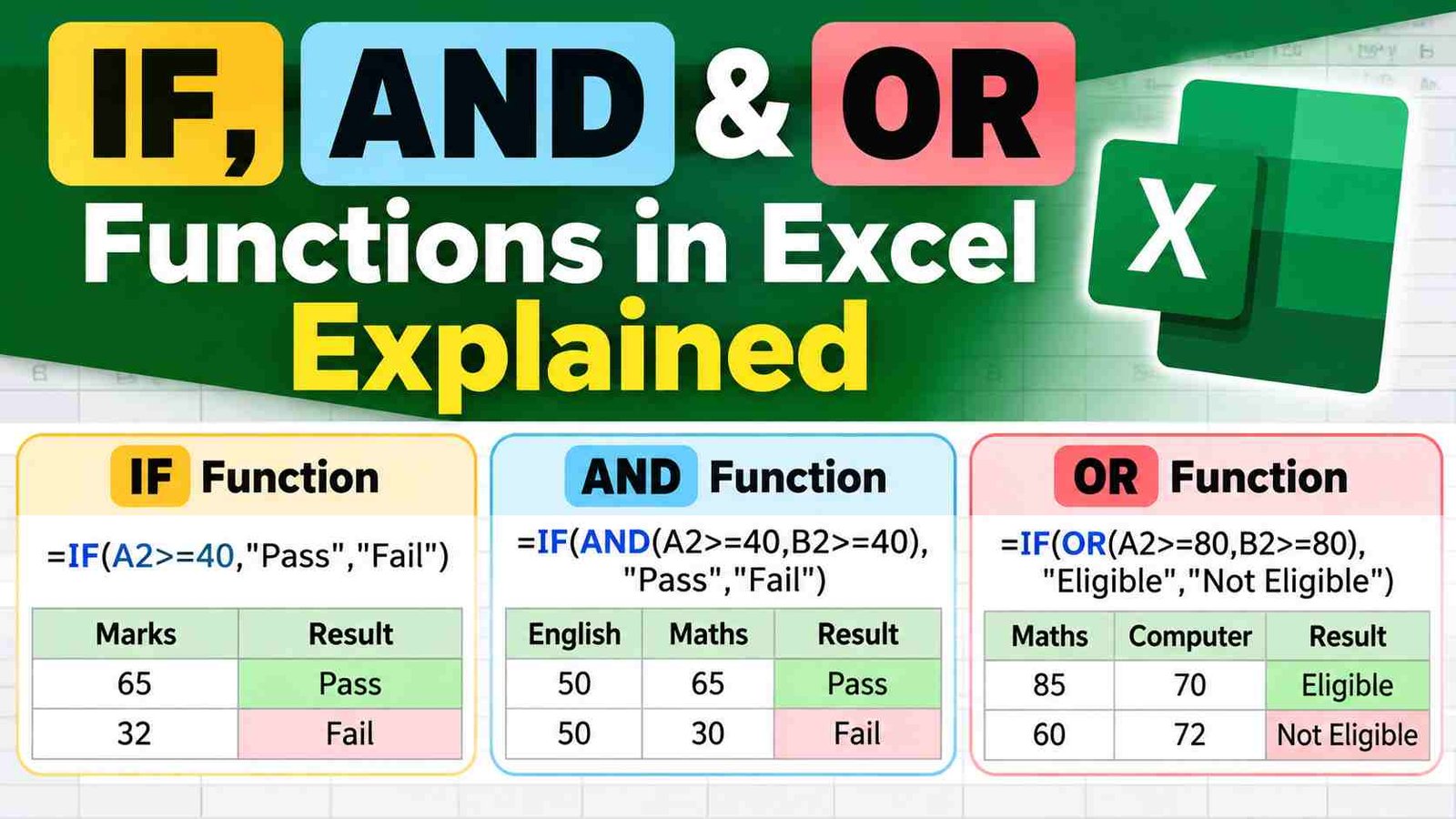
Table of Contents
Understanding Conditions in Excel
Before learning IF AND and OR it helps to understand what Excel means by a condition.
A condition is a statement that Excel can evaluate as either TRUE or FALSE.
For example:
=A1>50
If A1 contains 70, the result is TRUE.
If A1 contains 30, the result is FALSE.
Some commonly used comparison operators are:
| Operator | Meaning | Example |
|---|---|---|
= | Equal to | A1=100 |
> | Greater than | A1>50 |
< | Less than | A1<50 |
>= | Greater than or equal to | A1>=50 |
<= | Less than or equal to | A1<=50 |
<> | Not equal to | A1<>50 |
These operators are the building blocks of many logical formulas in Excel.
What Is the IF Function in Excel?
The IF function checks a condition and returns one result if the condition is TRUE and another result if the condition is FALSE.
The basic syntax is:
=IF(logical_test, value_if_true, value_if_false)
Here:
- logical_test is the condition Excel needs to check.
- value_if_true is the result returned when the condition is TRUE.
- value_if_false is the result returned when the condition is FALSE.
Simple IF Example
Suppose cell A2 contains a student’s marks.
You want to display Pass when marks are 40 or more.
Use:
=IF(A2>=40,"Pass","Fail")
If A2 is 65, Excel returns:
Pass
If A2 is 32, Excel returns:
Fail
This is one of the easiest ways to understand the IF function: Excel asks a question and then chooses the appropriate answer.
IF Function With Numbers
IF can return numerical results as well as text.
Suppose A2 contains sales of ₹50,000 or more. You want to give a bonus of ₹5,000 if the target is reached and ₹0 otherwise.
=IF(A2>=50000,5000,0)
If A2 is 60,000, the result is 5,000.
If A2 is 42,000, the result is 0.
This approach can be useful in salary calculations, sales reports, incentives, and performance sheets.
IF Function With Text
IF can also compare text values.
Suppose B2 contains the status of an application:
Approved
You want Excel to display Eligible when the status is Approved.
=IF(B2="Approved","Eligible","Not Eligible")
Excel compares the value in B2 with the word "Approved" and returns the appropriate result.
Remember that text values are normally placed inside quotation marks.
IF Function With Blank Cells
IF is often used to deal with empty cells.
Suppose A2 contains a student’s name and B2 contains marks. You do not want Excel to show Fail before marks have been entered.
You can use:
=IF(B2="","",IF(B2>=40,"Pass","Fail"))
The formula first checks whether B2 is blank.
If B2 is blank, it returns an empty result.
If B2 contains marks, it then checks whether the marks are 40 or more.
This is a practical technique when creating marksheets and forms where data is entered gradually.
Nested IF Functions
A nested IF means placing one IF function inside another IF function.
Suppose you want to classify marks like this:
- 80 or above = Excellent
- 60 to 79 = Good
- 40 to 59 = Pass
- Below 40 = Fail
You could use:
=IF(A2>=80,"Excellent",IF(A2>=60,"Good",IF(A2>=40,"Pass","Fail")))
Excel checks the conditions from left to right.
If A2 is 85, the first condition is TRUE, so Excel returns Excellent.
If A2 is 70, the first condition is FALSE, so Excel checks the next IF and returns Good.
Nested IF formulas are useful, but they can become difficult to read when too many conditions are added. For larger decision systems, functions such as IFS, XLOOKUP, or lookup tables may sometimes be easier to maintain.
What Is the AND Function in Excel?
The AND function checks two or more conditions and returns TRUE only when all conditions are TRUE.
Its syntax is:
=AND(logical1, logical2, ...)
For example:
=AND(A2>=40,B2>=40)
This formula returns TRUE only when both A2 and B2 contain values of 40 or more.
If one condition fails, the result is FALSE.
Simple AND Example
Suppose a student must score at least 40 marks in both English and Mathematics to satisfy a requirement.
English marks are in A2 and Mathematics marks are in B2.
Use:
=AND(A2>=40,B2>=40)
If A2 is 50 and B2 is 65, the result is TRUE.
If A2 is 50 and B2 is 30, the result is FALSE.
The important idea is:
AND means every condition must be satisfied.
Using AND With IF
AND becomes even more useful when it is placed inside an IF formula.
Suppose a student is considered eligible only when:
- Marks are at least 50.
- Attendance is at least 75%.
Assume marks are in A2 and attendance is in B2.
Use:
=IF(AND(A2>=50,B2>=75),"Eligible","Not Eligible")
Excel first uses AND to check both conditions.
Only when both conditions are TRUE does IF return Eligible.
This pattern is extremely useful:
=IF(AND(condition1,condition2),"Yes","No")
You can add additional conditions when necessary.
What Is the OR Function in Excel?
The OR function checks multiple conditions and returns TRUE when at least one condition is TRUE.
Its syntax is:
=OR(logical1, logical2, ...)
Suppose a student can qualify for a special opportunity if their marks are at least 90 or their attendance is 90% or higher.
Use:
=OR(A2>=90,B2>=90)
If A2 is 95 and B2 is 70, the result is TRUE because one condition is satisfied.
If A2 is 65 and B2 is 72, the result is FALSE because neither condition is satisfied.
The key idea is:
OR means one or more conditions can be true.
Using OR With IF
OR is often combined with IF.
Suppose an employee can receive a particular benefit if they are either a manager or have completed a required certification.
If the employee’s role is in A2 and certification status is in B2:
=IF(OR(A2="Manager",B2="Completed"),"Eligible","Not Eligible")
If either condition is true, Excel returns Eligible.
This is useful for situations where there are multiple acceptable paths to the same outcome.
Difference Between IF, AND, and OR
These functions are related, but they do different jobs.
Think of them this way:
IF = Decide
AND = All conditions must be true
OR = At least one condition must be true
For example, consider these formulas:
=IF(A2>=50,"Pass","Fail")
This makes a decision.
=AND(A2>=50,B2>=50)
This checks whether both conditions are satisfied.
=OR(A2>=50,B2>=50)
This checks whether at least one condition is satisfied.
A combined formula can use all of them:
=IF(AND(A2>=50,B2>=50),"Qualified","Not Qualified")
Here, IF produces the final answer while AND performs the multiple-condition check.
IF With AND and OR Together
Once you understand the individual functions, you can combine them to build more realistic rules.
Suppose a student is eligible if:
- They have scored at least 60 in the main examination, AND
- They either have attendance of at least 75% OR have a valid exemption.
Assume:
- Marks are in A2.
- Attendance is in B2.
- Exemption status is in C2.
You can use:
=IF(AND(A2>=60,OR(B2>=75,C2="Yes")),"Eligible","Not Eligible")
This may look complicated at first, but break it into smaller parts.
First:
OR(B2>=75,C2="Yes")
means the student needs either sufficient attendance or an approved exemption.
Then:
AND(A2>=60,OR(B2>=75,C2="Yes"))
means the student must have the required marks and at least one of the attendance conditions.
Finally:
IF(...,"Eligible","Not Eligible")
turns the logical result into a clear message.
This is the basic idea behind more advanced Excel decision-making.
Practical Student Marksheet Example
Suppose you have this data:
| Student | English | Maths | Science |
|---|---|---|---|
| Rahul | 65 | 72 | 80 |
| Neha | 55 | 38 | 70 |
| Aman | 82 | 75 | 88 |
Suppose a student must score at least 40 in all three subjects.
The formula can be:
=IF(AND(B2>=40,C2>=40,D2>=40),"Pass","Fail")
Rahul will receive Pass.
Neha will receive Fail because Mathematics is below 40.
Aman will receive Pass.
This is much safer than manually checking every subject.
Example of OR for Student Eligibility
Suppose a course accepts students who have either:
- A Mathematics score of 80 or above, OR
- A Computer Science score of 80 or above.
If Mathematics is in B2 and Computer Science is in C2:
=IF(OR(B2>=80,C2>=80),"Eligible","Not Eligible")
A student does not need to satisfy both conditions.
One successful condition is enough.
IF, AND, and OR for Attendance
Attendance records are another common use.
Suppose a student should be marked eligible for an examination when:
- Attendance is at least 75%.
Formula:
=IF(A2>=75,"Allowed","Not Allowed")
If the rule requires both attendance and assignment completion:
=IF(AND(A2>=75,B2="Complete"),"Allowed","Not Allowed")
If either of two attendance-related conditions is acceptable:
=IF(OR(A2>=75,B2="Approved Exemption"),"Allowed","Not Allowed")
These examples demonstrate how the same functions can be adapted to different rules.
IF, AND, and OR for Job or Recruitment Data
Logical functions can also be useful when maintaining recruitment-related records.
Suppose a candidate needs:
- Graduation status = Yes
- Age = 18 or above
- Application status = Submitted
You can create an eligibility formula such as:
=IF(AND(A2="Yes",B2>=18,C2="Submitted"),"Eligible","Check Details")
Here, Excel checks all three conditions.
For an actual recruitment process, the exact eligibility rules should always come from the relevant official notification. Excel can automate a rule that you provide, but it does not determine whether that rule is legally or officially correct.
Using IF With Multiple Text Conditions
Logical formulas can also compare categories.
Suppose a worksheet contains employee departments in A2. You want to display a special message when the department is either HR or Finance.
Use:
=IF(OR(A2="HR",A2="Finance"),"Review","Normal")
If A2 contains HR, the formula returns Review.
If A2 contains Finance, it also returns Review.
For any other department, it returns Normal.
Common Mistakes in IF, AND, OR Formulas
Beginners usually struggle with a few recurring issues.
Forgetting Quotation Marks Around Text
Incorrect:
=IF(A2>=40,Pass,Fail)
Correct:
=IF(A2>=40,"Pass","Fail")
Text results such as Pass and Fail should normally be written inside quotation marks.
Using AND When OR Is Needed
Suppose a rule says:
“Eligible if Mathematics is 80 or Computer Science is 80.”
Using:
=AND(A2>=80,B2>=80)
would require both scores to be 80 or more.
The correct logic is:
=OR(A2>=80,B2>=80)
Choosing the correct logical function is more important than memorizing the formula structure.
Missing Parentheses
A complex formula can stop working because of one missing bracket.
For example:
=IF(AND(A2>=40,B2>=40),"Pass","Fail")
Make sure each opening parenthesis has a matching closing parenthesis.
Comparing Numbers as Text
Sometimes numbers are stored as text. In such cases, logical comparisons may not behave as expected.
For example, a cell that looks like 50 may actually contain text "50".
Cleaning and properly formatting imported data can prevent this problem.
Using Too Many Nested IFs
Nested IF formulas are useful, but a formula with many levels can become difficult to understand and maintain.
Before creating a very large nested IF formula, consider whether IFS, XLOOKUP, a helper table, or another approach would make the worksheet easier to manage.
How to Write Logical Formulas Step by Step
A useful way to build these formulas is to avoid writing everything at once.
Suppose the final rule is:
“Employee gets the benefit when salary is at least 30,000 and either experience is at least 2 years or designation is Senior.”
Start with the first condition:
=A2>=30000
Then create the OR condition:
=OR(B2>=2,C2="Senior")
Combine them using AND:
=AND(A2>=30000,OR(B2>=2,C2="Senior"))
Finally, place that logic inside IF:
=IF(AND(A2>=30000,OR(B2>=2,C2="Senior")),"Eligible","Not Eligible")
Breaking complicated formulas into smaller pieces makes them much easier to understand and troubleshoot.
Logical Functions With Dates
IF can also compare dates.
Suppose A2 contains an application deadline. You want to check whether the date has passed.
For example:
=IF(A2<TODAY(),"Expired","Active")
The formula compares the date in A2 with the current date.
You can also combine date conditions using AND.
For example:
=IF(AND(A2>=DATE(2026,1,1),A2<=DATE(2026,12,31)),"Within Year","Outside Year")
This checks whether a date falls within the specified year.
When working with real deadlines, remember that date formats and time values can affect results.
Logical Functions With Text and Numbers Together
Excel formulas do not have to compare only numbers or only text.
You can combine different data types in one rule.
For example:
=IF(AND(A2>=18,B2="Yes"),"Eligible","Not Eligible")
Here:
- A2 is being checked as a number.
- B2 is being checked as text.
This is common in registration forms, eligibility sheets, employee records, and student databases.
TRUE and FALSE in Excel
The AND and OR functions naturally return logical values:
=AND(10>5,20>15)
Result:
TRUE
Another example:
=OR(10<5,20>15)
Result:
TRUE
You can also use TRUE and FALSE directly inside calculations and logical tests.
Understanding these two values helps when working with more advanced Excel formulas.
Can IF Return a Blank Result?
Yes. You can use two quotation marks to return a blank-looking result.
Example:
=IF(A2="","",A2*10)
When A2 is blank, the formula returns an empty string.
This is useful for keeping reports visually clean while users are still entering data.
Can IF Be Used With Errors?
Yes. Although IF can be used to avoid certain error situations, Excel also provides dedicated functions such as IFERROR and IFNA.
For example:
=IFERROR(A2/B2,0)
This returns 0 when the calculation produces an error.
IFERROR is not a replacement for IF, AND, or OR. It serves a different purpose: handling formula errors gracefully.
Understanding this distinction helps prevent overly complicated formulas.
When Should You Use IF, AND, or OR?
The easiest way to choose the function is to ask what the rule actually means.
Use IF when you need a result based on a condition.
Example:
=IF(A2>=50,"Pass","Fail")
Use AND when every condition must be satisfied.
Example:
=AND(A2>=50,B2>=50)
Use OR when one or more conditions can be satisfied.
Example:
=OR(A2>=50,B2>=50)
Use IF + AND when several conditions must be true and you want a readable result.
Use IF + OR when multiple alternatives can lead to the same result.
Use IF + AND + OR when your rule contains both mandatory and alternative conditions.
Comparison of IF, AND, and OR
| Feature | IF | AND | OR |
|---|---|---|---|
| Main role | Makes a decision | Tests all conditions | Tests alternative conditions |
| Checks one or more conditions | Yes | Yes | Yes |
| Returns TRUE/FALSE by default | No | Yes | Yes |
| Can return custom text | Yes | Not directly | Not directly |
| Common combination | AND, OR | IF, OR | IF, AND |
| Best for | Decision-based output | Mandatory conditions | Alternative conditions |
Advantages of Logical Functions in Excel
Logical functions make spreadsheets more practical and interactive.
They Reduce Manual Work
Instead of checking thousands of records manually, you can create one formula and copy it down.
They Improve Consistency
When the same logical rule is applied to every row, there is less chance of making different decisions for similar records.
They Make Reports Dynamic
When a value changes, the formula can automatically update the result.
For example, if a student’s marks increase from 35 to 45, a Pass/Fail formula can immediately change from Fail to Pass.
They Help With Data Analysis
Logical formulas can categorize records, flag exceptions, identify incomplete entries, and highlight conditions that need attention.
They Are Easy to Combine
IF, AND, and OR can be combined with other Excel functions to create powerful workflows.
Limitations of IF, AND, and OR
Logical functions are useful, but they are not always the best solution for every situation.
One limitation is that very complex formulas can become difficult to read.
A second issue is maintenance. If a business rule changes frequently, editing a long nested formula can be inconvenient.
Another limitation is that the formula only works according to the conditions you define. Excel cannot automatically understand the meaning behind a business rule. You must translate that rule correctly into logical expressions.
For large worksheets, clear column names, helper columns, tables, and lookup functions may make the overall workbook easier to manage.
Tips for Students Learning Logical Functions
Students often try to memorize formulas without understanding the logic. That usually makes difficult questions harder.
Instead, focus on the meaning of the words.
When a question says “and”, think about AND.
When it says “or”, think about OR.
When it says “if”, think about IF.
For example:
“A student will pass if marks are 40 or more.”
Think:
IF marks >= 40
“A student must pass English and Mathematics.”
Think:
AND English >= 40, Mathematics >= 40
“A student can qualify with Mathematics or Computer Science above 80.”
Think:
OR Mathematics >= 80, Computer Science >= 80
This method helps you construct formulas logically rather than memorizing them word for word.
Exam-Oriented Questions About Logical Functions
Excel questions in basic computer exams may ask:
Which function checks whether all given conditions are TRUE?
Answer: AND
Which function checks whether at least one condition is TRUE?
Answer: OR
Which function returns one value when a condition is TRUE and another when it is FALSE?
Answer: IF
Another common question is to identify the correct formula.
Suppose marks are in A2 and the student passes with 40 or more:
=IF(A2>=40,"Pass","Fail")
Knowing the purpose of each function makes these questions easier to solve.
A Simple Memory Trick
A simple way to remember these functions is:
IF = Decision
AND = All
OR = One or more
So when reading a problem:
- Look for the decision → IF.
- Look for mandatory conditions → AND.
- Look for alternative conditions → OR.
This small trick is particularly helpful for beginners.
Practical Workflow for Building an Excel Eligibility Sheet
Suppose you are creating an eligibility checker.
Start by putting the raw information into separate columns.
| Candidate | Age | Qualification | Marks | Status |
|---|---|---|---|---|
| Candidate 1 | 22 | Graduate | 65 | Submitted |
| Candidate 2 | 19 | Graduate | 45 | Submitted |
| Candidate 3 | 24 | 12th | 80 | Submitted |
You might define an internal rule such as:
- Age must be at least 21.
- Qualification must be Graduate.
- Marks must be at least 50.
- Application status must be Submitted.
A formula could be:
=IF(AND(B2>=21,C2="Graduate",D2>=50,E2="Submitted"),"Eligible","Not Eligible")
This demonstrates how IF and AND work together in a practical sheet.
For actual recruitment, admission, scholarship, or examination eligibility, always enter the conditions exactly as specified by the official authority.
How to Copy Logical Formulas Down a Column
Once you have created a formula in the first row, you can usually copy it down using the fill handle.
For example, if F2 contains:
=IF(AND(B2>=40,C2>=40),"Pass","Fail")
Dragging the formula downward normally changes the references automatically:
=IF(AND(B3>=40,C3>=40),"Pass","Fail")
and then:
=IF(AND(B4>=40,C4>=40),"Pass","Fail")
This is called a relative cell reference.
Understanding relative and absolute references becomes important when creating larger Excel worksheets.
Common Real-World Uses
The IF, AND, OR LOGICAL Functions can be used in many practical situations.
Education
Teachers and students can use them for marksheets, attendance, grade classification, eligibility checks, and assignment completion.
Office Work
Employees can use them for attendance reports, performance tracking, task status, data validation, and payroll-related calculations.
Sales
Sales teams can use logical formulas to identify target achievement, incentive eligibility, and customer categories.
Inventory
Logical formulas can help flag products that are below a reorder level or identify stock that satisfies certain conditions.
Human Resources
HR sheets can use logical conditions for leave status, employee categories, training completion, and other internal reporting tasks.
Personal Finance
You can use IF formulas to categorize expenses, identify savings targets, or flag payments that require attention.
Frequently Asked Questions
What are IF, AND, OR LOGICAL Functions in Excel?
The IF, AND, and OR functions are Excel logical functions used to evaluate conditions. IF makes a decision, AND checks whether all conditions are true, and OR checks whether at least one condition is true.
What is the basic IF formula in Excel?
The basic IF formula is:
=IF(logical_test,value_if_true,value_if_false)
For example:
=IF(A2>=40,"Pass","Fail")
This returns Pass when A2 is 40 or more and Fail when it is below 40.
What does AND do in Excel?
AND checks multiple conditions and returns TRUE only when every condition is TRUE. For example:
=AND(A2>=40,B2>=40)
returns TRUE only when both conditions are satisfied.
What does OR do in Excel?
OR checks multiple conditions and returns TRUE when at least one condition is TRUE. For example:
=OR(A2>=80,B2>=80)
returns TRUE when either condition, or both conditions, are satisfied.
Can IF, AND, and OR be used together?
Yes. You can combine them to create more advanced decision formulas. For example:
=IF(AND(A2>=50,OR(B2>=75,C2="Yes")),"Eligible","Not Eligible")
This allows Excel to evaluate both mandatory and alternative conditions.
What is the difference between AND and OR in Excel?
AND requires every condition to be TRUE. OR requires at least one condition to be TRUE. The difference is especially important when translating written rules into Excel formulas.
Can IF return text such as Pass or Fail?
Yes. Text can be returned from an IF formula by placing the text inside quotation marks.
Example:
=IF(A2>=40,"Pass","Fail")
Can IF check text values?
Yes. IF can compare a cell with text.
Example:
=IF(A2="Yes","Approved","Pending")
The comparison must match the intended text value.
How many conditions can AND and OR check?
AND and OR can evaluate multiple logical arguments within Excel’s supported formula limits. In practice, the better approach is to keep formulas understandable and avoid unnecessarily complicated expressions.
Why is my IF formula showing the wrong result?
Common causes include incorrect comparison operators, misplaced parentheses, text values entered differently from what the formula expects, numbers stored as text, and incorrect use of AND versus OR. Checking each condition separately can help identify the problem.
Is IF better than AND or OR?
These functions are not direct alternatives. IF is mainly used to return one result or another, while AND and OR evaluate logical conditions. They are often used together.
Important Points to Remember
The most useful concepts from IF, AND, OR LOGICAL Functions in Excel Explained can be summarized simply.
IF is used when you want Excel to make a choice based on a condition.
AND is used when all specified conditions must be satisfied.
OR is used when one or more conditions can be satisfied.
AND and OR commonly work inside IF formulas because they help create more detailed decision rules.
For text comparisons, use quotation marks.
For difficult formulas, build the logic step by step instead of trying to write everything in a single attempt.
Always check whether the requirement means all conditions, any condition, or simply one decision based on a condition.
Conclusion
Learning IF, AND, OR LOGICAL Functions in Excel Explained properly can make a big difference in how confidently you work with spreadsheets. These functions are simple at the basic level, but they can also handle surprisingly detailed decision-making when combined.
The IF function is useful when Excel needs to choose between different results. AND is helpful when every required condition must be met, while OR works when one or more possible conditions can produce a TRUE result. Once these three ideas become clear, many spreadsheet problems become much easier to translate from normal language into formulas.
For beginners, the best approach is to start with small examples such as Pass/Fail, Eligible/Not Eligible, and Yes/No. After that, move to combinations such as IF with AND, IF with OR, and finally IF with both AND and OR.
The real skill is not memorizing a large number of formulas. It is understanding the rule you are trying to express. Once you can break that rule into simple conditions, Excel can usually handle the rest.
3 thoughts on “IF AND OR LOGICAL Functions in Excel Explained: Easy Guide”