
Microsoft OneNote is a digital note-taking application designed to help users create, organize, search, edit, and share notes across supported devices. Unlike a traditional notebook, OneNote allows you to combine typed text, handwritten notes, pictures, links, tables, drawings, checklists, and other digital content on the same page. Microsoft describes a typical OneNote notebook as a collection of sections containing pages and subpages, making it possible to organize information in a flexible way.
For students, the MS OneNote Guide is especially useful because OneNote can bring class notes, revision material, assignments, diagrams, formulas, study plans, and important links into one organized workspace. Instead of maintaining separate notebooks for every subject and storing pictures or PDFs in different folders, students can create a structured digital notebook for their studies.
OneNote can be used on Windows, Mac, the web, Android, iPhone, and iPad, although specific features can differ between versions and devices. Microsoft currently recommends the OneNote app rather than the older OneNote for Windows 10 application because support for OneNote for Windows 10 ended in October 2025.
This guide explains OneNote from beginner to advanced level. It covers the OneNote interface, notebooks, sections, pages, note-taking methods, handwriting, tags, search, collaboration, synchronization, math tools, privacy, useful shortcuts, student workflows, common mistakes, and practical study techniques.
Visit More:-
- MS Word Tutorial
- MS Excel Tutorial
- MS PowerPoint Tutorial
- MS Paint Tutorial
- Excel Basic Functions: Complete Guide, Formulas, Examples & Tips
- IF AND OR LOGICAL Functions in Excel Explained: Easy Guide
- Conditional Formatting in Excel: Complete Guide with Examples & Tips
What Is MS OneNote?
MS OneNote is a digital notebook application from Microsoft that allows users to capture and organize information in notebooks. A notebook can contain multiple sections, and each section can contain pages and subpages. You can create, rename, move, reorganize, or delete these elements as your needs change.
The biggest difference between OneNote and a normal text editor is its notebook-style organization and flexible page layout. Instead of writing only from the top of a page downward, you can place text, drawings, images, lists, and other elements where they are useful.
For example, a college student studying mathematics could create:
| OneNote Level | Example |
|---|---|
| Notebook | B.Sc. Mathematics |
| Section | Algebra |
| Page | Quadratic Equations |
| Subpage | Solved Examples |
| Tagged Note | Important Formula |
A history student could use a different structure:
| OneNote Level | Example |
|---|---|
| Notebook | Competitive Exam Preparation |
| Section | History |
| Page | Modern Indian History |
| Subpage | Important Dates |
| Tagged Note | Revise Before Exam |
This flexibility makes OneNote suitable for both simple daily notes and detailed long-term knowledge management.
Why Is MS OneNote Important for Students?
MS OneNote is useful for students because it can reduce the need to manage study information across multiple disconnected tools. Notes, screenshots, handwritten diagrams, links, checklists, and revision points can be organized within one notebook.
Microsoft states that OneNote notes can include typed text, pictures, graphics, digital handwriting, audio and video clips, lists, and links. It also provides search and note-tagging features for finding and prioritizing information.
A student can use OneNote for:
- Daily class notes
- Subject-wise revision
- Assignment planning
- Competitive-exam preparation
- Important formulas
- Vocabulary building
- Research notes
- Project documentation
- Lecture summaries
- To-do lists
- Question-and-answer revision
- Personal study schedules
- Collected web resources
The real benefit comes from organizing these materials consistently. Simply transferring handwritten notes into OneNote does not automatically make studying easier. A good structure and a repeatable workflow are what make the application valuable.
OneNote Notebook Structure Explained
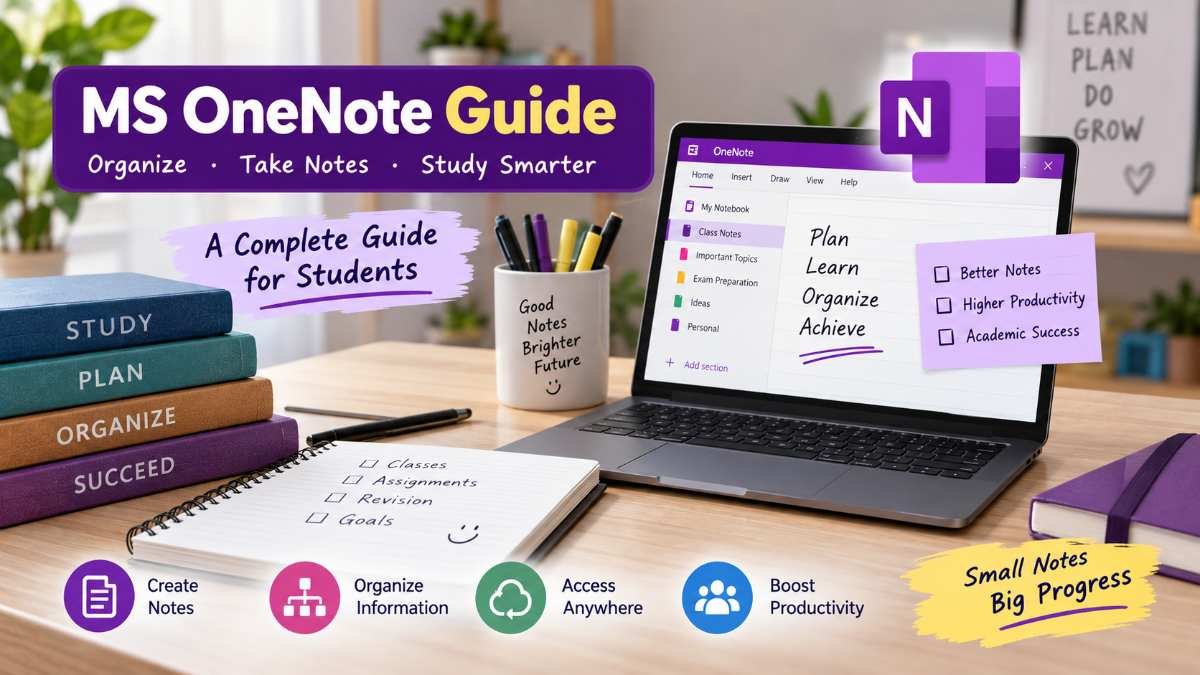
Understanding the notebook hierarchy is the first step in learning OneNote.
What Is a Notebook?
A notebook is the highest-level container for your notes. You can think of it as a physical notebook or a large digital folder containing related information.
For example, you could create a notebook called:
SSC Exam Preparation
Inside it, you might create sections for:
- Quantitative Aptitude
- Reasoning
- English
- General Awareness
- Mock Tests
- Current Affairs
You can create multiple notebooks when separate areas of your life or study require independent organization. Microsoft says you can create as many notebooks as you need, and new notebooks can be stored in OneDrive or, in supported desktop scenarios, locally on a computer.
What Is a Section?
A section divides a notebook into broad categories. It works somewhat like a chapter or subject tab in a physical notebook.
For example:
Notebook: Banking Exam 2026
Sections:
- Quant
- Reasoning
- English
- General Awareness
- Banking Awareness
Using sections prevents a notebook from becoming one huge collection of unrelated pages.
What Is a Page?
A page is where you actually create your notes. It can contain text, images, lists, links, tables, drawings, handwriting, and other content.
For example, under the Quant section, pages could include:
- Percentage
- Ratio and Proportion
- Profit and Loss
- Simple Interest
- Compound Interest
- Time and Work
What Is a Subpage?
A subpage provides an additional level of organization under a page.
For example:
Main page: Percentage
Subpages:
- Basic Concepts
- Short Tricks
- Practice Questions
- Mistakes
- Previous Year Questions
This method is useful when a topic is large enough to require several related pages.
MS OneNote Interface and Main Areas
The exact appearance of OneNote may vary depending on the operating system and version, but the basic concepts remain similar.
The main areas commonly include:
Notebook navigation: Used to switch between notebooks.
Sections: Used to move between categories within the current notebook.
Pages: Used to open individual notes.
Ribbon or toolbar: Contains commands for formatting, inserting content, drawing, reviewing, and other tasks.
Page canvas: The main working area where you enter and arrange notes.
Search: Helps locate words, pages, or relevant notes across notebooks, depending on version and search scope.
Microsoft notes that the desktop OneNote application provides an Office-style ribbon and navigation for notebooks, sections, and pages.
Beginners should spend a few minutes learning these four concepts:
Notebook → Section → Page → Content
Once this structure becomes familiar, most everyday OneNote tasks become much easier.
How to Create a New OneNote Notebook
Creating a notebook is the starting point for an organized OneNote setup.
In supported OneNote desktop versions, Microsoft provides a File > New workflow where you can choose a notebook location such as OneDrive or, depending on the application, the local PC. Microsoft recommends cloud storage such as OneDrive when you want your notebook available across devices and kept synchronized.
A simple process is:
- Open OneNote.
- Select the option for creating a new notebook.
- Enter a clear notebook name.
- Choose an appropriate storage location.
- Create the notebook.
- Add sections based on your subjects or projects.
- Create pages for individual topics.
A useful notebook name should immediately tell you what it contains. Instead of using names such as New Notebook 1, use descriptive names like:
- UPSC Preparation
- College Semester 3
- Computer Fundamentals
- Personal Notes
- Teaching Resources
- Mathematics Revision
How to Organize Notes in OneNote
Good organization is one of the most important skills in OneNote. The software gives you flexibility, but too much flexibility without a system can make your notes difficult to manage.
A practical organization system is:
Notebook: One broad area
Section: Subject or category
Page: Topic
Subpage: Related subtopic
For example:
Notebook: Computer Awareness
Section: MS Office
Page: Microsoft Word
Page: MS Excel
Page: MS PowerPoint
Page: MS OneNote
Under the OneNote page, you could create subpages such as:
- Basic Features
- Important Tools
- Keyboard Shortcuts
- Practical Questions
- Exam Revision
Use a Consistent Naming System
Avoid random page names. For academic notes, use topic-based titles.
Weak naming:
- Class Today
- Notes
- Chapter
- Important
Better naming:
- Biology – Cell Structure
- Economics – Inflation
- Reasoning – Coding-Decoding
- Computer – Operating Systems
Consistent names make search more useful and help you understand your notebook quickly.
How to Take Notes in OneNote
OneNote is designed to support flexible note-taking. You can click or tap on a page and begin entering information. Microsoft also highlights the ability to create space on a page, move text around, format notes, and add different content types.
A good study-note page can follow this pattern:
Topic
Short definition
Key Concepts
Main ideas in bullets
Example
A simple example
Formula or Rule
Important information
Exam Tip
A quick reminder
Practice Question
One or more questions for revision
This format keeps the page useful for both first learning and later revision.
Example of a Student Note
Suppose the topic is Simple Interest.
You could create:
Definition: Simple Interest is calculated on the original principal amount for the relevant period.
Formula: SI = P × R × T / 100
Where:
- P = Principal
- R = Rate
- T = Time
Example:
If P = ₹5,000, R = 10%, and T = 2 years, then:
SI = 5000 × 10 × 2 / 100
SI = ₹1,000
Exam Reminder: Check whether the question uses simple interest or compound interest before applying the formula.
A page designed this way becomes both a note and a revision sheet.
Typing, Handwriting, and Drawing in OneNote
OneNote is particularly useful for students who prefer handwriting alongside typed notes.
Microsoft says OneNote lets users draw, sketch, or write notes with a finger, digital pen, or mouse. On suitable touch devices, handwritten notes can also be converted to text.
This is useful for:
- Mathematical calculations
- Diagrams
- Flowcharts
- Mind maps
- Chemistry structures
- Physics formulas
- Rough calculations
- Language practice
- Annotating concepts
When Should Students Use Handwriting?
Handwriting is useful when speed matters or when a diagram is easier to draw than type.
For example, while solving a geometry problem, you may be able to sketch the figure directly in OneNote instead of trying to reproduce it using text.
For long theory answers, typing may be faster and easier to search later.
A practical approach is to combine both:
Type: Definitions, explanations, tables and revision notes.
Write: Formulas, diagrams, calculations and quick annotations.
Using Tags to Mark Important Notes
Tags help categorize or prioritize notes. Microsoft says tags can be applied to a line of text or an entire paragraph and can help identify important items, follow-up tasks, or information that needs attention.
Examples include:
- To Do
- Important
- Question
- Definition
- Remember
- Review
A competitive-exam student could use tags like this:
To Do: Practice 20 percentage questions
Important: Memorize constitutional articles
Question: Clarify the difference between GDP and GNP
Review: Revise this chapter before the mock test
OneNote also allows users to search tagged notes in supported versions, making tags more useful than simply highlighting text.
A Useful Tag Strategy
Avoid tagging everything.
If every sentence is marked important, the tag loses its meaning.
Instead, reserve tags for notes that require an action or special attention.
Searching Notes in OneNote
Search is one of the most useful features for students who build large digital notebooks.
Imagine that you studied a formula six months ago but cannot remember which notebook page contains it. Instead of opening dozens of pages manually, use OneNote’s search function.
Search terms could include:
- Percentage
- Newton’s laws
- Fundamental Rights
- Excel shortcut
- Vocabulary
- Photosynthesis
- Revision
- Mock test
For exam preparation, search becomes especially valuable when thousands of individual notes accumulate.
A useful habit is to write important keywords explicitly in your notes. For example, instead of writing only “This process…”, write the actual topic name in the note. Clear wording improves future retrieval.
Adding Pictures and Screenshots
Images can make notes more practical and easier to understand. Microsoft supports inserting pictures into OneNote pages, including images captured from a device camera in supported environments.
Students can use images to store:
- Whiteboard notes
- Textbook diagrams
- Charts
- Maps
- Lab work
- Assignment references
- Screenshots of online resources
- Photographs of handwritten calculations
For example, during a classroom lecture, a student could photograph a complex diagram on the board and insert it into the related OneNote page.
However, avoid filling pages with unnecessary screenshots. Every image should have a purpose.
Using OneNote for PDF and Study Material Organization
OneNote can serve as a central workspace for study material, but students should understand the difference between storing a reference and writing their own notes.
For example:
Page title: Indian Polity – Fundamental Rights
The page could contain:
- Short summary
- Personal explanation
- Key articles
- Important definitions
- A link to the reference source
- A screenshot of a useful diagram
- Practice questions
- Revision tags
This is generally more useful than creating a page containing only copied material.
A strong digital note should answer:
What did I learn?
What do I need to remember?
What do I still not understand?
That transforms OneNote from a digital storage location into a learning workspace.
Using OneNote for Mathematics
OneNote has several features that can be helpful for mathematics students.
For simple typed calculations, Microsoft documents support for entering an equation followed by an equal sign and pressing Spacebar to calculate the result in supported versions.
For example:
95+83+416=
can produce the calculated result in OneNote.
OneNote also provides Equation tools for creating formatted mathematical expressions.
Ink to Math
On supported Windows versions, OneNote can convert handwritten mathematical equations into typed mathematical notation.
This can be useful when a student writes an equation with a digital pen and later wants a cleaner typed version.
Math Assistant
Microsoft documents a Math Assistant feature that can work with entered or handwritten equations and, for supported Microsoft 365 plans, provide solutions and step-by-step explanations for certain types of problems. Availability and licensing can vary, so students should check the capabilities included with their Microsoft account and OneNote version.
For learning, step-by-step explanations are more valuable than simply copying an answer. Students should use math tools to understand a method and then solve similar questions independently.
Using OneNote for Diagrams and Mind Maps
OneNote can also be used as a visual thinking space.
Students can combine text with shapes, lines, drawings, arrows, and handwritten notes. Microsoft documents drawing tools that allow users to sketch with pens and highlighters and work with shapes.
For example, a biology student could create:
Cell
→ Cell membrane
→ Cytoplasm
→ Nucleus
→ Mitochondria
Then add a hand-drawn diagram below the explanation.
For competitive-exam revision, mind maps can be useful for subjects such as:
- History
- Geography
- Polity
- Biology
- Economics
- Environmental studies
A visual structure can make relationships between concepts easier to review.
How to Use OneNote for Competitive Exam Preparation
OneNote can be adapted for exams such as SSC, Banking, Railway, Teaching, Defence, State-level examinations, entrance tests, and university exams.
A practical structure might look like this:
| Section | Suggested Pages |
|---|---|
| Quantitative Aptitude | Percentage, Ratio, Profit & Loss |
| Reasoning | Coding-Decoding, Syllogism, Puzzles |
| English | Grammar, Vocabulary, Error Detection |
| General Awareness | History, Geography, Polity |
| Current Affairs | Monthly Revision |
| Mock Tests | Test Analysis |
| Mistakes | Repeated Errors |
Create a Mistake Notebook or Section
One of the most useful strategies for competitive exams is maintaining an error log.
Create a section called:
My Mistakes
For every incorrect question, record:
- Question type
- Your wrong approach
- Correct method
- Reason for the mistake
- Shortcut, formula, or rule
- Date for revision
Example:
Question Type: Partnership
Mistake: Divided the investment ratio incorrectly.
Correct Concept: Profit is distributed according to capital × time.
Revision Note: Always calculate effective investment before finding the profit ratio.
Over time, this creates a personalized revision resource.
How Teachers Can Use OneNote
OneNote is not limited to student note-taking.
Teachers can use it for:
- Lesson planning
- Topic summaries
- Classroom resources
- Assignment tracking
- Question banks
- Board-work references
- Meeting notes
- Research material
- Teaching ideas
- Curriculum organization
For example, a teacher could create:
Notebook: Class 10 Science
Sections:
- Physics
- Chemistry
- Biology
- Practical Work
- Question Bank
Each topic can have teaching notes, diagrams, activities, and revision material.
For collaborative work, notebooks can be shared so selected people can view or edit them. Microsoft says shared OneNote notebooks can be used for collaboration, with permissions that can distinguish between viewing and editing.
Sharing and Collaboration in OneNote
OneNote can be used as a collaborative workspace when a notebook is stored in OneDrive or SharePoint in supported scenarios. Microsoft states that users can invite people to view or edit a notebook and manage sharing permissions.
This can be useful for group assignments.
Suppose four college students are preparing a presentation.
They could create:
Notebook: Economics Project
Sections:
- Research
- Data
- Draft
- Presentation
- References
Each student can contribute to the shared notebook.
However, always review permissions before sharing. A notebook link may provide access to the contents covered by that sharing arrangement, so confidential or personal information should not be placed in a notebook that you intend to share broadly.
OneNote Synchronization Explained
Synchronization keeps changes available across connected devices.
Microsoft says shared OneNote notebooks synchronize automatically at regular intervals, while users can also manually trigger synchronization when they want to make sure recent changes are uploaded.
For example, you might:
- Take notes on a laptop in class.
- Review them on your phone during travel.
- Add a revision note on a tablet.
- Continue studying from your computer at home.
Cloud-based storage makes this workflow practical, subject to the account, notebook location, device, and synchronization state. Microsoft recommends using the OneNote application’s own sync mechanisms rather than treating notebook files like ordinary files synchronized by unrelated file-sync systems.
What Should You Do When Sync Seems Delayed?
Do not immediately create multiple copies of the same notebook.
Instead:
- Check your internet connection.
- Check the notebook’s synchronization status.
- Allow OneNote time to sync.
- Use the available sync option in OneNote.
- Avoid moving notebook files using unrelated file-management or synchronization methods.
Keeping one organized cloud notebook is usually easier than maintaining multiple competing copies.
Automatic Saving in OneNote
OneNote is designed to save changes automatically while you work. Microsoft describes OneNote as continuously saving notes rather than requiring the traditional manual Save process used by some applications.
This can be useful during long study sessions because you can focus on taking notes rather than repeatedly saving the document.
However, automatic saving and synchronization are not exactly the same thing.
Automatic saving: Your changes are saved by the application.
Synchronization: Your changes are propagated between the relevant local and cloud copies.
Students should understand this distinction, especially when working offline or switching devices.
Password Protection and Privacy
OneNote provides password protection for sections in supported versions. Microsoft notes that passwords are applied to sections rather than individual pages or entire notebooks.
A section containing personal study material can therefore be protected.
For example:
Notebook: Personal
Protected Section: Private Notes
However, password protection should not be treated as a reason to forget basic security practices.
Choose a strong password and store it safely. Microsoft warns that if you forget the password for a protected section, you may not be able to unlock those notes.
Also remember that password protection and sharing are different concepts. A notebook intentionally shared with another person should be treated as shared information.
Audio and Lecture Notes
Audio features can be useful during lectures, interviews, or discussions where typing every sentence is difficult.
Microsoft has documented audio note recording in OneNote, including use cases such as lectures and Q&A sessions. Feature availability depends on the version of OneNote being used.
For supported Windows environments, Microsoft also documents transcription and synchronization of ink with recordings.
Students should use recording features responsibly. In classrooms, coaching centers, workshops, or meetings, always follow the relevant rules and obtain permission when required.
Recording should complement active note-taking rather than replace it.
A better lecture strategy is:
Listen → Capture key idea → Add brief note → Mark unclear point → Review later
This helps you remain engaged instead of attempting to record and ignore the lesson.
OneNote on Different Devices
OneNote is available across several platforms, including Windows, Mac, web, Android, iPhone, and iPad. Microsoft maintains different OneNote experiences, so the menus and available features can vary by application and subscription.
This matters when following an online tutorial.
A shortcut or button shown in a Windows desktop tutorial may not look exactly the same on:
- OneNote for the web
- Android
- iPhone
- Mac
- iPad
Therefore, students should identify their OneNote version before assuming that a feature is missing.
Microsoft also states that the older OneNote for Windows 10 application reached end of support in October 2025 and recommends the current OneNote app instead.
Useful OneNote Keyboard Shortcuts
Keyboard shortcuts can save time, particularly for students who create and edit large quantities of notes.
Microsoft provides dedicated shortcut lists for different OneNote versions, and shortcuts can differ between Windows desktop and the web version.
Some useful Windows shortcuts documented by Microsoft include:
| Action | Shortcut |
|---|---|
| New page | Ctrl + N |
| New section | Ctrl + T |
| Search open notebooks | Ctrl + E |
| Move or copy page | Ctrl + Alt + M |
| Jump to page title | Ctrl + Shift + T |
| Synchronize current shared notebook | Shift + F9 |
| Synchronize all shared notebooks | F9 |
| Mark current page as unread | Ctrl + Q |
These shortcuts can improve speed, but do not try to memorize dozens of them at once.
Start with:
Ctrl + N → New Page
Ctrl + E → Search
Ctrl + T → New Section
Then learn additional shortcuts as your workflow grows. Microsoft specifically notes that shortcut behavior can vary by platform and browser.
A Practical OneNote Study Workflow
The following workflow works well for students who want to use OneNote consistently.
Step 1: Create One Main Study Notebook
Do not create a new notebook for every small topic.
For example:
Notebook: Competitive Exam Preparation
Step 2: Create Subject Sections
Create sections for each major subject.
Step 3: Create Topic Pages
Make one page for each major topic.
Step 4: Add Notes During Learning
Write important definitions, examples, formulas, explanations, and questions.
Step 5: Mark Important Information
Use tags selectively for topics requiring revision or follow-up.
Step 6: Maintain an Error Log
Record mistakes from practice tests.
Step 7: Review Weekly
Use search and tags to find notes that require attention.
Step 8: Create Revision Pages
At the end of a chapter, create a short page containing only:
- Key formulas
- Definitions
- Important facts
- Common mistakes
- Frequently confused concepts
This creates a high-value revision layer on top of your detailed notes.
MS OneNote Guide for Daily Study Planning
OneNote can also work as a simple academic planner.
Create a page titled:
Today’s Study Plan
Example:
| Task | Status |
|---|---|
| Quant – Percentage | Completed |
| Reasoning – Puzzle | Pending |
| English – Vocabulary | Completed |
| General Awareness – Revision | Pending |
Use a To Do tag where supported to mark tasks. Microsoft documents tags such as To Do and Important for prioritizing information.
At the end of the day, move unfinished tasks into the next day’s plan instead of repeatedly rewriting the entire list.
Using OneNote for Revision
Digital notes become valuable when you revisit them.
A practical three-stage revision system is:
First revision: Review detailed class or study notes.
Second revision: Review highlighted concepts, formulas, and tagged items.
Final revision: Use one-page summaries and mistake logs.
This prevents you from rereading the entire notebook every time.
For example, instead of revisiting 20 pages on percentages before an exam, you could review:
- Formula page
- Shortcut page
- Mistake log
- 10 practice questions
The goal is not to make every note short. The goal is to make important information easy to retrieve.
MS OneNote Guide for College Projects
College students can use OneNote as a research and project-management notebook.
A project notebook might contain:
Section 1: Topic
Background and objectives
Section 2: Research
Sources and notes
Section 3: Data
Tables and observations
Section 4: Draft
Initial content
Section 5: Questions
Things that need clarification
Section 6: Final Checklist
Tasks remaining before submission
This organization prevents research notes from becoming mixed with final writing.
When a project involves several students, sharing features can allow collaboration through a shared notebook in supported environments.
OneNote vs Microsoft Word
OneNote and Word are both useful, but they are designed for different workflows.
| Feature | OneNote | Microsoft Word |
|---|---|---|
| Digital notebook organization | Strong | Limited |
| Flexible page canvas | Strong | Structured document layout |
| Subject-wise sections | Strong | Usually handled with separate documents |
| Handwriting and drawing | Strong | Available but not the main workflow |
| Long formal documents | Possible | Excellent |
| Academic note-taking | Excellent | Good |
| Final report formatting | Good | Excellent |
| Quick study notes | Excellent | Good |
Use OneNote when you are collecting and organizing knowledge.
Use Word when you are preparing a polished document for submission, printing, or formal publication.
A student may use both:
OneNote → Study and research
Word → Final assignment
OneNote vs Traditional Notebook
A traditional notebook is still useful, particularly for students who prefer physical handwriting.
| Factor | OneNote | Traditional Notebook |
|---|---|---|
| Search | Digital search available | Manual |
| Reorganization | Easy | Difficult |
| Multimedia | Strong | Limited |
| Handwriting | Supported | Natural |
| Device dependency | Yes | No |
| Sharing | Digital sharing available | Physical sharing |
| Backup | Depends on storage and account setup | Physical backup required |
| Cross-device access | Supported through compatible cloud notebooks | Not applicable |
OneNote is not necessarily a replacement for paper. Many students benefit from a combination of both.
For example:
Paper: Rough calculations during an exam or classroom activity.
OneNote: Organized revision material and long-term notes.
Common Mistakes Students Make in OneNote
Creating Too Many Notebooks
A notebook for every subject can become difficult to manage.
Start with a simple structure and expand only when necessary.
Making One Giant Page
A page containing an entire textbook chapter may become difficult to navigate.
Break large subjects into logical pages and subpages.
Tagging Everything
Tags are useful because they identify priority items. If every line is tagged, priority becomes unclear.
Copying Without Understanding
Digital notes make copying easy, but copied information does not automatically become learned information.
Rewrite ideas in your own words whenever possible.
Ignoring Search
Some students create detailed notes but forget that search can retrieve information quickly.
Use clear topic names and searchable terminology.
Keeping Duplicate Notebooks
Avoid maintaining multiple versions of the same notebook unless you have a specific reason.
Duplicates can cause confusion about which copy contains the latest changes.
Sharing Without Checking Permissions
Before sharing a notebook, check who can view or edit it. Microsoft provides sharing controls for supported shared notebooks.
Depending Completely on Digital Notes
A technology issue should not destroy your study preparation.
Keep particularly important exam information backed up appropriately and know where your important files are stored.
Best Practices for Organizing a Large OneNote Notebook
When a notebook grows large, organization becomes more important.
Use these principles:
One subject per section: Makes navigation easier.
One topic per page: Improves search and revision.
Short descriptive page titles: Helps future retrieval.
Tags for action: Use them for revision, questions, or tasks.
Summary pages: Collect the most important points.
Mistake logs: Record recurring errors.
Consistent naming: Use the same pattern throughout the notebook.
For example:
Page naming format:
Subject – Topic – Type
Examples:
- Quant – Ratio – Concepts
- Quant – Ratio – Practice
- Quant – Ratio – Mistakes
- Quant – Ratio – Revision
This system is particularly useful for students preparing for multiple subjects over many months.
Advanced Study Technique: Build a Knowledge Database
OneNote can become more powerful when you stop treating each page as an isolated note.
Suppose you are preparing for a government competitive examination.
You could build connected categories such as:
Concepts
Basic study material
Facts
Dates, definitions, rules
Questions
Practice problems
Mistakes
Errors from tests
Revision
High-priority content
Resources
Useful references
The notebook then becomes a personal knowledge database.
For example, while studying Indian Polity, you could maintain a detailed topic page and then create a revision page containing only the key facts that repeatedly appear in your practice.
This reduces the gap between learning and revision.
Important Points to Remember About OneNote
OneNote is powerful, but its effectiveness depends on how you use it.
Remember these core points:
- A notebook contains sections.
- Sections contain pages.
- Pages can contain text, images, drawings, lists, links, and other supported content.
- Subpages can help organize related information.
- Tags help identify and prioritize notes.
- Search helps retrieve information from large collections of notes.
- Cloud storage can make notebooks available across devices.
- Synchronization should be handled through OneNote’s built-in mechanisms.
- Sharing permissions should be reviewed before collaboration.
- Features can vary between Windows, Mac, web, Android, iPhone, and iPad.
- The older OneNote for Windows 10 application reached end of support in October 2025.
- Password protection is applied to sections in supported versions, not individual pages.
- Math, drawing, transcription, and other advanced functions may depend on platform or Microsoft 365 licensing.
Practical Tips to Get Better Results From OneNote
Start simple. A complicated organizational system is not useful if you stop maintaining it after a week.
A good beginner system could be:
Notebook: Study
Sections: Quant, Reasoning, English, GK
Pages: Individual topics
Tags: To Do, Important, Question
Special Section: Mistakes
After using this system for several weeks, you can decide whether you need separate notebooks for different exams or academic subjects.
Another useful practice is to separate learning notes from revision notes.
For example:
Learning page: Detailed explanation and examples.
Revision page: One-screen summary.
Mistake page: Errors and corrections.
This makes revision much faster.
Students should also avoid spending more time designing notes than studying. Colors, icons, fonts, and decorative layouts can be useful, but they should support learning rather than become the main activity.
Frequently Asked Questions
What is MS OneNote Guide?
The MS OneNote Guide is a practical explanation of Microsoft OneNote covering notebook organization, sections, pages, note-taking, search, tags, synchronization, sharing, handwriting, drawings, mathematics, and student-focused workflows. It helps beginners understand how to use OneNote for study, work, and personal organization.
Is OneNote free for students?
Microsoft states that supported OneNote versions are available to download and use, while some premium capabilities are associated with Microsoft 365 subscriptions. The exact features available to a student can depend on the OneNote version and Microsoft account or subscription.
Can I use OneNote on my phone and computer?
Yes. Microsoft provides OneNote experiences for Windows, Mac, the web, Android, iPhone, and iPad. Cloud-connected notebooks can be accessed across compatible devices, although the interface and feature availability may differ by platform.
What is the difference between a OneNote notebook, section, and page?
A notebook is the main container, a section divides the notebook into broad categories, and a page contains the actual notes. Subpages can provide another organizational level below a page.
Can students write by hand in OneNote?
Yes. OneNote supports digital handwriting and drawing with compatible touch, pen, or mouse input. On supported devices, handwritten notes can also be converted to text.
Can OneNote solve math problems?
OneNote supports several mathematical tools, including calculation features and, on supported Microsoft 365 configurations, Math Assistant capabilities. Some advanced mathematics features depend on the OneNote version, platform, and subscription.
Can I share a OneNote notebook with classmates?
Yes. Supported OneNote versions allow notebooks to be shared for viewing or editing, typically through OneDrive or SharePoint. Before sharing, check the permissions and the information contained in the notebook.
Does OneNote automatically save my notes?
Yes. Microsoft describes OneNote as automatically and continuously saving notes as you work. However, saving and synchronization are separate concepts, so you should still pay attention to the notebook’s synchronization status when working across devices.
Can I protect my OneNote notes with a password?
Supported versions of OneNote allow password protection for notebook sections. Passwords are not applied directly to individual pages, and Microsoft warns users to remember their passwords because forgotten section passwords may prevent access to the protected notes.
Is OneNote better than Microsoft Word for taking notes?
OneNote is generally designed around notebook-style information collection and organization, while Word is designed primarily for structured documents. For study notes and research, OneNote provides a flexible workspace; for final assignments, reports, and formal documents, Word may be more appropriate.
Can I use OneNote for competitive exam preparation?
Yes. OneNote can be organized into subject sections, topic pages, revision sheets, mistake logs, practice questions, and study plans. Tags and search can help students locate important notes and review pending topics.
Is OneNote for Windows 10 still supported?
No. Microsoft states that OneNote for Windows 10 reached end of support in October 2025 and recommends using the current OneNote application instead.
Conclusion
MS OneNote is much more than a place to type digital notes. It provides a flexible system for organizing notebooks, sections, pages, subpages, handwritten material, images, links, checklists, tags, drawings, and other study resources. Its search, synchronization, collaboration, and organization features can make large collections of academic or professional information easier to manage.
For students, the most effective approach is not to fill OneNote with unlimited information but to build a clear study system. Create logical sections, use topic-based pages, record mistakes, tag important items, create concise revision pages, and review your notes regularly.
Students preparing for school examinations, college assessments, entrance tests, or competitive examinations can adapt the same structure to their own subjects and study methods. Teachers can also use OneNote for lesson planning, research, classroom resources, and collaborative work.
The best way to learn MS OneNote Guide concepts is through practical use. Start with one notebook, create a few sections, make several topic pages, experiment with tags and search, and gradually introduce advanced features such as handwriting, drawing, math tools, collaboration, and cross-device synchronization. Because OneNote features can change across platforms and Microsoft 365 plans, always check Microsoft’s current documentation when a feature or menu differs from what you see on your device.
2 thoughts on “MS OneNote Guide: Complete Beginner to Advanced Student Guide”