
Microsoft Excel is one of the most widely used spreadsheet programs for organizing information, performing calculations, analyzing data, and preparing reports. At the center of Excel is the use of formulas and functions. For beginners, learning Excel Basic Functions is one of the easiest ways to become comfortable with spreadsheets because functions can perform common calculations quickly and accurately.
Functions such as SUM, AVERAGE, COUNT, COUNTA, MAX, MIN, IF, and ROUND are useful for students, teachers, office employees, business users, researchers, and competitive-exam aspirants. Instead of calculating values manually, you can use a function to tell Excel what calculation you need. Excel then processes the referenced cells and returns the result.
This guide explains the most useful Excel basic functions with simple definitions, syntax, examples, practical applications, common mistakes, and exam-oriented tips. It also explains the difference between formulas and functions, how cell references work, and how beginners can build a strong foundation for more advanced Excel skills.
Visit More:-
- MS Word Tutorial
- MS Excel Tutorial
- MS PowerPoint Tutorial
- MS Paint Tutorial
- How to use VLOOKUP and XLOOKUP in Excel Step by Step
- IF AND OR LOGICAL Functions in Excel Explained: Easy Guide
- How to Convert Excel Sheet into PDF Without Losing Formatting
What Are Excel Basic Functions?
Excel basic functions are predefined formulas built into Microsoft Excel that perform common calculations or logical operations using one or more values. A function usually starts with an equals sign (=), followed by the function name and one or more arguments inside parentheses.
For example:
=SUM(B2:B10)
This function adds all numeric values from cells B2 through B10.
A function can save time because you do not need to write a separate calculation for every value. Excel performs the operation automatically and updates the answer when the underlying data changes.
Some functions perform simple arithmetic, while others count data, compare values, round numbers, test conditions, or manipulate text.
Difference Between an Excel Formula and an Excel Function
A formula is an expression created by the user to calculate a result, while a function is a predefined calculation supplied by Excel.
For example:
=B2+C2+D2
is a formula.
On the other hand:
=SUM(B2:D2)
uses the SUM function.
Both can produce the same result, but the function is often shorter and easier to maintain.
| Feature | Formula | Function |
|---|---|---|
| Meaning | Calculation created by the user | Predefined calculation in Excel |
| Example | =A1+B1 | =SUM(A1:B1) |
| Complexity | Can be simple or complex | Usually follows a defined syntax |
| Main use | Custom calculations | Common or specialized operations |
Understanding this difference helps beginners read Excel worksheets more confidently.
Why Should Students Learn Excel Basic Functions?
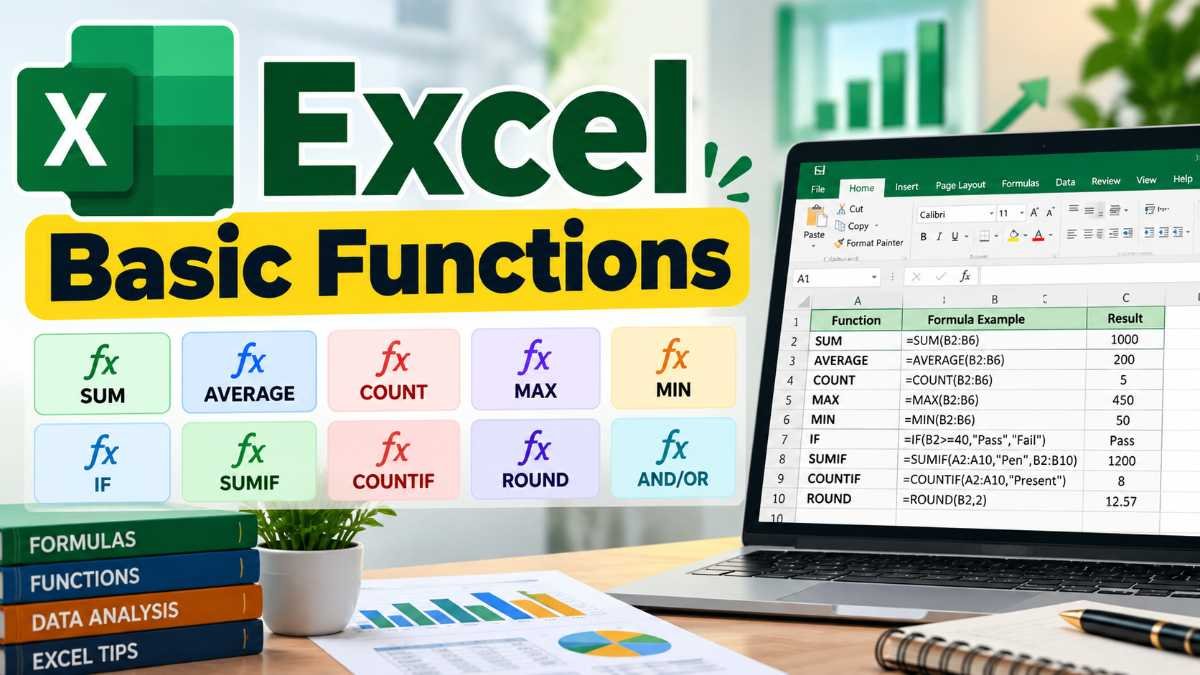
Learning basic Excel functions provides a foundation for many everyday spreadsheet tasks. Students can use them to calculate marks, attendance, percentages, totals, and averages. Office users can use them to prepare reports, invoices, employee records, budgets, and summaries.
For competitive-exam aspirants, Excel knowledge can also be useful in computer-awareness sections and practical computer tests, depending on the examination.
The major advantages include:
- Faster calculations
- Fewer manual arithmetic steps
- Automatic updates when source data changes
- Better data analysis
- Easier report preparation
- Improved spreadsheet accuracy
- A strong foundation for advanced Excel functions
For example, imagine a student has marks for six subjects in cells B2:G2. Instead of adding all six values manually, the student can write:
=SUM(B2:G2)
The total is calculated immediately, and if any mark changes, Excel recalculates the result.
How Excel Functions Are Written
Most Excel functions follow a simple structure:
=FUNCTION_NAME(argument1, argument2, ...)
The equals sign tells Excel that you are entering a calculation.
The function name identifies the operation you want Excel to perform.
Arguments are the values, cells, or ranges used by the function.
For example:
=AVERAGE(B2:B6)
Here:
AVERAGEis the function name.B2:B6is the range.- Excel calculates the average of the values in those five cells.
Another example is:
=MAX(B2, C2, D2)
Here, Excel compares the three referenced cells and returns the largest number.
Understanding Cell References and Ranges
Before using Excel Basic Functions, beginners should understand cell references.
A cell reference identifies the location of data in a worksheet. A1 refers to column A and row 1. C5 refers to column C and row 5.
A range represents multiple cells.
For example:
A1:A10
means all cells from A1 through A10 in the same column.
A two-dimensional range such as:
A1:C10
includes columns A through C and rows 1 through 10.
Using ranges makes functions much easier to write. Instead of:
=A1+A2+A3+A4+A5
you can use:
=SUM(A1:A5)
This becomes especially valuable when a worksheet contains hundreds or thousands of records.
SUM Function in Excel
The SUM function is one of the most commonly used Excel functions. It adds numbers from selected cells or ranges.
Syntax
=SUM(number1, [number2], ...)
Example
Suppose cells B2:B6 contain:
| Cell | Value |
|---|---|
| B2 | 100 |
| B3 | 150 |
| B4 | 200 |
| B5 | 250 |
| B6 | 300 |
The formula:
=SUM(B2:B6)
returns:
1000
You can also add separate ranges:
=SUM(B2:B6,D2:D6)
Practical Uses of SUM
The SUM function can be used for:
- Total marks
- Monthly expenses
- Total sales
- Total attendance
- Inventory quantities
- Budget calculations
- Salary components
For a student, SUM can calculate total marks across several subjects.
AVERAGE Function in Excel
The AVERAGE function calculates the arithmetic mean of numbers.
Syntax
=AVERAGE(number1, [number2], ...)
Example
Suppose the marks are:
70, 75, 80, 85, 90
You can enter:
=AVERAGE(A1:A5)
The result is:
80
Why AVERAGE Is Useful
Students can use AVERAGE to calculate average marks. Teachers can use it to summarize class performance. Businesses can use it to calculate average sales, average costs, or average performance values.
An important point is that the average is affected by the values included in the calculation. Therefore, selecting the correct range is essential.
COUNT Function in Excel
The COUNT function counts cells that contain numbers.
Syntax
=COUNT(value1, [value2], ...)
Suppose A1:A5 contains:
25
Student
40
Absent
55
The formula:
=COUNT(A1:A5)
returns:
3
because only three cells contain numeric values.
COUNT vs. Manual Counting
Manually counting numeric entries becomes difficult in large worksheets. COUNT performs this task automatically.
It is useful for:
- Counting marks entries
- Counting numeric transactions
- Counting quantities
- Checking whether data has been entered
- Summarizing numerical records
COUNTA Function in Excel
The COUNTA function counts non-empty cells. Unlike COUNT, it can count numbers, text, logical values, and other non-empty entries.
Syntax
=COUNTA(value1, [value2], ...)
Suppose A1:A5 contains:
25
Student
40
Absent
55
Then:
=COUNTA(A1:A5)
returns:
5
The key distinction is simple:
COUNT counts numeric entries.
COUNTA counts non-empty entries.
This distinction is frequently useful when checking whether a data-entry column has been filled.
COUNTBLANK Function
COUNTBLANK counts empty cells within a range.
Syntax
=COUNTBLANK(range)
For example:
=COUNTBLANK(A1:A20)
counts the blank cells in A1:A20.
This function is helpful when checking incomplete forms, missing entries, attendance records, survey data, and student information.
MAX Function in Excel
The MAX function returns the largest numeric value in a set of values.
Syntax
=MAX(number1, [number2], ...)
For example:
=MAX(B2:B10)
returns the highest number in the range.
If the marks are:
55, 72, 91, 68, 84
the result is:
91
Practical Uses
MAX can identify:
- Highest marks
- Highest sales value
- Maximum expense
- Highest score
- Largest quantity
- Maximum temperature recorded in a dataset
MIN Function in Excel
The MIN function returns the smallest numeric value.
Syntax
=MIN(number1, [number2], ...)
Example:
=MIN(B2:B10)
If the values are 55, 72, 91, 68, and 84, the result is 55.
MIN and MAX are often used together to understand the range of values in a dataset.
PRODUCT Function in Excel
The PRODUCT function multiplies numbers together.
Syntax
=PRODUCT(number1, [number2], ...)
For example:
=PRODUCT(A2:A4)
multiplies the values in A2, A3, and A4.
If the values are 2, 3, and 4, the result is 24.
The function can be useful for calculating quantities, multiplication-based costs, and mathematical exercises.
ROUND Function in Excel
The ROUND function rounds a number to a specified number of digits.
Syntax
=ROUND(number, num_digits)
For example:
=ROUND(12.5678, 2)
returns:
12.57
If you use:
=ROUND(12.5678, 0)
the result is:
13
Understanding num_digits
A positive value rounds to decimal places.
0 rounds to the nearest whole number.
A negative value rounds to the left of the decimal point.
For example:
=ROUND(1256, -2)
rounds the value to the nearest hundred.
ROUNDUP and ROUNDDOWN Functions
Excel also provides ROUNDUP and ROUNDDOWN.
ROUNDUP always rounds a number away from zero according to the specified digits.
Example:
=ROUNDUP(12.341,2)
returns 12.35.
ROUNDDOWN rounds a number toward zero.
Example:
=ROUNDDOWN(12.389,2)
returns 12.38.
These functions are useful when the direction of rounding matters.
IF Function in Excel
The IF function is one of the most important logical functions for beginners.
It checks whether a condition is true or false and returns one result for a true condition and another result for a false condition.
Syntax
=IF(logical_test, value_if_true, value_if_false)
Example
Suppose B2 contains a student’s marks.
You can write:
=IF(B2>=40,"Pass","Fail")
If B2 contains 65, Excel returns:
Pass
If B2 contains 32, Excel returns:
Fail
Practical Uses of IF
The IF function can be used to:
- Identify pass or fail
- Check eligibility
- Mark attendance status
- Classify sales performance
- Flag incomplete information
- Create simple decisions based on conditions
For example:
=IF(C2>=75,"Eligible","Not Eligible")
can classify a value according to the condition provided.
AND Function in Excel
The AND function checks whether all specified conditions are TRUE.
Syntax
=AND(logical1, [logical2], ...)
For example:
=AND(B2>=18,C2="Yes")
returns TRUE only when both conditions are satisfied.
This becomes especially useful when combined with IF.
=IF(AND(B2>=18,C2="Yes"),"Eligible","Not Eligible")
The formula checks two conditions before making a decision.
OR Function in Excel
The OR function returns TRUE if at least one of its conditions is TRUE.
Syntax
=OR(logical1, [logical2], ...)
Example:
=OR(B2="Yes",C2="Yes")
returns TRUE when either B2 or C2 contains Yes.
Combined with IF:
=IF(OR(B2>=80,C2="Special"),"Selected","Not Selected")
the formula produces one result when at least one condition is satisfied.
NOT Function in Excel
The NOT function reverses a logical value.
Syntax
=NOT(logical)
For example:
=NOT(A1="Yes")
returns TRUE when A1 is not equal to Yes.
Although it is less frequently used by beginners, NOT can become useful when creating more advanced logical formulas.
SUMIF Function
SUMIF adds values that meet a specified condition.
Syntax
=SUMIF(range, criteria, [sum_range])
Suppose column A contains product names and column B contains sales.
You can use:
=SUMIF(A2:A20,"Pen",B2:B20)
This adds sales from column B only for rows where column A contains Pen.
SUMIF is useful for category-based summaries.
Common examples include:
- Total sales for a particular product
- Total expenses in one category
- Total marks associated with a condition
- Total quantities for a particular item
COUNTIF Function
COUNTIF counts cells that meet a specific condition.
Syntax
=COUNTIF(range, criteria)
For example:
=COUNTIF(B2:B50,">=40")
counts how many values are greater than or equal to 40.
A student could use the function to count the number of students who passed a test.
Another example:
=COUNTIF(C2:C30,"Present")
counts entries marked Present.
AVERAGEIF Function
AVERAGEIF calculates the average of values that satisfy a condition.
Syntax
=AVERAGEIF(range, criteria, [average_range])
For example:
=AVERAGEIF(A2:A20,"Science",B2:B20)
can calculate the average value in B for rows where A contains Science.
This is useful when a dataset contains multiple categories and you want an average for one selected category.
CONCAT and TEXTJOIN for Combining Text
Although Excel functions are often associated with numbers, functions can also work with text.
The CONCAT function combines text from multiple cells.
For example:
=CONCAT(A2," ",B2)
can combine a first name and last name stored in separate cells.
For more flexible text combination, TEXTJOIN can be used.
Example:
=TEXTJOIN(" ",TRUE,A2,B2,C2)
The first argument specifies the separator. In this example, the separator is a space.
These functions can help when preparing names, addresses, labels, or other text-based records.
LEN Function in Excel
The LEN function counts the number of characters in a text string, including spaces.
Syntax
=LEN(text)
Example:
=LEN("Excel")
returns:
5
And:
=LEN(A2)
counts the characters in cell A2.
LEN is useful for checking text length, validating entries, and identifying unusually short or long data.
LEFT, RIGHT and MID Functions
Excel provides several functions for extracting portions of text.
LEFT returns characters from the beginning of a text string.
=LEFT(A2,4)
returns the first four characters.
RIGHT returns characters from the end.
=RIGHT(A2,4)
returns the last four characters.
MID extracts characters from the middle based on a starting position and number of characters.
=MID(A2,3,5)
starts at the third character and returns five characters.
These functions are useful for working with codes, IDs, names, reference numbers, and other structured text.
UPPER, LOWER and PROPER Functions
These functions help format text consistently.
UPPER converts text to uppercase:
=UPPER(A2)
LOWER converts text to lowercase:
=LOWER(A2)
PROPER capitalizes the first letter of words:
=PROPER(A2)
For example, a text entry such as:
microsoft excel guide
can be changed with PROPER to:
Microsoft Excel Guide
These functions are useful when data has been entered using inconsistent capitalization.
TRIM Function
The TRIM function removes extra spaces from text, while preserving single spaces between words.
Syntax
=TRIM(A2)
Suppose a cell contains:
Excel Basic Functions
TRIM can clean the extra spaces.
This is particularly useful when working with imported or manually collected data.
TODAY and NOW Functions
Excel also includes functions for dates and time.
TODAY returns the current date:
=TODAY()
NOW returns the current date and time:
=NOW()
These functions update according to Excel’s calculation behavior and the computer’s date/time settings.
They can be useful for:
- Date-based reports
- Age or deadline calculations
- Attendance records
- Daily tracking sheets
- Timestamp-related calculations
Because date and time behavior can depend on workbook settings and system settings, users should verify the result when accuracy is important.
How to Enter an Excel Function
Entering a function is simple.
Method 1: Type the Function
Click a cell and type:
=SUM(A1:A10)
Then press Enter.
Method 2: Use the Formula Bar
Select a cell, click the Formula Bar, and type the desired function.
Method 3: Use Excel’s Function Tools
Excel provides tools that can help users insert functions without remembering every argument.
For beginners, typing simple functions manually is often a good way to learn their syntax.
How to Copy a Function to Other Cells
Suppose you have a formula in C2:
=A2+B2
When you drag the fill handle downward, Excel normally adjusts the references automatically.
So the formula in C3 becomes:
=A3+B3
This behavior is called relative referencing.
It is one of the most useful features when working with repeated calculations.
Relative, Absolute and Mixed References
Understanding references is essential when moving from Excel Basic Functions to more advanced spreadsheet work.
A relative reference:
A1
changes when the formula is copied.
An absolute reference:
$A$1
remains fixed when the formula is copied.
A mixed reference may fix either the column or row:
$A1
or:
A$1
Example
Suppose D2 contains a price and B1 contains a tax rate. You might use:
=D2*$B$1
When copied downward, D2 changes to D3, D4, and so on, while $B$1 remains fixed.
This concept becomes extremely important in practical Excel worksheets.
Common Excel Errors Beginners Should Understand
Even simple functions can produce errors when formulas or data are incorrect.
#DIV/0!
This usually occurs when a formula attempts to divide by zero or by an empty cell.
Example:
=A2/B2
If B2 contains zero, the formula may return #DIV/0!.
#VALUE!
This may occur when a formula receives an inappropriate type of value.
#NAME?
This can appear when Excel does not recognize text in a formula, such as a misspelled function name.
#REF!
This indicates an invalid cell reference, often caused by deleting referenced cells.
#N/A
This commonly indicates that a required value is not available or a lookup cannot find a matching value.
Understanding error messages helps users diagnose problems instead of assuming Excel itself is incorrect.
Excel Basic Functions: Quick Reference Table
| Function | Main Purpose | Example |
|---|---|---|
| SUM | Adds numbers | =SUM(A1:A10) |
| AVERAGE | Calculates mean | =AVERAGE(A1:A10) |
| COUNT | Counts numeric cells | =COUNT(A1:A10) |
| COUNTA | Counts non-empty cells | =COUNTA(A1:A10) |
| COUNTBLANK | Counts blank cells | =COUNTBLANK(A1:A10) |
| MAX | Returns largest value | =MAX(A1:A10) |
| MIN | Returns smallest value | =MIN(A1:A10) |
| PRODUCT | Multiplies values | =PRODUCT(A1:A5) |
| ROUND | Rounds a number | =ROUND(A1,2) |
| IF | Tests a condition | =IF(A1>=40,"Pass","Fail") |
| AND | Checks whether all conditions are true | =AND(A1>10,B1>10) |
| OR | Checks whether at least one condition is true | =OR(A1="Yes",B1="Yes") |
| NOT | Reverses a logical result | =NOT(A1="Yes") |
| SUMIF | Adds values meeting a condition | =SUMIF(A:A,"Pen",B:B) |
| COUNTIF | Counts values meeting a condition | =COUNTIF(A:A,"Present") |
| AVERAGEIF | Averages values meeting a condition | =AVERAGEIF(A:A,"Science",B:B) |
| LEN | Counts characters | =LEN(A1) |
| LEFT | Extracts characters from the left | =LEFT(A1,3) |
| RIGHT | Extracts characters from the right | =RIGHT(A1,3) |
| TRIM | Removes extra spaces | =TRIM(A1) |
| TODAY | Returns current date | =TODAY() |
| NOW | Returns current date and time | =NOW() |
Practical Example: Student Mark Sheet
Consider a worksheet containing student marks.
| Student | English | Maths | Science | Total | Average | Result |
|---|---|---|---|---|---|---|
| Rahul | 72 | 81 | 75 | |||
| Priya | 88 | 91 | 85 | |||
| Aman | 35 | 42 | 38 |
Suppose the subject marks are in B2:D2.
The total in E2 can be calculated with:
=SUM(B2:D2)
The average in F2 can be:
=AVERAGE(B2:D2)
The result in G2 can be:
=IF(F2>=40,"Pass","Fail")
After entering these formulas, they can be copied down for the other students.
This example demonstrates how several Excel Basic Functions can work together to automate a complete student record.
Practical Example: Monthly Expense Sheet
Suppose an expense sheet has the following categories:
| Category | Amount |
|---|---|
| Food | 2500 |
| Travel | 1200 |
| Books | 800 |
| Food | 1500 |
| Travel | 900 |
To calculate the total expenses:
=SUM(B2:B6)
To calculate total food expenses:
=SUMIF(A2:A6,"Food",B2:B6)
To count how many travel entries exist:
=COUNTIF(A2:A6,"Travel")
This example shows why functions are more than simple mathematical shortcuts. They help organize and analyze information.
How Excel Functions Help in Office Work
Excel is commonly used for structured records, and basic functions can make everyday office tasks easier.
An employee may use SUM to calculate expenses, AVERAGE to summarize values, COUNTIF to count records matching a condition, and IF to identify whether a target has been met.
For example:
=IF(B2>=100000,"Target Achieved","Target Pending")
Such formulas can help transform raw data into information that is easier to interpret.
Excel Basic Functions for Competitive Exams
Excel-related questions in computer-awareness or practical tests may focus on recognizing function purposes, syntax, and outputs.
Students should particularly remember:
SUM → addition
AVERAGE → mean
COUNT → numeric cells
COUNTA → non-empty cells
COUNTBLANK → empty cells
MAX → largest value
MIN → smallest value
IF → condition-based result
AND → all conditions must be true
OR → at least one condition must be true
ROUND → rounding numbers
A useful memory technique is to group functions by purpose rather than memorizing them randomly.
Calculation Functions
SUM, AVERAGE, MAX, MIN, PRODUCT, ROUND
Counting Functions
COUNT, COUNTA, COUNTBLANK, COUNTIF
Logical Functions
IF, AND, OR, NOT
Text Functions
LEN, LEFT, RIGHT, MID, UPPER, LOWER, PROPER, TRIM
This grouping can make revision faster.
Common Mistakes When Using Excel Functions
Beginners often make small syntax or data-selection mistakes. Knowing them in advance can prevent unnecessary errors.
Forgetting the Equals Sign
A standard Excel formula usually starts with =.
Incorrect:
SUM(A1:A5)
Correct:
=SUM(A1:A5)
Selecting the Wrong Range
Suppose marks are stored in B2:F2 but the formula uses B2:E2. The result will exclude the last subject.
Always verify the cell range.
Using COUNT When You Need COUNTA
If a column contains text entries and you use COUNT, the text cells will not be included in the count.
Incorrect Text Criteria
Text criteria are usually placed inside quotation marks.
Example:
=COUNTIF(A1:A20,"Present")
Using the wrong spelling or missing quotation marks can produce unexpected results.
Deleting Referenced Cells
Deleting cells used by a formula may cause a #REF! error.
Treating Numbers as Text
A number stored as text may not behave like a normal numeric value in certain calculations. When a calculation gives an unexpected result, check whether the input values are actually numeric.
Tips for Learning Excel Functions Faster
Beginners do not need to memorize dozens of functions at once. Start with the functions used most often.
A practical learning sequence is:
- Learn cell references and ranges.
- Practice
SUM. - Learn
AVERAGE,MAX, andMIN. - Understand
COUNT,COUNTA, andCOUNTBLANK. - Learn
IF. - Practice
ANDandOR. - Move to
SUMIF,COUNTIF, andAVERAGEIF. - Learn common text functions.
- Practice combining multiple functions.
Create small worksheets rather than only reading examples. For example, make a student marksheet, monthly budget, attendance tracker, or simple sales report.
Writing the formulas yourself helps you understand how ranges and references behave.
How to Practice Excel Basic Functions
Practical practice is more effective when you create realistic datasets.
Practice Exercise 1: Marks
Enter five students and three subject marks. Calculate:
- Total marks
- Average marks
- Highest mark
- Lowest mark
- Pass/fail status
Use SUM, AVERAGE, MAX, MIN, and IF.
Practice Exercise 2: Attendance
Create a list of attendance statuses such as Present and Absent.
Use:
=COUNTIF(B2:B31,"Present")
to count present entries.
Then use COUNTIF again to count absences.
Practice Exercise 3: Expenses
Create a monthly expense list with categories such as Food, Travel, Education, and Shopping.
Use SUM to calculate total spending and SUMIF to calculate spending by category.
Practice Exercise 4: Text Cleaning
Create a list of names with inconsistent capitalization and extra spaces.
Practice:
=TRIM(A2)
and:
=PROPER(A2)
This helps develop real-world data-cleaning skills.
When Should You Use a Function Instead of a Manual Formula?
For very small calculations, both methods may work.
For example:
=A1+B1+C1
and:
=SUM(A1:C1)
can both add three values.
However, a function is generally more convenient when dealing with larger ranges, repeated calculations, or conditional analysis.
For example, adding 100 cells manually would be unnecessarily long:
=A1+A2+A3+...
while:
=SUM(A1:A100)
is much easier to read and maintain.
How Functions Improve Spreadsheet Accuracy
Functions reduce repetitive manual calculations. When a dataset changes, Excel can recalculate formulas based on the updated values.
However, functions do not automatically guarantee correct results. The formula must still be designed correctly, and the correct cells must be selected.
For this reason, users should always check:
- The formula syntax
- The cell range
- The data type
- The criteria
- The expected result
A correctly written function can save time, but a wrong function or wrong reference can produce an incorrect answer quickly.
Important Points to Remember
Before moving to advanced Excel topics, beginners should be comfortable with these fundamentals:
- Most Excel functions begin with
=. - Function names are followed by parentheses.
- Cell ranges are commonly written using a colon, such as
A1:A10. SUMadds values.AVERAGEcalculates the mean.COUNTcounts numbers.COUNTAcounts non-empty cells.COUNTBLANKcounts blank cells.MAXreturns the largest number.MINreturns the smallest number.IFperforms logical testing.ANDrequires all specified conditions to be true.ORrequires at least one condition to be true.SUMIFadds values based on a condition.COUNTIFcounts values based on a condition.- Text criteria are generally entered inside quotation marks.
- Relative references can change when formulas are copied.
- Absolute references use
$to keep rows or columns fixed. - Excel errors often provide clues about what went wrong.
Frequently Asked Questions
What are Excel Basic Functions?
Excel Basic Functions are predefined Excel operations that perform common calculations, counting, logical tests, text processing, and other spreadsheet tasks. Examples include SUM, AVERAGE, COUNT, MAX, MIN, and IF.
Which Excel function is most useful for beginners?
SUM is one of the easiest and most frequently used functions for beginners because it adds values from individual cells or ranges. After learning SUM, beginners can progress to functions such as AVERAGE, COUNT, and IF.
What is the difference between COUNT and COUNTA in Excel?
COUNT counts cells containing numeric values, while COUNTA counts cells that are not empty. Therefore, COUNTA can include both text and numbers, whereas COUNT focuses on numeric entries.
What does the IF function do in Excel?
The IF function checks a condition and returns one result when the condition is TRUE and another result when it is FALSE. For example, =IF(A1>=40,"Pass","Fail") can classify a mark as Pass or Fail.
How do I calculate an average in Excel?
Use the AVERAGE function with the required cells or range. For example:
=AVERAGE(B2:B10)
calculates the average of the numeric values in B2 through B10.
How do I find the highest and lowest value in Excel?
Use MAX to find the largest value and MIN to find the smallest value. For example:
=MAX(A1:A20)
finds the highest numeric value, while:
=MIN(A1:A20)
finds the lowest.
Can Excel functions work with text?
Yes. Excel includes many functions designed for text, including LEN, LEFT, RIGHT, MID, UPPER, LOWER, PROPER, and TRIM. Functions such as CONCAT and TEXTJOIN can also combine text from multiple cells.
What is a cell range in Excel?
A cell range is a group of cells identified by starting and ending references. For example, A1:A10 represents cells A1 through A10. Ranges are frequently used as inputs in Excel functions.
Why does Excel show #VALUE!?
#VALUE! generally indicates that a formula has encountered an inappropriate value or data type for the operation. Checking the referenced cells and the formula’s arguments can help identify the cause.
Should I learn formulas or functions first?
A strong beginner approach is to understand both concepts together. Start with simple formulas and cell references, then learn commonly used functions such as SUM, AVERAGE, COUNT, and IF. This makes it easier to understand how Excel calculations work.
Are Excel functions useful for competitive exams?
Excel-related questions may appear in computer-awareness or practical components of some examinations, depending on the exam pattern. Candidates should always check the latest official syllabus or notification for the specific examination they are preparing for.
Conclusion
Excel Basic Functions provide the foundation for working efficiently with spreadsheets. Functions such as SUM, AVERAGE, COUNT, COUNTA, MAX, MIN, ROUND, and IF help users perform calculations, analyze information, and automate repetitive tasks.
For beginners, the best approach is to learn each function through a combination of syntax, a simple example, and practical use. Understanding cell references and ranges is equally important because even a correct function can produce an incorrect result when the wrong cells are selected.
Students can practice functions using marksheets, attendance records, budgets, and simple datasets. Once these fundamentals become comfortable, they can gradually move to conditional functions, lookup functions, date functions, text manipulation, PivotTables, charts, and more advanced Excel features.
Learning Excel Basic Functions is therefore not just about memorizing formulas. It is about understanding how Excel processes data and using that ability to solve everyday spreadsheet problems quickly, clearly, and accurately.
3 thoughts on “Excel Basic Functions: Complete Guide, Formulas, Examples & Tips”