
Duplicate data is a common problem in Excel, especially when you are working with large lists, student records, customer information, employee details, marksheets, inventories, or data copied from different sources. You may accidentally enter the same name twice, import repeated records, or combine two lists that contain overlapping information.
Fortunately, Excel provides several simple ways to identify and remove duplicate data. The most commonly used method is the built-in Remove Duplicates feature, but you can also use Conditional Formatting, formulas, filters, PivotTables, and newer functions such as UNIQUE to check repeated records without immediately deleting them.
This guide explains How to Remove Duplicate Data in Excel step by step, using simple examples. It also explains the difference between finding duplicates and deleting them, how Excel decides which record to keep, how to remove duplicates from selected columns, and what students and beginners should remember when working with important data.
See More:-
- MS Word Tutorial
- MS Excel Tutorial
- MS PowerPoint Tutorial
- MS OneNote Turorial
- Excel Basic Functions: Complete Guide, Formulas, Examples & Tips
- How to use VLOOKUP and XLOOKUP in Excel Step by Step
What Is Duplicate Data in Excel?
Duplicate data means the same value or record appears more than once in a dataset. A duplicate can be a repeated name, roll number, email address, employee ID, product code, phone number, or even an entire row containing the same information.
For example, suppose you have this list:
| Student Name | Roll Number | Class |
|---|---|---|
| Rahul | 101 | 10th |
| Priya | 102 | 10th |
| Aman | 103 | 10th |
| Rahul | 101 | 10th |
| Neha | 104 | 10th |
The fourth row is a duplicate of the first row because all three values are identical.
However, two records are not necessarily duplicates just because one column contains the same value.
For example:
| Student Name | Roll Number | Class |
|---|---|---|
| Rahul | 101 | 10th |
| Rahul | 108 | 10th |
The student name is repeated, but the complete records are different. If you remove duplicates based only on the Student Name column, Excel may remove one of these rows.
That is why understanding which columns should determine a duplicate is important before deleting anything.
Why Should You Remove Duplicate Data in Excel?
Duplicate entries can create problems when you calculate totals, prepare reports, analyze information, or maintain records.
Imagine that a sales record for ₹5,000 has been entered twice. A simple SUM formula may count both entries and show ₹10,000 instead of ₹5,000.
Similarly, a student list may show the same student multiple times, an employee database may contain repeated employee IDs, or a contact list may contain duplicate email addresses.
Removing or identifying duplicate data can help you:
- Keep records organized.
- Avoid counting the same record twice.
- Improve the accuracy of reports.
- Reduce unnecessary entries.
- Make large worksheets easier to manage.
- Prepare cleaner data for PivotTables and charts.
- Prevent confusion when searching for records.
- Improve the quality of data used for analysis.
The important point is that you should not delete duplicates blindly. First decide what counts as a duplicate in your particular dataset.
How Does Excel Identify Duplicate Data?
Excel looks at the columns you select and compares their values from row to row.
Suppose you have:
| Name | City | Age |
|---|---|---|
| Amit | Delhi | 21 |
| Amit | Delhi | 21 |
| Amit | Mumbai | 21 |
| Neha | Delhi | 22 |
If you select all three columns while using the Remove Duplicates command, the first two rows are duplicates because all selected values match.
But if you select only the Name column, Excel treats all three Amit entries as duplicates, even though their cities are different.
This gives you control over the definition of a duplicate.
Complete Row Duplicate
A complete row is considered duplicate when the values in all selected columns match.
Single-Column Duplicate
A duplicate can also be identified using only one important field, such as:
- Email ID
- Registration number
- Employee ID
- Roll number
- Product code
Partial Duplicate
Sometimes you only need certain columns to determine uniqueness.
For example, in a customer database, Email and Phone Number might be the fields you use to determine whether two records represent the same customer.
How to Remove Duplicate Data in Excel Using Remove Duplicates
The Remove Duplicates feature is the easiest and fastest method for most users.
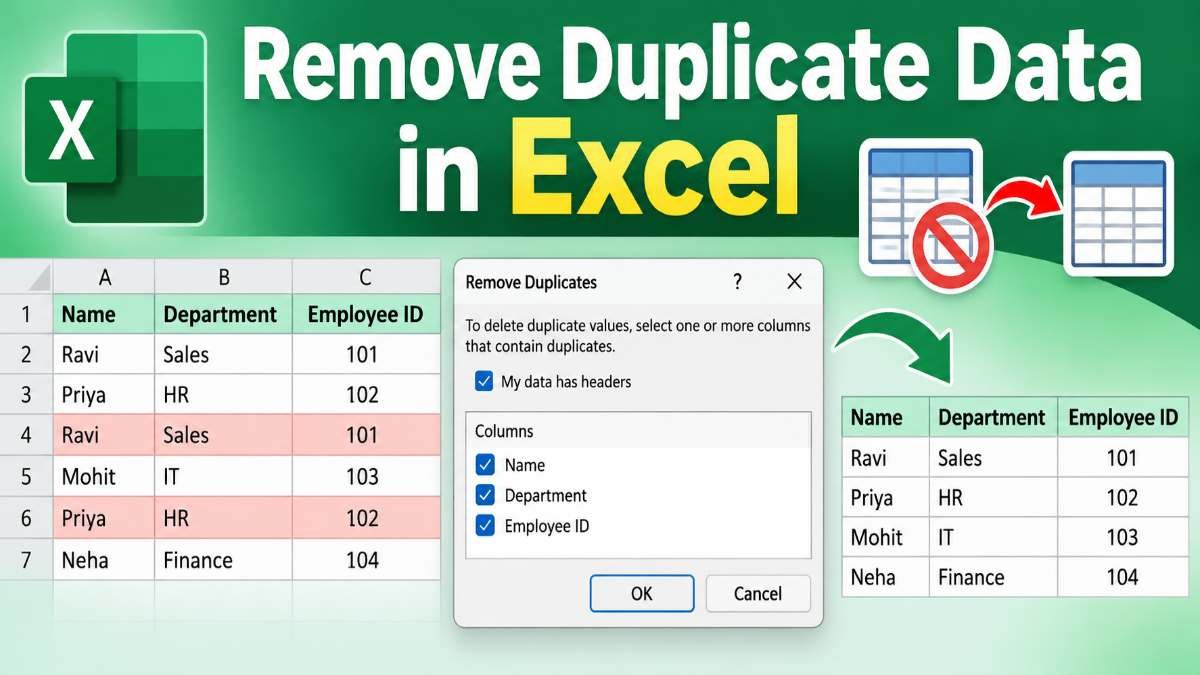
Suppose your worksheet contains:
| Name | Department | Employee ID |
|---|---|---|
| Ravi | Sales | 101 |
| Priya | HR | 102 |
| Ravi | Sales | 101 |
| Mohit | IT | 103 |
| Priya | HR | 102 |
You can remove the repeated rows in a few steps.
Step 1: Select Your Data
First, select the range containing your data.
You can select the entire table manually or click inside the dataset and use a keyboard shortcut such as Ctrl + A when appropriate.
Make sure the selected area contains the columns you want Excel to check.
Step 2: Open the Data Tab
At the top of Excel, click the Data tab.
Look for the section containing data tools.
Step 3: Choose Remove Duplicates
Click Remove Duplicates.
Excel will open a dialog box showing the columns in your selected range.
Step 4: Confirm the Header Option
If the first row contains column names such as Name, Department, and Employee ID, make sure My data has headers is selected.
This prevents Excel from treating the heading row as normal data.
Step 5: Select the Columns
Excel will display checkboxes for each column.
Select the columns that should be used to determine whether a row is a duplicate.
For complete row duplicates, select all relevant columns.
For duplicates based on Employee ID, you can select only the Employee ID column.
Step 6: Click OK
After selecting the required columns, click OK.
Excel will compare the selected values and remove duplicate records.
It will then display a message showing how many duplicate values were removed and how many unique values remain.
What Does Excel Keep When Removing Duplicates?
Excel generally keeps the first occurrence of a duplicate record and removes subsequent matching records.
For example:
| Name | ID |
|---|---|
| Amit | 101 |
| Priya | 102 |
| Amit | 101 |
| Neha | 103 |
After using Remove Duplicates on both columns, Excel keeps the first Amit record and removes the later identical row.
This matters when duplicate records contain slightly different information.
Consider:
| Name | ID | Score |
|---|---|---|
| Amit | 101 | 75 |
| Amit | 101 | 82 |
These rows are not duplicates if Score is included in the comparison. But if you remove duplicates using only Name and ID, Excel will keep the first record and remove the second.
Therefore, always review the columns before clicking OK.
How to Remove Duplicates From One Column in Excel
Sometimes you have a list containing hundreds or thousands of values in one column.
For example:
| Student Name |
|---|
| Rahul |
| Priya |
| Aman |
| Rahul |
| Neha |
| Priya |
| Karan |
To remove repeated names:
- Select the column or data range.
- Go to the Data tab.
- Click Remove Duplicates.
- Confirm the header option if applicable.
- Select the required column.
- Click OK.
Excel will leave one instance of each unique value.
The resulting list will contain:
| Student Name |
|---|
| Rahul |
| Priya |
| Aman |
| Neha |
| Karan |
This method is useful when you want to create a unique list of students, employees, cities, products, or other repeated values.
How to Remove Duplicate Data Based on Multiple Columns
One of the most useful features of Excel’s duplicate removal tool is the ability to select multiple columns.
Suppose you have:
| Name | Subject | Marks |
|---|---|---|
| Amit | Maths | 80 |
| Amit | English | 75 |
| Amit | Maths | 80 |
| Neha | Maths | 85 |
If you select Name, Subject, and Marks, only the two identical Amit Maths records will be considered duplicates.
But suppose you select only Name and Subject. Excel will still consider those two Amit Maths records duplicates, even if their marks are different.
This is useful when the combination of multiple columns forms a unique record.
A good rule is:
Select every column that is necessary to define a truly duplicate record.
How to Find Duplicate Data Without Deleting It
Sometimes you do not want to remove duplicates immediately. You may first want to review them.
In such cases, use Conditional Formatting.
This is particularly useful when your data is important and you want to inspect repeated values before making changes.
Using Conditional Formatting
- Select the cells you want to check.
- Go to the Home tab.
- Click Conditional Formatting.
- Choose Highlight Cells Rules.
- Select Duplicate Values.
- Choose a formatting option.
- Click OK.
Excel will highlight duplicate values.
For example:
| Name |
|---|
| Rahul |
| Priya |
| Rahul |
| Aman |
| Priya |
The repeated Rahul and Priya values will be highlighted.
This method does not delete anything. It simply makes duplicate values easier to identify.
Remove Duplicates vs Highlight Duplicates
These two features serve different purposes.
| Feature | Remove Duplicates | Conditional Formatting |
|---|---|---|
| Deletes repeated records | Yes | No |
| Highlights duplicates | No | Yes |
| Good for review | Limited | Yes |
| Permanently changes data | Yes | No |
| Useful before deletion | Sometimes | Very useful |
A practical approach is to highlight duplicates first when the information is sensitive or difficult to restore.
After reviewing the records, you can decide whether to remove them.
How to Remove Duplicate Rows in Excel
Duplicate rows are common when data is imported from another worksheet, downloaded from a website, or combined from multiple files.
Suppose:
| Name | Course | Batch |
|---|---|---|
| Ravi | Excel | A |
| Neha | Word | B |
| Ravi | Excel | A |
| Aman | PowerPoint | A |
To remove the repeated Ravi row:
- Click anywhere inside the dataset.
- Open the Data tab.
- Select Remove Duplicates.
- Select all three columns.
- Click OK.
Excel will compare the complete row and remove the repeated record.
Before doing this, it is a good practice to save a backup copy of the workbook.
How to Remove Duplicate Values but Keep the Original Data
If you want to preserve the original worksheet, there are several safer approaches.
One simple method is to create a copy of the worksheet first.
Right-click the worksheet tab and choose the appropriate copy or duplicate-sheet option available in your Excel version.
Then perform Remove Duplicates on the copied sheet.
This gives you an original version and a cleaned version.
Another approach is to create a separate unique list using a formula instead of deleting anything.
Using the UNIQUE Function to Get Unique Data
Modern versions of Excel provide the UNIQUE function, which can return distinct values from a range.
For example:
=UNIQUE(A2:A100)
If cells A2:A100 contain repeated student names, the formula returns a list containing each distinct name once.
This is different from Remove Duplicates because the original data remains unchanged.
For example:
| Original Data |
|---|
| Rahul |
| Priya |
| Rahul |
| Aman |
| Priya |
Using:
=UNIQUE(A2:A6)
can produce:
| Unique List |
|---|
| Rahul |
| Priya |
| Aman |
This approach is especially useful when you want to keep the raw data intact.
Why UNIQUE Is Useful
The UNIQUE function is helpful when:
- You need a separate clean list.
- You do not want to delete original records.
- The source data changes regularly.
- You want the unique list to update automatically.
- You are working with Microsoft 365 or an Excel version that supports dynamic arrays.
How to Identify Duplicates Using COUNTIF
The COUNTIF function is another useful method for finding repeated values.
Suppose student names are in cells A2:A10.
You can use:
=COUNTIF($A$2:$A$10,A2)
This formula counts how many times the value in A2 appears in the selected range.
If the result is:
- 1 → the value appears once.
- 2 → the value appears twice.
- 3 → the value appears three times.
You can also create a duplicate indicator:
=IF(COUNTIF($A$2:$A$10,A2)>1,"Duplicate","Unique")
This returns Duplicate when the value appears more than once.
This approach is useful for learning how duplicate checking works logically.
How to Find Only the Second or Later Duplicate
Sometimes you do not want to label the first occurrence as a duplicate. You may only want to identify repeated entries after their first appearance.
A formula such as:
=COUNTIF($A$2:A2,A2)>1
can be used to determine whether the current occurrence has already appeared earlier in the list.
This is useful when cleaning a dataset where the first record should remain untouched and later repetitions need review.
For example:
| Name | Duplicate? |
|---|---|
| Rahul | FALSE |
| Priya | FALSE |
| Rahul | TRUE |
| Aman | FALSE |
| Priya | TRUE |
This logic can help you understand how Excel tracks repeated entries.
How to Remove Duplicate Data in Excel Using Advanced Filtering
Another method for creating a unique list is Advanced Filter.
This can be useful in older versions of Excel or when you want to copy unique values to another location.
The general process is:
- Select the data.
- Open the Data tab.
- Use Advanced in the Sort & Filter section.
- Choose whether you want to filter the list in place or copy it elsewhere.
- Enable the option for unique records only.
- Apply the filter.
This method does not work exactly like Remove Duplicates because it is primarily a filtering approach rather than a direct deletion tool.
How to Remove Duplicate Data in Excel While Keeping Related Information
This is where beginners should be particularly careful.
Suppose you have:
| Student | Roll No. | Marks |
|---|---|---|
| Rahul | 101 | 75 |
| Rahul | 101 | 82 |
If you treat Roll No. as unique and remove duplicates using only Roll No., Excel may remove one row.
But which marks should remain?
That depends on your data rules.
Maybe 82 is the updated score, or perhaps 75 is the original entry that should be preserved. Excel cannot determine your business or academic rule automatically.
Before deleting duplicates, decide:
- Which record is correct?
- Which entry is older?
- Which entry is more complete?
- Should the first record remain?
- Should the latest record remain?
- Are the records actually duplicates?
This is why data cleaning involves more than simply clicking Remove Duplicates.
How to Remove Duplicates After Sorting Data
Sorting can make duplicate records easier to inspect.
For example, sort the data by:
- Student Name
- Employee ID
- Registration Number
- Product Code
Once repeated values appear together, you can review them more easily.
However, sorting itself does not remove duplicates.
You can sort first, inspect the records, and then use Remove Duplicates when appropriate.
Remember that sorting changes the order of your records, so save a copy when the original order matters.
How to Remove Duplicates in an Excel Table
If your data is formatted as an Excel Table, duplicate removal works in much the same way.
Click inside the table and use:
Data → Remove Duplicates
Excel will show the table’s column names, making it easier to select the fields used for comparison.
Using an Excel Table can also make your dataset easier to manage because sorting, filtering, and formatting tools are integrated into the table structure.
Common Examples of Duplicate Data
Duplicate data can appear in almost any type of spreadsheet.
Student Records
A school may accidentally have the same student entered twice because information was collected from multiple forms.
Possible unique fields include:
- Roll number
- Admission number
- Student ID
Employee Records
An organization may receive repeated employee records from different departments.
Employee ID is often a useful field for checking repeated entries, but the correct unique field depends on the organization.
Contact Lists
Duplicate phone numbers or email addresses are common when contact data is collected from multiple sources.
Product Lists
Inventory spreadsheets may contain repeated product codes.
A duplicate product code can make inventory calculations unreliable if each row is supposed to represent a unique product.
Exam Registration Data
Student registration numbers, application numbers, or candidate IDs may be used to check whether an application has been entered more than once.
Attendance Sheets
Names or student IDs may be repeated accidentally, particularly when data is copied and pasted.
Common Mistakes When Removing Duplicate Data
Removing duplicates is simple, but mistakes can still happen.
Mistake 1: Selecting the Wrong Column
If you select only the Name column, Excel may remove records that have the same name but different IDs.
Always select the fields that actually define uniqueness.
Mistake 2: Deleting Before Checking
Do not immediately delete duplicate data when the records are important.
Use Conditional Formatting or a helper formula first.
Mistake 3: Ignoring Headers
If the first row contains headings, make sure Excel recognizes them as headers.
Otherwise, the first row may be treated as normal data.
Mistake 4: Assuming Similar Records Are Identical
Two rows may look similar but contain important differences.
For example:
Rahul | 101 | 75
Rahul | 101 | 82
The Name and ID are the same, but the score is different.
Mistake 5: Not Keeping a Backup
A deleted duplicate record may be difficult to restore later if you close the workbook or perform additional operations.
Keep a backup when working with important data.
Mistake 6: Ignoring Spaces
Sometimes two values look identical but contain hidden or extra spaces.
For example:
Rahul
Rahul
These may not behave as expected because one value contains an extra trailing space.
Functions such as TRIM can help clean unnecessary spaces:
=TRIM(A2)
You can then use the cleaned results when checking duplicates.
How Extra Spaces Affect Duplicate Checking
Data copied from websites, PDFs, emails, or other software may contain unwanted spaces.
For example:
| Original |
|---|
| Rahul |
| Rahul |
| Priya |
The two Rahul entries may look identical on screen, but the second one may contain an extra space.
A useful cleaning formula is:
=TRIM(A2)
After cleaning the values, you can check duplicates again.
Other data-cleaning issues can include:
- Inconsistent capitalization.
- Hidden characters.
- Different spellings.
- Different date formats.
- Extra spaces.
- Numbers stored as text.
Cleaning the data before duplicate removal can make your results more reliable.
Are Duplicate Values and Duplicate Rows the Same?
No. Duplicate values and duplicate rows are related, but they are not always the same thing.
Suppose:
| Name | City |
|---|---|
| Rahul | Delhi |
| Rahul | Mumbai |
The Name value is duplicated, but the rows are different.
Now consider:
| Name | City |
|---|---|
| Rahul | Delhi |
| Rahul | Delhi |
Both the Name and City values match, so the complete rows are duplicates.
This distinction is extremely important when using Excel’s Remove Duplicates feature.
How to Decide Which Columns to Select
Before removing duplicate data, ask yourself:
What makes two records the same record?
For a student database, it could be Student ID.
For an employee list, it could be Employee ID.
For a customer list, it might be Email Address.
For an inventory sheet, it might be Product Code.
For a simple name list, it may be the Name column itself.
The answer depends on the purpose of the spreadsheet.
A good way to remember this is:
Unique identifier first, duplicate removal second.
How to Check Duplicate Email Addresses in Excel
Suppose email addresses are stored in column B.
You can highlight duplicates using Conditional Formatting:
- Select the email range.
- Go to Home.
- Select Conditional Formatting.
- Choose Highlight Cells Rules.
- Click Duplicate Values.
- Apply the desired formatting.
You can also use COUNTIF:
=COUNTIF($B$2:$B$100,B2)
If the result is greater than 1, that email address appears multiple times.
This method can help you inspect repeated records before deleting anything.
How to Check Duplicate Roll Numbers
For student data, Roll Number or Student ID may be more useful than Student Name because multiple students can have the same name.
For example:
| Name | Roll Number |
|---|---|
| Aman | 101 |
| Rohit | 102 |
| Aman | 103 |
| Aman | 101 |
If the Roll Number should be unique, then the repeated 101 is the entry that needs attention.
Using Conditional Formatting or COUNTIF on the Roll Number column can quickly reveal the problem.
How to Remove Duplicates Without Losing Other Columns
If a row contains useful information across several columns, do not remove duplicates by selecting a single descriptive field unless that field truly defines uniqueness.
Suppose you have:
| Name | ID | Department | Phone |
|---|---|---|---|
| Ravi | 101 | Sales | 9876 |
| Ravi | 101 | Sales | 9876 |
Select all four columns when removing complete duplicate rows.
This allows Excel to compare the complete record.
If you select only Name, Excel may identify other Ravi records as duplicates even when their IDs or departments are different.
Excel Shortcut and Quick Workflow for Duplicate Removal
There is no need to memorize a complicated formula for ordinary duplicate removal.
A quick workflow is:
Select Data → Data Tab → Remove Duplicates → Select Columns → OK
For review before deletion:
Select Data → Home → Conditional Formatting → Duplicate Values
For generating a unique list without deleting original data:
=UNIQUE(range)
For checking how many times a value appears:
=COUNTIF(range,cell)
These three approaches cover many everyday duplicate-data tasks.
Practical Example: Cleaning a Student List
Suppose you are preparing a list of students for an examination.
Your data looks like this:
| Student Name | Roll No. | Course |
|---|---|---|
| Aman | 101 | B.A. |
| Priya | 102 | B.Sc. |
| Rahul | 103 | B.Com. |
| Aman | 101 | B.A. |
| Neha | 104 | B.A. |
| Priya | 102 | B.Sc. |
The duplicate rows are:
- Aman, 101, B.A.
- Priya, 102, B.Sc.
To remove them:
- Select the complete table.
- Open Data.
- Select Remove Duplicates.
- Keep all three columns selected.
- Click OK.
Excel will retain the first occurrence of each duplicate record.
The cleaned table will contain four unique records.
This example demonstrates why selecting the complete set of relevant columns matters.
Practical Example: Duplicate Names but Different Records
Now consider:
| Student Name | Roll No. | Marks |
|---|---|---|
| Aman | 101 | 75 |
| Aman | 102 | 81 |
| Aman | 101 | 75 |
If you select all columns, Excel removes only the third row because it exactly matches the first row.
If you select only Student Name, Excel can treat the three Aman records as duplicates.
Therefore, the correct selection depends on what your data represents.
Benefits of Using Excel’s Remove Duplicates Feature
The built-in tool has several practical advantages.
It Is Fast
You can clean thousands of records without manually searching through every row.
It Is Beginner-Friendly
You do not need advanced formulas to use it.
It Supports Multiple Columns
You can define duplicates using one or several columns.
It Provides a Result Message
Excel tells you that duplicate values were removed and indicates the number of unique values remaining.
It Works Well for Routine Data Cleaning
For straightforward datasets, it can save significant manual effort.
Limitations of Removing Duplicate Data in Excel
Remove Duplicates is useful, but it is not a complete data-cleaning system.
It cannot automatically understand that:
- “Ravi Kumar” and “Ravi K.” may refer to the same person.
- “Delhi” and “New Delhi” might refer to related locations.
- “9876543210” and “+91 9876543210” may represent the same phone number.
- Different spellings may refer to the same organization.
These cases require additional data-cleaning rules.
Excel also does not understand which duplicate record is semantically correct unless your worksheet structure and sorting strategy make that decision clear.
For complicated datasets, you may need formulas, Power Query, manual review, or other data-management tools.
When Should You Not Remove Duplicate Data?
Not every repeated value is an error.
For example, a sales report may legitimately contain multiple purchases by the same customer.
A classroom attendance sheet may contain the same student’s name across different dates.
An employee timesheet may contain the same employee ID across many workdays.
A transaction sheet may naturally contain repeated product codes.
In these situations, repeated values are part of the data rather than mistakes.
Before using Remove Duplicates, ask:
Is this repeated entry actually wrong, or is repetition expected?
This simple question can prevent accidental data loss.
Student Tips for Learning Duplicate Data in Excel
Students preparing for computer exams or learning Excel should understand the difference between these tools:
| Tool | Main Purpose |
|---|---|
| Remove Duplicates | Permanently remove duplicate records |
| Conditional Formatting | Highlight duplicate values |
| COUNTIF | Count repeated occurrences |
| UNIQUE | Return unique values |
| Filter | Display selected records |
| Advanced Filter | Extract unique records |
| Sort | Arrange data for easier review |
A common exam question may ask:
Which Excel feature is used to remove duplicate records?
The direct answer is Remove Duplicates under the Data tab.
Another common question may ask:
Which function can return unique values in newer Excel versions?
The answer is UNIQUE.
Understanding the purpose of each tool is more useful than memorizing menu locations alone.
Quick Memory Trick
You can remember the main difference like this:
Highlight → Conditional Formatting
Delete → Remove Duplicates
Count → COUNTIF
Unique List → UNIQUE
This simple association can help when revising Excel for school, college, or competitive computer-awareness exams.
Best Practices for Duplicate Data Removal
Before you remove duplicate data, follow a safe workflow.
Make a Backup
Create a copy of the workbook or worksheet before making destructive changes.
Understand the Dataset
Know what each column represents.
Identify the Unique Field
Determine which value or combination of values should uniquely identify a record.
Review Duplicates First
Use Conditional Formatting or formulas when the data is important.
Select the Correct Columns
Do not automatically select a single column unless that is what defines a duplicate.
Clean the Data
Remove unnecessary spaces and correct obvious formatting inconsistencies.
Verify the Result
After removing duplicates, check the number of rows and review the cleaned data.
These steps reduce the risk of deleting valid information.
Important Points to Remember
When working with duplicate data in Excel, remember these key points:
- Duplicate values are not always duplicate records.
- The Remove Duplicates feature is available from the Data tab.
- Excel generally keeps the first occurrence and removes later matching records.
- The selected columns determine what Excel treats as a duplicate.
- Conditional Formatting can highlight duplicates without deleting them.
- COUNTIF can be used to count repeated values.
- UNIQUE can generate a separate list of unique values in supported Excel versions.
- Always check whether repeated information is actually an error.
- Keep a backup before deleting important records.
- Extra spaces and inconsistent formatting can affect duplicate checking.
Frequently Asked Questions
What is the easiest way to remove duplicate data in Excel?
The easiest method is to select your data, open the Data tab, choose Remove Duplicates, select the relevant columns, and click OK. Excel will remove repeated records based on the columns you selected.
How do I remove duplicate values from one column in Excel?
Select the column, go to Data → Remove Duplicates, confirm the header setting if needed, keep that column selected, and click OK. Excel will keep one occurrence of each unique value.
Does Excel delete the first duplicate?
When using Remove Duplicates, Excel generally retains the first occurrence and removes subsequent matching records. Therefore, review the order of your data before deleting duplicates.
How can I find duplicates without deleting them?
Use Conditional Formatting → Highlight Cells Rules → Duplicate Values. This highlights repeated values without changing or deleting your records.
How do I remove duplicate rows in Excel?
Select the entire dataset and use Data → Remove Duplicates. Select all columns that should be considered when determining whether two rows are identical.
Can I remove duplicates based on only one column?
Yes. In the Remove Duplicates dialog box, select only the column that should determine uniqueness. Be careful because this can remove rows that have the same value in that column but different information elsewhere.
What formula can I use to find duplicates in Excel?
You can use COUNTIF, for example:
=COUNTIF($A$2:$A$100,A2)
A result greater than 1 indicates that the value appears multiple times within the selected range.
What is the UNIQUE function in Excel?
The UNIQUE function returns distinct values from a range or array in Excel versions that support dynamic array functions. For example:
=UNIQUE(A2:A100)
This creates a separate list of unique values while leaving the original data unchanged.
Why does Excel sometimes fail to treat two similar values as duplicates?
The values may contain extra spaces, different characters, different formatting, or other hidden differences. Data-cleaning functions such as TRIM can help remove unnecessary spaces before checking for duplicates.
Can I undo Remove Duplicates in Excel?
Yes, immediately after performing the operation, you can normally use Undo to reverse the change. However, it is safer to keep a backup copy of important data rather than relying only on Undo.
Should I remove duplicate names from a student database?
Not necessarily. Two students can have the same name. A roll number, admission number, or student ID may be a better field for determining whether the records are actually duplicates.
Are repeated values always errors?
No. Repeated values can be completely valid. For example, the same customer may place several orders, or the same student may appear on multiple attendance dates. Always understand the purpose of the data before removing duplicates.
Conclusion
Learning How to Remove Duplicate Data in Excel is a useful skill for students, professionals, teachers, and anyone who regularly works with spreadsheets. Excel’s built-in Remove Duplicates feature makes it easy to clean repeated records, while Conditional Formatting, COUNTIF, UNIQUE, sorting, and filtering provide additional ways to investigate and manage duplicate information.
The most important lesson is not simply knowing where the Remove Duplicates button is. You also need to understand what a duplicate means in your dataset. A repeated name may not represent a repeated person, and a repeated product code may be perfectly valid when the worksheet records multiple transactions.
For simple duplicate rows, select the relevant data, use Data → Remove Duplicates, choose the correct columns, and review the result. For situations where you do not want to delete information immediately, highlight duplicates first or create a separate unique list with the UNIQUE function.
With a little practice, duplicate-data cleanup becomes a quick and reliable part of everyday Excel work.