
Microsoft Word is often introduced as a simple program for typing letters, assignments, applications, and notes. But typing text is only one part of using Word effectively. The way a document is arranged, spaced, aligned, emphasized, and presented can make a major difference in how easy it is to read and understand.
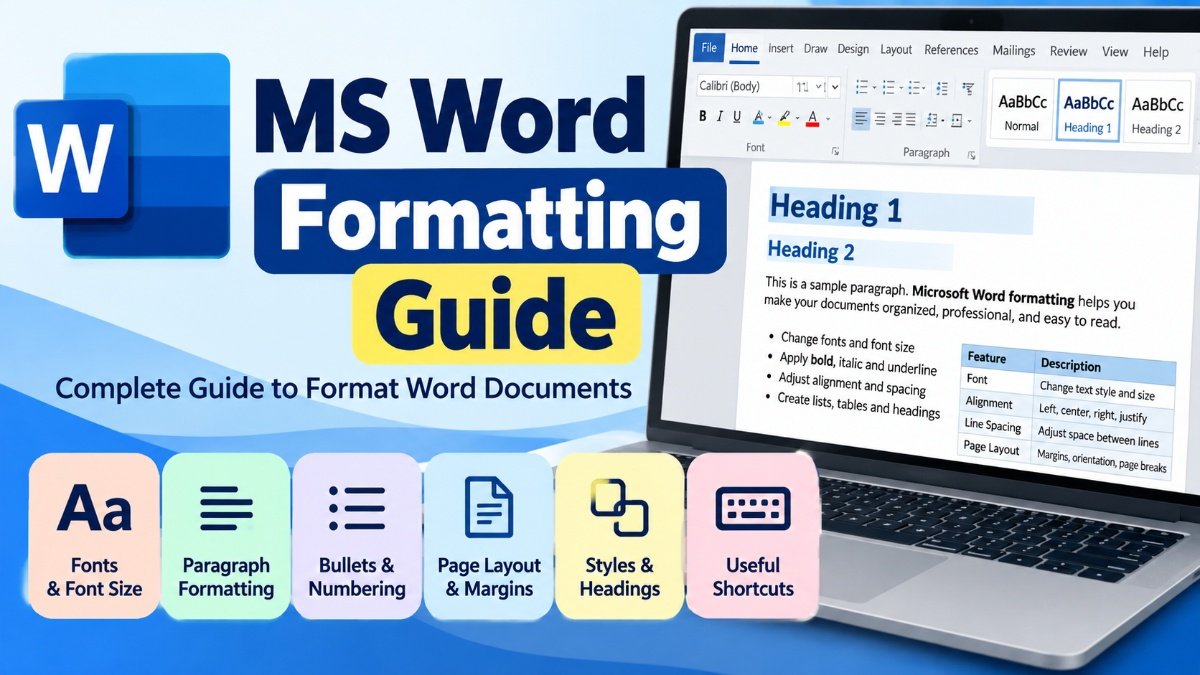
MS word Formatting refers to the process of changing the appearance and layout of text and other elements in a Microsoft Word document so that the document looks organized, professional, and readable. It includes tasks such as changing fonts, adjusting font size, applying bold or italic styles, aligning paragraphs, setting line spacing, creating lists, using headings, managing margins, inserting page breaks, and controlling page layout.
For students, formatting is useful when preparing school assignments, college projects, practical files, resumes, seminar reports, research work, and applications. Competitive-exam aspirants may also use Word for preparing study notes, mock tests, question banks, and printable revision material. The source brief for this guide specifically emphasizes beginner-friendly explanations, practical examples, useful shortcuts, and exam-oriented learning where relevant.
Good formatting does not mean adding colors and decorative effects everywhere. In most documents, good formatting is about making the content easier to scan and understand. A well-formatted document lets the reader quickly identify the title, headings, paragraphs, important information, tables, lists, and page structure.
Visit More:-
- MS Word Tutorial
- MS Excel Tutorial
- MS PowerPoint Tutorial
- MS Paint Tutorial
- How to Convert Excel Sheet into PDF Without Losing Formatting
What Is MS Word Formatting?
MS word Formatting is the process of changing the visual appearance, structure, and layout of content in Microsoft Word. It helps control how text looks on the screen or printed page and how different parts of a document are organized.
Formatting can be as simple as making a heading bold or as advanced as creating a complete report with multiple heading levels, page numbers, tables, a table of contents, custom margins, and section breaks.
Some common formatting tasks include:
| Formatting Element | What It Controls |
|---|---|
| Font | The design or typeface of text |
| Font Size | How large or small text appears |
| Bold | Makes text visually stronger |
| Italic | Slants text for emphasis |
| Underline | Adds a line below selected text |
| Font Color | Changes the color of text |
| Alignment | Controls left, center, right, or justified positioning |
| Line Spacing | Controls the distance between lines |
| Paragraph Spacing | Controls the space before or after paragraphs |
| Indentation | Moves text inward from the margin |
| Bullets and Numbering | Organizes lists |
| Styles | Applies consistent formatting to headings and other text |
| Margins | Controls space around page edges |
| Page Orientation | Changes the page between portrait and landscape |
| Page Breaks | Starts content on a new page |
Formatting can be applied to individual words, complete paragraphs, selected sections, or an entire document.
Why Is MS Word Formatting Important?
Formatting matters because readers should not have to struggle to understand a document. Even excellent content can look confusing when every paragraph has the same appearance and there is no visual structure.
For example, imagine a five-page assignment with one font size from beginning to end, no headings, no spacing between paragraphs, and no clear distinction between questions and answers. The information may be correct, but the document becomes tiring to read.
Now imagine the same assignment with:
- A clear title
- Proper headings
- Consistent fonts
- Suitable line spacing
- Numbered questions
- Bullet points where appropriate
- Page numbers
- Neat margins
- Properly aligned tables
The information has not changed, but the document feels much more organized.
Main Benefits of Proper Formatting
Good formatting can help you:
- Improve readability – Readers can move through the content more easily.
- Create visual hierarchy – Titles and headings stand out from normal text.
- Make important information easier to find – Key terms, lists, and figures can be highlighted.
- Present academic work professionally – Assignments and reports look structured.
- Maintain consistency – Styles and formatting tools help keep the same design throughout a document.
- Save time – Keyboard shortcuts and styles can be faster than repeatedly changing options manually.
- Prepare documents for printing – Margins, page size, spacing, and page breaks can be controlled before printing.
The goal should always be useful formatting, not formatting for decoration.
Basic Types of MS Word Formatting
MS Word formatting can be broadly understood in several categories. Knowing the difference makes it easier to decide which tool to use.
Character Formatting
Character formatting changes the appearance of individual characters, words, or selected pieces of text.
Common examples include:
- Font type
- Font size
- Bold
- Italic
- Underline
- Font color
- Text highlighting
- Strikethrough
- Superscript
- Subscript
For example, in the sentence:
The final examination will begin on Monday.
you could make “Monday” bold to draw attention to the date.
Character formatting is useful when a small part of a sentence needs visual emphasis.
Paragraph Formatting
Paragraph formatting controls the layout of an entire paragraph rather than just individual letters.
It includes:
- Text alignment
- Line spacing
- Paragraph spacing
- Indentation
- Tabs
- Borders
- Shading
- Bullets and numbering
For example, if your assignment requires 1.5 line spacing, you would apply paragraph formatting to the relevant paragraphs rather than changing each line individually.
Page Formatting
Page formatting controls the document page itself.
It commonly includes:
- Margins
- Page size
- Orientation
- Columns
- Page breaks
- Section breaks
- Headers and footers
- Page numbers
Page formatting becomes especially important for reports, project files, resumes, and documents that will be printed.
Document-Level Formatting
A longer document may need formatting rules that apply consistently across many pages.
Examples include:
- Heading styles
- Theme fonts
- A consistent heading hierarchy
- Automatic table of contents
- Header and footer settings
- Page numbering
- Section-specific layouts
This is where Word’s styles and section tools become particularly useful.
How to Change Font in Microsoft Word
Changing the font is one of the most common formatting tasks.
To change a font:
- Select the text.
- Open the Home tab.
- Locate the Font area.
- Open the font-name dropdown.
- Select the required font.
For example, you might use a standard readable font for a school assignment instead of using several decorative fonts.
Choosing a Suitable Font
A common mistake is assuming that more decorative fonts make a document look more professional. In educational and professional documents, readability normally matters more than decoration.
For long paragraphs, choose a font that remains easy to read at normal size. Decorative fonts may be better limited to specific design situations, such as a poster or invitation, where appropriate.
The most important rule is consistency. Using five or six unrelated fonts in one assignment usually makes the document look less organized.
How to Change Font Size
Font size controls how large the selected text appears.
To change it:
- Select the text.
- Go to Home.
- Find the font-size box.
- Choose or enter the required size.
A document often uses different sizes for different purposes. A main title may be larger than a section heading, while body text is usually smaller.
There is no single font size that is correct for every document. Requirements may depend on the school, college, teacher, employer, institution, or document type. When a formatting requirement is provided, follow that requirement instead of applying a generic rule.
Bold, Italic, Underline, and Other Text Effects
Microsoft Word offers several basic text effects.
Bold
Bold text makes characters visually heavier.
Use bold when you want to emphasize:
- Headings
- Important terms
- Key instructions
- Selected words
Example:
Submission Date: 15 October
Bold should support the structure of the document rather than being applied to every sentence.
Italic
Italic text is slanted and can be useful for:
- Emphasis
- Certain titles
- Terms that need visual distinction
- Notes or secondary information, depending on the document style
Example:
Please read the instructions carefully before submitting the form.
Underline
Underline places a line beneath selected text.
Although it is useful in some situations, excessive underlining can make a document visually busy. It is often better to reserve it for specific purposes rather than using it as general emphasis.
Text Highlighting
Highlighting creates a colored background behind text. It can be useful while studying or reviewing notes.
For example, you can highlight a key definition:
Photosynthesis: The process by which green plants make food using light energy.
When preparing a final professional document, however, use highlighting selectively.
How to Align Text in MS Word
Paragraph alignment determines where text sits between the left and right margins.
Microsoft Word provides four common alignment options.
| Alignment | Description | Common Use |
|---|---|---|
| Left | Text starts from the left margin | General paragraphs |
| Center | Text is placed in the middle | Titles and headings |
| Right | Text aligns with the right margin | Dates or selected layout elements |
| Justify | Text aligns with both left and right margins | Some reports and formal documents |
Left Alignment
Left alignment is the default choice for many documents.
Each line begins from the same left margin, while the right edge may remain uneven.
Center Alignment
Center alignment positions text around the middle of the page.
It is commonly used for titles, certificates, or selected headings.
Right Alignment
Right alignment pushes paragraph text toward the right margin. It is less common for normal body paragraphs but can be useful for specific pieces of information.
Justified Alignment
Justified text adjusts spacing between words so that the paragraph generally lines up with both margins.
Justification can make some formal documents look structured, but the result depends on the font, page width, and word lengths. Extremely uneven spacing can sometimes make justified text less comfortable to read.
Line Spacing and Paragraph Spacing
Spacing is one of the most overlooked parts of MS word Formatting.
A paragraph can contain perfectly correct text but still look crowded if the lines are too close together.
What Is Line Spacing?
Line spacing controls the vertical distance between lines within a paragraph.
Common choices include:
- Single
- 1.5 lines
- Double
- Custom spacing
For example, an assignment may require 1.5 line spacing. The exact requirement depends on the institution or teacher.
What Is Paragraph Spacing?
Paragraph spacing adds space before or after a paragraph.
This is different from pressing Enter repeatedly to create visual gaps.
Using paragraph spacing is generally cleaner because Word keeps the layout controlled even when content is edited.
Why Avoid Multiple Empty Paragraphs?
Beginners often press Enter several times to push text downward. This may appear to work initially, but it creates fragile formatting.
When earlier content changes, the extra blank paragraphs can cause unwanted gaps or page layout problems.
A better approach is to use:
- Paragraph spacing
- Page breaks
- Section breaks
- Alignment tools
- Layout settings
depending on the actual requirement.
Indentation in Microsoft Word
Indentation controls how far a paragraph is moved inward from the margin.
Word can provide:
- Left indentation
- Right indentation
- First-line indentation
- Hanging indentation
First-Line Indent
A first-line indent moves only the first line of a paragraph inward.
This can be used in traditional document layouts where paragraphs are visually distinguished without extra space.
Hanging Indent
A hanging indent keeps the first line closer to the margin while subsequent lines are indented.
This is particularly useful in lists, references, bibliographies, and some citation formats.
Using the indentation controls is usually better than pressing the Spacebar repeatedly to create an indent.
Bullets and Numbering
Lists are extremely useful when information needs to be presented in a quick, scannable format.
Bulleted Lists
Bullets are appropriate when the order of items is not important.
Example:
- Notebook
- Pen
- Calculator
- Admit card
Numbered Lists
Numbering is useful when items follow a sequence.
Example:
- Open Microsoft Word.
- Create a new document.
- Type the content.
- Format the headings.
- Save the document.
Multilevel Lists
A multilevel list is useful when information has different levels of hierarchy.
For example:
- Computer Fundamentals
1.1 Hardware
1.2 Software - Operating Systems
2.1 Windows
2.2 Linux
Instead of manually typing numbers, Word’s list tools can maintain the structure for you.
Using Headings and Styles
One of the most valuable Word skills is learning to use Styles instead of manually formatting every heading.
A heading can be made bold, enlarged, centered, and colored manually, but that does not necessarily create a structured document.
Word provides heading styles such as:
- Heading 1
- Heading 2
- Heading 3
- Other built-in styles
Why Are Styles Important?
Styles provide consistency.
Suppose your report contains twenty section headings. If you manually format each one separately, you may accidentally give some headings a different font size or spacing.
With styles, a common formatting rule can be applied more consistently.
Styles also support other Word features, including automatic navigation and a table of contents.
Example of Heading Hierarchy
A practical structure might look like this:
Heading 1: MS Word Formatting Guide
Heading 2: Basic Formatting Tools
Heading 3: Font Formatting
Heading 3: Paragraph Formatting
Heading 2: Advanced Page Formatting
This hierarchy tells the reader how the sections relate to one another.
How to Use Format Painter
Format Painter allows you to copy formatting from one piece of content and apply it to another.
Suppose you have already formatted one heading correctly. Instead of repeating every font, size, and style setting manually, you can use Format Painter to transfer the formatting.
Basic process:
- Select the correctly formatted text.
- Click Format Painter.
- Select the text where you want to apply the formatting.
This can save considerable time when working with repetitive content.
The key point is that Format Painter copies formatting, not the actual wording.
MS Word Formatting for Assignments
Students frequently use Word for assignments. A neat assignment should have a logical structure before visual decoration is considered.
A basic assignment might contain:
- Title
- Student information
- Introduction
- Main sections
- Examples or explanations
- Conclusion
- References, when required
A Practical Assignment Example
Imagine you are preparing an assignment on computer networks.
A readable structure could be:
Computer Networks
Introduction
A short explanation of what a computer network is.
Types of Computer Networks
A discussion of LAN, MAN, WAN, and related concepts.
Advantages
A bullet list of key advantages.
Conclusion
A short summary.
Instead of using random bold text throughout the assignment, use headings to create a predictable structure.
That makes it easier for both the writer and reader to locate information.
MS Word Formatting for Reports
Reports usually require more structure than simple assignments.
A longer report may include:
- Cover page
- Introduction
- Objectives
- Methodology
- Main findings
- Tables or figures
- Discussion
- Conclusion
- References
- Appendix
Long documents benefit greatly from styles, page numbers, headers, footers, and section breaks.
Creating a Table of Contents
A table of contents is especially useful in longer documents.
The basic workflow is:
- Apply heading styles to the relevant sections.
- Place the cursor where the table of contents should appear.
- Open the References tab.
- Insert a table of contents.
- Update it when headings or page numbers change.
The important lesson is that Word’s automatic table of contents depends on properly structured headings. Simply making text bold does not necessarily make it part of the automatic contents structure.
Page Margins and Page Layout
Margins control the blank space between the document content and the edges of the page.
To adjust margins, use the Layout tab and open the margin settings.
Margins affect:
- How much content fits on a page
- The visual balance of the document
- Printing
- Binding space
- Overall page appearance
Always follow any specific margin requirement given by your institution.
Changing margins simply to reduce the page count can sometimes create a cramped layout and may conflict with assignment requirements.
Portrait and Landscape Orientation
Word supports two common page orientations.
Portrait is taller than it is wide and is generally suitable for ordinary documents.
Landscape is wider than it is tall and can be useful for:
- Wide tables
- Charts
- Schedules
- Large diagrams
- Spreadsheet-like information
A document can also contain different sections with different page orientations when appropriate.
Page Breaks and Section Breaks
Page breaks and section breaks are often confused by beginners.
Page Break
A page break moves the following content to a new page.
It is useful when:
- A new chapter should begin on a fresh page
- A cover page should be separated from the main content
- A new section needs to start cleanly
Using a page break is generally more reliable than pressing Enter repeatedly.
Section Break
A section break divides a document into sections that can have different formatting or layout settings.
Depending on the type of section break and document setup, different sections can have different:
- Headers and footers
- Page numbering arrangements
- Margins
- Columns
- Orientation
- Other page-level settings
This makes section breaks an important tool for advanced document design.
Headers, Footers, and Page Numbers
Headers appear near the top of a page, while footers appear near the bottom.
They can be used for information such as:
- Document title
- Student name
- Chapter name
- Organization name
- Date
- Page numbers
Why Page Numbers Matter
Page numbers are particularly useful in assignments, reports, project files, and longer notes.
Readers can quickly identify their location in the document, and page references become easier.
Instead of typing page numbers manually, use Word’s page-number feature so numbering can update automatically when pages are added or removed.
Tables and Formatting
Tables are useful when information needs to be compared or organized into rows and columns.
For example:
| Feature | Basic Formatting | Advanced Formatting |
|---|---|---|
| Text | Font and size | Styles and themes |
| Paragraph | Alignment | Indentation and spacing |
| Pages | Margins | Sections and orientation |
| Navigation | Page numbers | Automatic table of contents |
A good table should be easy to scan. Avoid adding unnecessary borders, colors, or complicated designs when simple formatting communicates the information clearly.
When a table contains a lot of information, consider whether the page is better suited to portrait or landscape orientation.
Using Find and Replace for Formatting Work
Find and Replace is commonly used to change words, but it can also assist with formatting tasks.
For example, while editing a long document, you may discover that a specific term has been formatted incorrectly in several places. Rather than locating each occurrence manually, Word’s advanced Find and Replace options can help locate and replace particular formatting in supported situations.
This is especially useful in large reports, study materials, and repeated templates.
Useful MS Word Formatting Keyboard Shortcuts
Keyboard shortcuts can significantly speed up everyday formatting.
| Shortcut | Function |
|---|---|
| Ctrl + B | Bold |
| Ctrl + I | Italic |
| Ctrl + U | Underline |
| Ctrl + L | Left align |
| Ctrl + E | Center align |
| Ctrl + R | Right align |
| Ctrl + J | Justify |
| Ctrl + Z | Undo |
| Ctrl + Y | Redo |
| Ctrl + A | Select all |
| Ctrl + C | Copy |
| Ctrl + X | Cut |
| Ctrl + V | Paste |
| Ctrl + S | Save |
| Ctrl + F | Find |
| Ctrl + H | Find and Replace |
| Ctrl + P |
These shortcuts are worth learning because they reduce the time spent moving between the keyboard and mouse.
A Simple Way to Remember Alignment Shortcuts
You can associate the alignment shortcuts with the letters:
- L = Left
- E = Center
- R = Right
- J = Justify
This can be especially useful for students preparing for computer-awareness or basic computer-skill questions.
How to Format a Professional Document Step by Step
A practical way to format a document is to work from structure to detail rather than changing random parts one at a time.
Step 1: Type or Review the Content
Before spending too much time on formatting, make sure the document contains the required information.
Step 2: Decide the Structure
Identify:
- Title
- Main headings
- Subheadings
- Body paragraphs
- Lists
- Tables
- References
Step 3: Apply Heading Styles
Use the appropriate heading levels instead of manually changing each heading.
Step 4: Set the Main Font
Choose a readable font and apply it consistently according to the document requirements.
Step 5: Set Paragraph Spacing
Adjust line and paragraph spacing so the content has enough breathing room.
Step 6: Set Page Layout
Check:
- Margins
- Page size
- Orientation
- Section requirements
Step 7: Add Page Numbers
Use automatic page numbering where needed.
Step 8: Format Tables and Lists
Keep bullet lists, numbering, and tables consistent.
Step 9: Review Page Breaks
Look for awkward breaks, large blank spaces, split headings, or tables that do not fit properly.
Step 10: Proofread
Formatting cannot fix incorrect spelling, unclear sentences, or missing information. Always review the content before final submission.
Common MS Word Formatting Mistakes
Many formatting problems are caused not by difficult Word features but by simple habits.
Using Too Many Fonts
A document can quickly become messy when every heading uses a different font.
Better approach: Use a small, consistent font system.
Manually Creating Spacing With the Spacebar
Using multiple spaces to align text is unreliable.
Better approach: Use tabs, alignment tools, indents, tables, or other appropriate features.
Pressing Enter Multiple Times
Repeated empty paragraphs can break when the document is edited.
Better approach: Use paragraph spacing or page breaks.
Making Every Word Bold
When everything is emphasized, nothing stands out.
Better approach: Use bold selectively.
Using Random Font Sizes
A document with arbitrary heading sizes can lack visual hierarchy.
Better approach: Establish a consistent heading structure.
Ignoring Page Layout
Students sometimes focus entirely on text and notice page problems only when printing.
Better approach: Review the complete document in print layout before submission.
Overusing Colors
Bright colors and decorative effects may distract readers.
Better approach: Use color only when it improves meaning or supports the purpose of the document.
Not Checking Page Breaks
A heading may appear at the bottom of one page while its paragraph begins on the next page.
Better approach: Review page transitions after completing the document.
MS Word Formatting for Resumes
A resume needs particularly careful formatting because the reader should be able to locate important information quickly.
A simple structure might include:
Name and Contact Information
Career Objective or Summary
Education
Skills
Experience
Projects
Certifications
Achievements
The exact sections depend on the applicant’s background and the purpose of the resume.
For a resume, consistent alignment and spacing often matter more than decorative design. Keep headings visually distinct and make dates, positions, institutions, and descriptions easy to scan.
Formatting Study Notes in Microsoft Word
Word can also be useful for preparing revision notes.
A practical study-note structure can include:
- Topic heading
- Definition
- Key points
- Examples
- Important formulas
- Practice questions
- Quick revision section
For example:
Photosynthesis
Definition: A process in which green plants use light energy to produce food.
Key Points:
- Requires light energy
- Involves chlorophyll
- Produces food for the plant
- Releases oxygen as part of the process
This format helps separate definitions from supporting information.
Highlighting Important Exam Points
For revision documents, you may use bold or highlighting for important terms. However, avoid highlighting every line.
A better strategy is to distinguish only genuinely important information, such as formulas, definitions, dates, rules, or concepts that you repeatedly need to revise.
A Practical Example of Good Formatting
Suppose a student has written the following plain text:
Computer networks allow computers to communicate with each other. There are several types of networks. LAN is normally used over a smaller area. MAN can cover a city-sized area. WAN connects systems over larger geographical areas.
The content can be improved through structure:
Computer Networks
Introduction
Computer networks allow computers and other devices to communicate and share resources.
Types of Networks
LAN: Used for relatively small areas such as a room, building, or campus.
MAN: Designed for a larger area, often associated with a city or metropolitan region.
WAN: Connects networks across large geographical areas.
The information is essentially the same, but headings, spacing, and emphasis make the document much easier to scan.
How to Make MS Word Formatting Consistent
Consistency is one of the most important principles of document formatting.
A simple formatting plan can include:
| Document Element | Suggested Approach |
|---|---|
| Main Title | Largest visual level |
| Main Headings | Consistent heading style |
| Subheadings | Smaller but clearly distinct |
| Body Text | One readable font and size |
| Lists | One consistent list format |
| Tables | Consistent heading and alignment |
| Page Numbers | Same position throughout |
| Headers/Footers | Consistent design |
The exact values should be adjusted according to the document’s requirements. There is no universal formatting template suitable for every assignment or professional document.
Advanced Formatting Features Worth Learning
Once you are comfortable with basic MS word Formatting, several advanced tools can make your work much more efficient.
Themes
Themes can help maintain a consistent set of fonts, colors, and design elements across a document.
They are useful for larger or presentation-oriented documents where consistency matters.
Columns
Columns divide text vertically across a page.
They can be useful for:
- Newsletters
- Brochures
- Selected educational materials
- Magazine-style layouts
They are not normally necessary for ordinary assignments unless the format calls for them.
Borders and Shading
Borders can define areas such as:
- Tables
- Notices
- Text boxes
- Special information
Shading can help separate an important section visually.
The best design is usually the one that improves clarity without distracting from the content.
Text Boxes
Text boxes allow text to be placed independently from the ordinary paragraph flow.
They can be useful in posters, flyers, diagrams, and selected layouts. For normal academic writing, however, ordinary paragraphs and headings are often easier to manage.
MS Word Formatting vs Plain Text
Plain text focuses mainly on characters and their content. It generally does not preserve the rich page layout and visual hierarchy that Word documents can provide.
MS Word Formatting adds visual and structural information.
| Plain Text | Formatted Word Document |
|---|---|
| Basic characters | Rich text and layout |
| Limited visual hierarchy | Headings and styles |
| Minimal page control | Margins and page setup |
| Simple lists | Managed bullets and numbering |
| Limited presentation | Tables, images, headers, footers, etc. |
The main advantage of formatting is not simply appearance. It provides structure that helps people understand and navigate information.
Practical Tips for Students
Students can improve their Word skills without trying to learn every feature at once.
Start with these fundamentals:
- Learn the difference between character and paragraph formatting.
- Practice font, size, bold, italic, and underline.
- Learn the four basic alignments.
- Understand line and paragraph spacing.
- Use bullets and numbering correctly.
- Learn heading styles.
- Practice page breaks instead of repeated Enter presses.
- Learn essential keyboard shortcuts.
- Use page numbers in longer documents.
- Check the final document before printing or submitting it.
Build a Reusable Template
When you frequently create the same type of document, such as weekly notes or assignments, a basic template can save time.
A template might already contain:
- Preferred font
- Heading styles
- Margins
- Header and footer
- Page numbering
- Basic spacing
Then you can focus more on writing rather than rebuilding the design each time.
Exam-Oriented Points to Remember
For students preparing for computer-awareness or office-application questions, these concepts are especially useful:
- Ctrl + B is used for Bold.
- Ctrl + I is used for Italic.
- Ctrl + U is used for Underline.
- Ctrl + L aligns text to the left.
- Ctrl + E centers text.
- Ctrl + R aligns text to the right.
- Ctrl + J justifies text.
- Paragraph formatting controls alignment, spacing, and indentation.
- Character formatting changes the appearance of selected characters or words.
- Styles help maintain consistent formatting.
- Page breaks move content to a new page.
- Section breaks can divide a document into independently formatted sections.
- Headers appear at the top of pages.
- Footers appear at the bottom.
- Automatic page numbering is preferable to typing page numbers manually.
A useful study method is to learn the feature, use it in a small document, and then practice the related shortcut. Practical repetition makes these commands easier to remember than memorizing isolated definitions.
Frequently Asked Questions
What is MS word Formatting?
MS word Formatting means changing the appearance, structure, and page layout of content in Microsoft Word. It includes fonts, font sizes, alignment, spacing, indentation, lists, headings, margins, page breaks, headers, footers, and other layout features.
What is the difference between character formatting and paragraph formatting?
Character formatting changes selected text, such as its font, size, bold, italic, underline, or color. Paragraph formatting controls the arrangement of a paragraph, including alignment, indentation, line spacing, and paragraph spacing.
Which MS Word formatting is most important for students?
The most useful skills for students are font formatting, paragraph alignment, line spacing, indentation, headings, bullets, numbering, margins, page breaks, page numbers, and basic keyboard shortcuts. These cover most everyday assignment and report requirements.
How do I format a document professionally in Word?
Start by organizing the content into titles, headings, paragraphs, lists, and tables. Then apply consistent styles, readable fonts, suitable spacing, appropriate margins, and page numbers where necessary. Finally, review the complete document for page breaks, alignment, and consistency.
Why should I use Styles in Microsoft Word?
Styles make formatting more consistent and easier to manage. They also help Word recognize document headings, which can support features such as navigation and an automatic table of contents.
What is the difference between a page break and a section break?
A page break starts the following content on a new page. A section break divides a document into sections that can have different layout or formatting settings.
How do I make text bold in Microsoft Word?
Select the text and choose the Bold command from the Home tab, or use the keyboard shortcut Ctrl + B.
What is the shortcut for center alignment in MS Word?
The keyboard shortcut for center alignment is Ctrl + E.
Should I use many colors and fonts in an assignment?
Usually, no. A clear and consistent design is easier to read. Use different fonts or colors only when they have a specific purpose and are appropriate for the document’s requirements.
Is MS word Formatting important for competitive exams?
Yes, basic Word formatting concepts can be relevant in computer-awareness, office-application, and computer-knowledge sections where questions may test shortcuts, alignment, formatting, document structure, and common Word features. The exact exam syllabus should always be checked against the relevant examination authority or notification.
Conclusion
MS word Formatting is much more than making text look attractive. It is a practical way to organize information so that the reader can understand it quickly and move through the document without confusion.
For beginners, the best place to start is with the basics: fonts, font size, bold and italic text, alignment, line spacing, paragraph spacing, indentation, bullets, numbering, and headings. Once these become familiar, you can move to styles, page breaks, section breaks, headers, footers, page numbers, tables, and more advanced layouts.
For students, these skills can make assignments, projects, notes, reports, and resumes easier to prepare. For professionals, they can help create clearer and more consistent documents. The exact formatting rules may differ between schools, colleges, employers, universities, and other institutions, so specific instructions should always take priority over a general formatting approach.
The most useful habit is to think about clarity before decoration. Choose a readable font, create a logical hierarchy, keep spacing consistent, and use Word’s built-in formatting tools instead of trying to control the page with repeated spaces or Enter presses.
Once you understand how character formatting, paragraph formatting, and page formatting work together, MS word Formatting becomes much easier. With regular practice and a few essential keyboard shortcuts, even a beginner can create documents that are clean, structured, readable, and ready for submission or printing.