
Getting a government or office job is not only about clearing an exam, completing a degree, or meeting the eligibility criteria. In many jobs, you are also expected to work comfortably on a computer. From preparing documents and maintaining records to sending emails, entering data, creating spreadsheets, and using online portals, basic computer knowledge has become part of everyday office work.
The good news is that you do not need to become a computer engineer to handle these tasks. Most government and office jobs require practical computer skills that can be learned step by step. A student who knows how to use a keyboard, manage files, work with Microsoft Word and Excel, send professional emails, browse the internet safely, and use common office applications can handle a large part of routine computer-based work.
For competitive-exam aspirants, computer awareness can also be useful during recruitment tests. Depending on the post and recruiting organization, questions may cover topics such as operating systems, internet, computer hardware, software, MS Office, networking, cyber security, shortcuts, and basic troubleshooting. Actual job requirements, however, vary by department, organization, post, and recruitment notification.
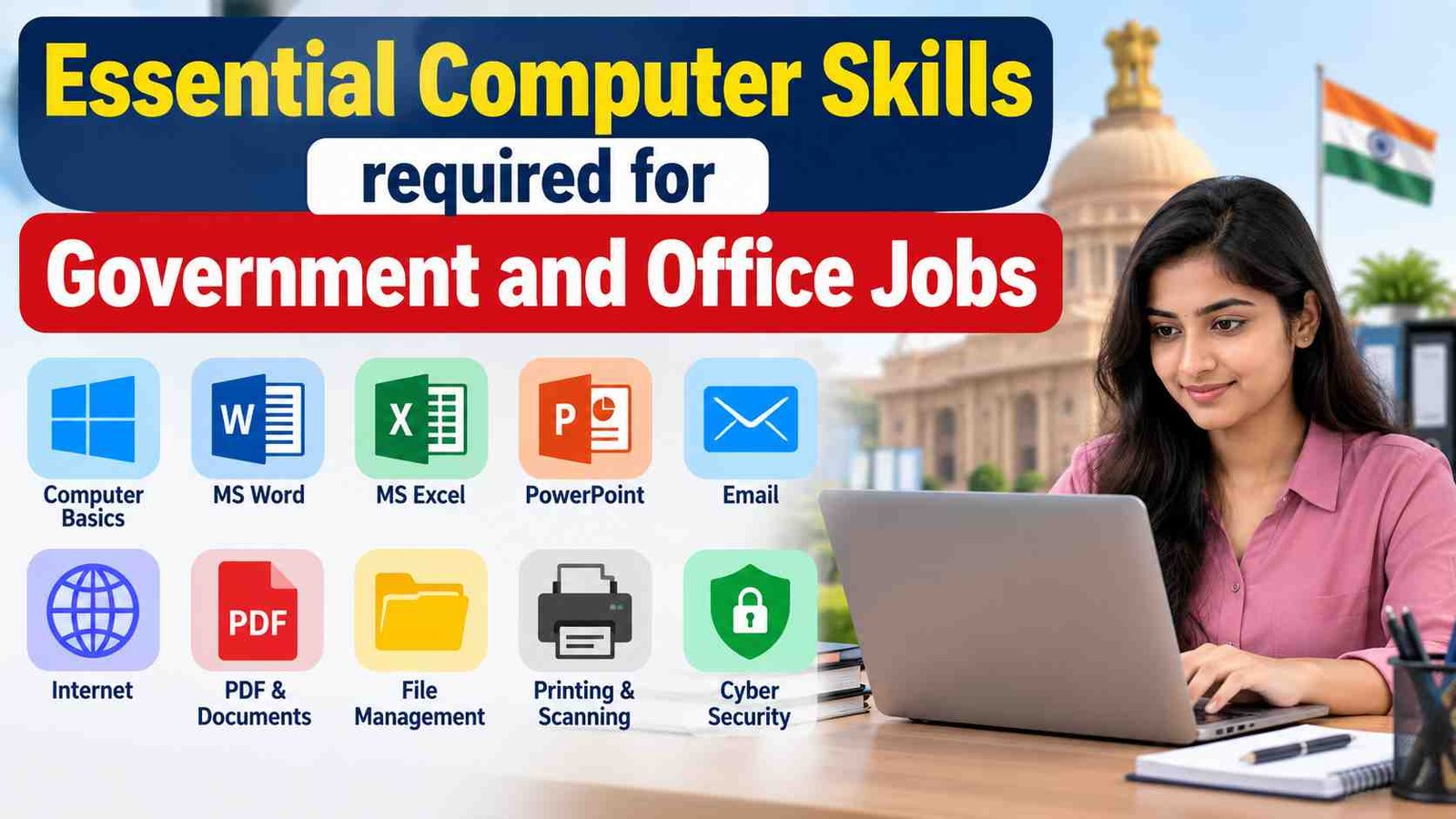
This guide explains the Essential Computer Skills required for Government and Office Jobs, with practical examples and beginner-friendly explanations.
Visit More:-
- MS Word Tutorial
- MS Excel Tutorial
- MS PowerPoint Tutorial
- MS Paint Tutorial
- MS word Formatting Guide: Complete Guide to Format Word Documents
- How to Convert Excel Sheet into PDF Without Losing Formatting
What Are the Essential Computer Skills Required for Government and Office Jobs?
The essential computer skills required for government and office jobs are the practical abilities needed to operate a computer, create and manage digital information, communicate electronically, and complete routine office tasks efficiently.
These skills generally include:
| Skill Area | What You Should Know |
|---|---|
| Computer Basics | Parts of a computer, input/output devices, storage, software and hardware |
| Operating System | Windows basics, settings, applications, folders and system navigation |
| Typing | Accurate keyboard use, typing speed, numbers and common symbols |
| File Management | Creating, renaming, moving, copying and organizing files |
| MS Word | Creating, formatting, saving and printing documents |
| MS Excel | Data entry, formulas, tables, sorting, filtering and basic calculations |
| PowerPoint | Creating simple presentations and editing slides |
| Internet | Browsing, searching, downloading and uploading files |
| Sending, replying, forwarding, attachments and professional communication | |
| Online Services | Using government portals, forms, dashboards and digital platforms |
| Cyber Security | Password safety, phishing awareness and secure browsing |
| Printing & Scanning | Printing documents, scanning papers and handling PDFs |
| Basic Troubleshooting | Solving simple software, printer, internet and system problems |
You do not necessarily need advanced knowledge in every category. The level of skill expected usually depends on the job role.
For example, a clerk may regularly use Word and Excel, while a data entry operator may spend much more time typing and working with spreadsheets. An accounts-related employee may need stronger Excel skills, while an office assistant may need more emphasis on email, printing, scanning, file management, and online portals.
Why Are Computer Skills Important for Government and Office Jobs?
Computer skills are important because a large amount of administrative work is now completed digitally. Documents that were once prepared entirely on paper are often created, edited, stored, shared, printed, scanned, or submitted electronically.
For a government employee, this can mean entering information into departmental software, preparing letters, maintaining digital records, checking official emails, generating reports, or working with online systems. In a private office, the same employee may be expected to create spreadsheets, schedule meetings, prepare presentations, and communicate with clients.
The value of computer knowledge is therefore not limited to passing a computer-related exam. It can directly affect how quickly and accurately you complete everyday work.
Computer Skills Improve Work Efficiency
Suppose two employees have to prepare a list of 300 names in Excel. Someone who knows sorting, filtering, formulas, and keyboard shortcuts can often complete the work more efficiently than a person who performs every action manually.
The same principle applies to documents. Knowing how to format headings, adjust margins, insert tables, use page breaks, and export a document as PDF saves time and reduces mistakes.
They Reduce Dependence on Others
A beginner may initially ask for help with simple tasks such as attaching a document to an email, changing a file name, or converting a Word file into PDF.
As your computer skills improve, these tasks become routine. Being able to solve ordinary computer problems independently is useful in almost every office environment.
They Help With Digital Government Work
Many administrative processes involve online portals, digital forms, electronic records, dashboards, databases, and document uploads. Employees may need to work with several systems during a normal working day.
Knowing how to navigate websites, upload documents, download reports, and organize digital files makes such work much easier.
Computer Fundamentals Every Job Aspirant Should Know
Before learning advanced applications, build a strong understanding of computer fundamentals.
A computer system generally consists of hardware and software. Hardware refers to the physical components that you can touch, while software consists of the programs and instructions that tell the computer what to do.
Basic Hardware Knowledge
You should be familiar with common components such as:
- CPU
- Monitor
- Keyboard
- Mouse
- Printer
- Scanner
- Speakers
- Webcam
- RAM
- Storage drive
- Motherboard
- USB devices
You should also understand the purpose of common input and output devices.
For example, a keyboard is an input device because it sends information to the computer. A monitor is an output device because it displays information to the user.
Storage Basics
You should understand the difference between common storage options such as HDDs, SSDs, USB drives, memory cards, and cloud storage.
For office work, knowing where files are stored is particularly important. A document saved on the desktop is different from one saved inside a specific folder or cloud service.
Hardware vs Software
A simple way to remember the difference is:
Hardware = physical parts
Software = programs and instructions
Windows, web browsers, Word processors, spreadsheet applications, and PDF readers are examples of software.
Operating System Skills
The operating system is the main software environment through which you interact with the computer. Many government and office computers use Windows, although other operating systems may also be used.
For a beginner, operating system knowledge should focus on practical tasks rather than technical administration.
You should know how to:
- Start and shut down the computer properly.
- Open and close applications.
- Switch between windows.
- Search for files and applications.
- Create folders.
- Rename files.
- Copy and move files.
- Delete and restore files.
- Connect USB devices.
- Adjust basic settings.
- Use screenshots.
- Check basic system information.
- Install or update approved software when permitted.
- Connect to a printer or network.
Understanding Files and Folders
File management is one of the most underestimated computer skills.
Imagine that you save dozens of documents with names such as Document1, NewFile, and Final2. After a few weeks, finding a specific document becomes difficult.
Instead, use meaningful file names and folders.
For example:
Office Records → 2026 → September → Applications
A document could be named:
Scholarship_Applications_September_2026.xlsx
This makes the file easier to identify and search.
Typing Skills for Government and Office Jobs
Typing is one of the most practical computer skills for clerical and data-related work.
Good typing is not simply about speed. Accuracy matters just as much because one incorrect digit in an application number, account number, date, or official record can create a problem.
What Should You Practice?
Begin with:
- Alphabetic typing
- Numbers
- Capital letters
- Punctuation marks
- Special characters
- Backspace and delete
- Spacebar
- Shift
- Tab
- Enter
- Arrow keys
- Home and End
- Copy and paste
Typing practice should gradually focus on accuracy before speed.
For example, instead of trying to type extremely fast and making frequent mistakes, aim to type a paragraph correctly with consistent spacing and punctuation.
English and Regional-Language Typing
Some government jobs may require English typing, Hindi typing, or typing in another regional language. Requirements depend on the specific recruitment rules.
Where a notification prescribes a particular keyboard layout, language, typing speed, or qualifying test, candidates should follow the official requirements rather than relying on general computer knowledge.
MS Word Skills for Office Work
Microsoft Word is one of the most useful applications for office documentation.
Government departments and private organizations may use word-processing applications to prepare letters, notices, reports, applications, meeting documents, forms, and other records.
Basic MS Word Skills
You should know how to:
- Create a new document
- Open an existing document
- Type and edit text
- Select text
- Cut, copy and paste
- Undo and redo changes
- Change font and font size
- Apply bold, italic and underline
- Align text
- Adjust line spacing
- Create numbered and bulleted lists
- Insert tables
- Add headers and footers
- Insert page numbers
- Change page margins
- Use page breaks
- Find and replace text
- Check spelling
- Save documents
- Export or save documents as PDF
- Print documents
Formatting an Official Letter
Suppose you need to prepare an office letter. You might need:
- A suitable heading
- Date
- Reference number
- Recipient details
- Subject
- Body text
- Signature area
- Enclosures
Knowing Word allows you to create a clean and readable document instead of manually adjusting every line.
Find and Replace
The Find and Replace feature is especially useful in long documents.
Suppose a 20-page document contains an outdated department name in several places. Instead of manually searching every page, you can use Find and Replace.
This simple feature can save significant time.
MS Excel Skills for Government and Office Jobs
Excel is one of the most valuable computer applications for office work because it can be used for data entry, calculations, reports, lists, attendance records, budgets, inventories, and many other tasks.
You do not need to master every Excel feature immediately. Start with the fundamentals and gradually move toward formulas and data analysis.
Basic Excel Skills
A beginner should know:
- Workbook
- Worksheet
- Rows
- Columns
- Cells
- Cell references
- Data entry
- Formatting
- Number formats
- Borders
- Basic tables
- Sorting
- Filtering
- Freeze Panes
- Print settings
- Row and column adjustment
Basic Excel Formulas
You should understand common functions such as:
SUM
Adds values together.
Example:
=SUM(B2:B10)
AVERAGE
Calculates the average.
Example:
=AVERAGE(C2:C10)
COUNT
Counts numeric entries.
Example:
=COUNT(A2:A20)
MAX
Finds the largest value.
Example:
=MAX(D2:D15)
MIN
Finds the smallest value.
Example:
=MIN(D2:D15)
Why Excel Matters in Office Work
Suppose an office maintains a list of 500 applications. The spreadsheet may include:
| Application No. | Applicant Name | Category | Status |
|---|---|---|---|
| 1001 | Ravi | General | Submitted |
| 1002 | Neha | OBC | Pending |
| 1003 | Aman | SC | Verified |
With Excel skills, you can sort names, filter pending applications, count records, identify duplicates, and calculate totals.
Without those skills, the same information can become difficult to manage.
Sorting and Filtering
Sorting arranges data according to a selected order.
For example, you could sort:
- Names alphabetically
- Dates chronologically
- Marks from highest to lowest
- Amounts from smallest to largest
Filtering displays only the records matching particular conditions.
For example, from a list of 1,000 applications, you may want to display only those with the status Pending.
Basic Charts
Simple charts can help present information visually.
For example, a monthly report might use a column chart to show the number of applications received each month.
The purpose is not to create complicated graphics. It is to make the information easier to understand.
PowerPoint Skills for Office Work
PowerPoint is commonly used for presentations, meetings, training sessions, project updates, and reporting.
Basic PowerPoint knowledge includes:
- Creating slides
- Choosing layouts
- Adding text
- Inserting images
- Inserting tables
- Adding charts
- Applying simple transitions
- Arranging objects
- Starting a slideshow
- Editing existing presentations
A good presentation should communicate information clearly. A slide filled with tiny text and unnecessary animations is harder to understand than a simple, organized slide.
Email Skills Every Office Employee Should Know
Email is an essential workplace communication tool.
Knowing how to send an email is only the beginning. Professional email handling requires attention to recipients, subject lines, attachments, and tone.
Basic Email Functions
You should know how to:
- Compose an email
- Reply
- Reply All
- Forward
- Attach documents
- Download attachments
- Search old messages
- Organize messages
- Use CC
- Understand BCC
- Identify spam or suspicious emails
Writing a Professional Email
A professional email usually has a clear subject and a concise message.
For example:
Subject: Submission of Monthly Attendance Report
The message should explain what is being submitted and mention any required attachment.
Avoid sending an official document with a subject like:
“Hi”
A descriptive subject helps the recipient immediately understand the purpose of the email.
Email Attachments
Before sending an attachment, check:
- Whether the correct file is attached.
- Whether the file opens correctly.
- Whether the filename is meaningful.
- Whether the attachment is actually required.
- Whether confidential information is being sent through an approved channel.
Internet and Web-Browsing Skills
Office employees often use the internet to find information, access portals, download forms, check official notices, and communicate with organizations.
Useful browsing skills include:
- Opening and managing browser tabs
- Using search engines effectively
- Understanding web addresses
- Downloading files
- Uploading documents
- Clearing downloads when appropriate
- Using bookmarks
- Checking whether a website is secure
- Identifying misleading or suspicious websites
Search More Precisely
Instead of searching:
exam
you might search:
official notification clerk recruitment PDF
The more specific the search, the easier it can be to locate the relevant information.
For government-related information, candidates should verify important details on the official website of the concerned department or recruiting organization.
Online Forms and Government Portals
Government and office work increasingly involves online forms and digital portals.
Employees and applicants may need to:
- Create accounts
- Log in securely
- Enter personal details
- Upload photographs
- Upload documents
- Select options from dropdown menus
- Submit applications
- Download acknowledgment receipts
- Check application status
- Print generated forms
Common Mistakes While Using Online Forms
A small error can create unnecessary trouble.
Common mistakes include:
- Entering the wrong date of birth
- Uploading the wrong document
- Using an unsupported file format
- Exceeding the upload size limit
- Forgetting to submit after saving
- Entering an incorrect email address
- Failing to download the final receipt
Always review the information before final submission.
PDF and Document Handling Skills
PDF files are extremely common in office and government work.
You should know how to:
- Open a PDF
- Download it
- Print it
- Search inside it
- Zoom
- Rotate pages
- Save a copy
- Upload a PDF
- Understand page numbers
- Distinguish between a scanned PDF and selectable text where relevant
Basic knowledge of PDF tools can also help when combining documents, converting files, or reducing file size, although the exact tools available may depend on workplace policies.
Printing and Scanning Skills
Physical paperwork still exists in many offices, even when digital systems are widely used.
You may need to:
- Select the correct printer
- Choose paper size
- Set orientation
- Select the number of copies
- Print specific pages
- Scan documents
- Choose PDF or image output
- Save scanned files in the correct folder
Example
Suppose an applicant submits three pages of documents. You scan each page and save them as:
Application_Documents.pdf
This is more useful than saving them as:
scan001.jpg, scan002.jpg, and scan003.jpg
Good file organization matters even for scanned documents.
Cyber Security Skills for Office Employees
Basic cyber security awareness is now a practical workplace requirement.
You should understand common risks such as:
- Phishing emails
- Fake login pages
- Suspicious attachments
- Weak passwords
- Unknown USB devices
- Malware
- Unauthorized software
- Unsafe downloads
- Sharing sensitive information carelessly
Password Safety
A strong password should not be based on easily guessed information.
Avoid using the same password for every account. Where supported, use multi-factor authentication and follow your organization’s password policies.
Recognizing Phishing
A phishing message may try to make you:
- Click a suspicious link
- Download an unexpected attachment
- Reveal a password
- Share an OTP
- Transfer money
- Visit a fake website
A message that creates panic or demands immediate action deserves extra caution.
Never Share OTPs Carelessly
An OTP may be used to authenticate an action or login. Employees should never disclose authentication codes merely because someone asks for them.
When dealing with official accounts, follow the organization’s security procedures.
Basic Networking Knowledge
You do not need advanced networking expertise for most ordinary office positions, but basic concepts are useful.
You should understand terms such as:
- Internet
- Intranet
- Wi-Fi
- LAN
- Router
- Modem
- IP address
- Browser
- Server
- Network connection
LAN vs Internet
A Local Area Network, or LAN, connects devices within a limited area such as an office.
The internet is a global network that connects networks and devices around the world.
An office may use both an internal network and internet access for different tasks.
Keyboard Shortcuts Every Job Aspirant Should Learn
Keyboard shortcuts can save time and are especially useful during repetitive office work.
Some common Windows and application shortcuts are:
| Shortcut | Common Use |
|---|---|
| Ctrl + C | Copy |
| Ctrl + X | Cut |
| Ctrl + V | Paste |
| Ctrl + Z | Undo |
| Ctrl + Y | Redo |
| Ctrl + A | Select all |
| Ctrl + S | Save |
| Ctrl + P | |
| Ctrl + F | Find |
| Ctrl + H | Find and replace in many applications |
| Ctrl + N | New document/window in many applications |
| Ctrl + O | Open |
| Ctrl + W | Close current document/tab in many applications |
| Alt + Tab | Switch between open windows |
| Windows + E | Open File Explorer |
| Windows + D | Show desktop |
| F2 | Rename selected file in Windows File Explorer |
Shortcut behavior can vary between applications, so learn the shortcuts most relevant to the software you actually use.
Basic Troubleshooting Skills
A government or office employee should be able to handle simple computer issues without immediately assuming that the computer is broken.
For example, if the internet is not working, basic checks can include:
- Check whether Wi-Fi is connected.
- Check whether other websites open.
- Check whether other devices have internet access.
- Restart the approved network device if appropriate.
- Check whether the issue affects one application or the whole computer.
- Contact technical support if the problem continues.
For a printer problem:
- Check whether the printer is powered on.
- Check paper availability.
- Check for an error message.
- Confirm the correct printer is selected.
- Check whether there is a pending print queue.
- Escalate the issue when necessary.
Knowing when not to experiment is also an important skill. Do not change system settings, install unknown software, or alter network configurations on an official computer unless authorized.
Cloud Storage and Digital File Sharing
Cloud-based services allow users to store and access documents online.
Depending on the organization, employees may work with approved cloud platforms for:
- Document storage
- File sharing
- Collaboration
- Backup
- Remote access
The important skill is understanding how shared files work.
For example, before editing a shared document, check whether other users are working on it. Also understand permissions such as view-only access and edit access.
Confidential documents should only be stored or shared through services approved by the relevant organization.
Data Entry and Accuracy Skills
Data entry is more than typing numbers into cells.
Accuracy requires careful attention to:
- Names
- Dates
- Numbers
- Codes
- Addresses
- Application IDs
- Amounts
- Categories
For repetitive work, it is easy to become careless. A good practice is to verify important entries and use spreadsheet tools where appropriate to reduce manual mistakes.
Example
Suppose the original record says:
Application No. 58241
Typing 58214 creates a completely different number.
For this reason, speed should never come at the cost of accuracy.
Digital Record Management
Government and office work often involves large numbers of records.
Good digital record management means organizing files logically and making them easy to retrieve.
A useful folder system may look like:
Department Records
→ 2026
→ Recruitment
→ September
→ Applications
→ Reports
Meaningful names, consistent folders, and careful backups can make record handling much easier.
Essential Computer Skills for Clerical and Administrative Jobs
Clerical and administrative roles often require a combination of several basic skills.
You may commonly need:
- Typing
- MS Word
- MS Excel
- Internet browsing
- File management
- Printing
- Scanning
- PDF handling
- Data entry
- Online portals
The exact requirements vary by post. A recruitment notification may separately specify typing tests, computer proficiency tests, or qualifying standards.
Essential Computer Skills for Data Entry Jobs
Data entry positions generally place greater emphasis on typing and accuracy.
Important areas include:
- Keyboard familiarity
- Number typing
- Data validation
- Spreadsheet entry
- Copy and paste
- File organization
- Basic Excel
- Accuracy checking
- Understanding forms and records
Candidates should pay attention to the exact typing speed, test duration, language, and other conditions mentioned in the official recruitment notice.
Essential Computer Skills for Office Assistants
Office assistants may need a broader combination of digital and physical office skills.
Important areas can include:
- Email communication
- Word processing
- Excel basics
- Printing
- Scanning
- PDF management
- File organization
- Online form handling
- Internet browsing
- Basic troubleshooting
Because office assistants may handle different types of tasks in a single day, flexibility can be more useful than mastery of one advanced application.
Essential Computer Skills for Accounts-Related Office Work
Accounts and finance-related tasks may require stronger spreadsheet skills.
Depending on the position, employees may work with:
- Excel formulas
- Tables
- Sorting
- Filtering
- Calculations
- Data validation
- Reports
- Financial records
- Approved accounting software
Advanced functions may become useful as responsibilities increase.
Candidates applying for specialized finance roles should check the actual job description rather than assuming that basic Excel alone will be sufficient.
Government Job Computer Knowledge vs Practical Office Skills
There is an important difference between computer awareness for exams and computer proficiency for actual work.
Exam-oriented computer awareness may include theoretical questions such as:
- What is RAM?
- What is an operating system?
- What does CPU stand for?
- What is a LAN?
- Which device is used for input?
Practical office skills, on the other hand, involve tasks such as:
- Creating an Excel sheet
- Formatting a letter
- Uploading a PDF
- Sending an attachment
- Organizing folders
- Printing a selected page
- Filtering records
A candidate can perform well in a theoretical computer section and still need practice with real office applications. Ideally, learn both.
How Students Can Learn Computer Skills Step by Step
You do not need to learn everything at once.
A beginner can follow this progression:
Step 1: Learn Computer Basics
Start with hardware, software, keyboard, mouse, folders, files, and operating-system navigation.
Step 2: Improve Typing
Practice daily with short passages. Focus first on accuracy and then on speed.
Step 3: Learn MS Word
Create letters, applications, reports, tables, and formatted documents.
Step 4: Learn Excel
Start with data entry and formatting. Then learn formulas, sorting, filtering, and charts.
Step 5: Learn Email
Practice composing professional messages, replying, forwarding, and attaching documents.
Step 6: Learn Internet and Online Forms
Practice downloading and uploading files, searching information, and completing sample forms carefully.
Step 7: Learn Cyber Security Basics
Understand passwords, phishing, suspicious links, malware, and safe browsing.
Step 8: Practice Real Tasks
Create a mock office environment for yourself.
For example, prepare a list of 50 students in Excel, create an official-style letter in Word, save it as PDF, organize everything into folders, and attach the files to a sample email.
Practical projects make computer skills easier to remember.
A Practical Computer Skill Checklist for Job Aspirants
Before applying for a job that requires computer proficiency, test yourself.
Can you:
- Create and rename folders?
- Find a downloaded file?
- Copy and move documents?
- Create a Word document?
- Insert and format a table?
- Save a file as PDF?
- Print selected pages?
- Create an Excel worksheet?
- Use SUM and AVERAGE?
- Sort and filter data?
- Send an email with an attachment?
- Download and upload a PDF?
- Take a screenshot?
- Recognize a suspicious email?
- Use common keyboard shortcuts?
- Troubleshoot a basic printer or internet issue?
If you can comfortably perform these tasks, you already have a useful foundation for many entry-level office environments.
Common Mistakes Beginners Make
Learning computer skills becomes easier when you avoid common mistakes.
Focusing Only on Theory
Memorizing computer definitions may help with exams, but it does not replace practical experience.
Use the software yourself.
Ignoring File Management
People often become comfortable with Word and Excel but struggle to find their saved documents later.
Develop a simple folder system from the beginning.
Prioritizing Speed Over Accuracy
Typing quickly while making many errors is not a useful office skill.
Accuracy should remain a priority.
Saving Everything on the Desktop
A crowded desktop can make file management difficult.
Use folders and meaningful file names.
Using Unknown Software
Do not install random applications on an official computer. Follow workplace rules and use approved software.
Clicking Every Email Link
Unexpected links can lead to malicious or fraudulent websites. Always examine messages carefully.
Forgetting to Review Online Forms
Always check important details before final submission.
How to Prepare for Computer Tests in Government Recruitment
When a recruitment process includes a computer test or computer awareness section, preparation should match the official syllabus.
For theoretical questions, revise:
- Computer fundamentals
- Hardware
- Software
- Operating systems
- Memory
- Input and output devices
- Internet
- Networking
- MS Office
- Cyber security
- Shortcuts
For practical tests, spend time actually using:
- Word
- Excel
- Typing software
- File management
- Printing and scanning tools where available
Do not rely solely on reading notes. Practical repetition builds familiarity.
Important Points to Remember
The most important lesson is that computer proficiency is a collection of practical skills, not a single subject.
A candidate preparing for government or office jobs should build a balanced foundation covering computer basics, typing, file management, Word, Excel, email, internet usage, online portals, PDF handling, cyber security, and basic troubleshooting.
The exact skill level required will vary according to the job. Always read the official recruitment notification for post-specific qualifications, typing requirements, computer tests, or experience requirements.
A beginner should not feel pressured to learn advanced programming, networking administration, or complex data analysis unless the target job actually requires those skills.
The goal is to become comfortable enough that routine computer tasks no longer feel difficult.
Frequently Asked Questions
What are the essential computer skills required for government jobs?
The essential computer skills required for government jobs commonly include computer fundamentals, typing, file management, MS Word, MS Excel, email, internet usage, PDF handling, online forms, and basic cyber security. The exact requirements vary according to the post and recruitment authority.
Is MS Excel important for government and office jobs?
Yes, Excel is useful for many office tasks involving lists, calculations, records, reports, and data management. Beginners should learn data entry, formatting, sorting, filtering, and basic formulas such as SUM and AVERAGE.
Is typing speed important for government jobs?
Typing speed can be important for positions that include a typing test or substantial data-entry work. The required speed, language, test format, and qualifying conditions depend on the specific recruitment notification.
Do I need advanced computer knowledge for an office job?
Not always. Many entry-level office roles focus on practical skills such as Word, Excel, email, file management, printing, scanning, and online work. Advanced skills are mainly needed for specialized technical positions.
Which MS Office skills should a beginner learn first?
Start with MS Word and MS Excel. Learn document formatting and tables in Word, followed by spreadsheet basics, formulas, sorting, and filtering in Excel. Basic PowerPoint skills can be added afterward.
How can I improve my computer skills at home?
Practice real tasks instead of only watching tutorials. Create documents, build spreadsheets, organize folders, send practice emails, work with PDFs, and use keyboard shortcuts. Regular hands-on practice gradually improves confidence.
Are computer skills asked in competitive government exams?
Computer-related questions are included in some competitive examinations, but the syllabus differs by examination and post. Candidates should study the official syllabus and notification for the recruitment they are targeting.
What computer skills are useful for a clerk job?
A clerk may benefit from typing, Word processing, Excel, email, file management, PDF handling, printing, scanning, online portals, and accurate data entry. Some clerk recruitments may also include a specific computer or typing test.
Are computer certificates necessary for every government job?
No single computer certificate is universally required for every government job. Eligibility depends on the specific recruitment rules. Some posts may prescribe a computer qualification or certificate, while others may assess computer proficiency through a test.
Is cyber security knowledge necessary for office employees?
Yes. Basic awareness of phishing, suspicious links, malware, passwords, multi-factor authentication, and safe handling of documents helps employees use digital systems more securely.
Should students learn Excel before applying for office jobs?
Learning Excel before applying can be useful because spreadsheets are widely used for lists, records, calculations, and reports. Even basic Excel skills can give a beginner more confidence in routine office tasks.
Which computer skills should I learn first as a complete beginner?
Start with keyboard and mouse usage, files and folders, Windows basics, typing, Word, Excel, email, internet browsing, and basic cyber security. Once these become comfortable, move toward more specialized software based on your career goal.
Conclusion
Computer proficiency is now closely connected with many government and office roles. The Essential Computer Skills required for Government and Office Jobs are largely practical: using the operating system, typing accurately, managing files, creating documents, working with spreadsheets, communicating through email, using online systems, handling PDFs, and following basic cyber-security practices.
Students and job aspirants should focus on building these skills through regular practice rather than trying to memorize everything at once. Start with the basics, learn Word and Excel, improve typing accuracy, practice real office tasks, and gradually become comfortable with digital workflows.
At the same time, remember that computer requirements are not identical for every position. A particular recruitment may prescribe a specific typing test, computer proficiency test, certificate, application, or technical skill. Always verify those requirements from the latest official notification before applying.
A strong foundation in the Essential Computer Skills required for Government and Office Jobs can make everyday digital work more manageable and can help job aspirants approach both computer-based examinations and practical office responsibilities with greater confidence.