

Mail Merge in MS Word with Excel Data is a practical Microsoft Office feature that helps you create many personalized documents from one standard Word document. Instead of typing the same letter, certificate, invitation, notice, or address information repeatedly, you can keep individual records in Excel and allow Microsoft Word to insert those details automatically.
For example, suppose a school has an Excel sheet containing the names, roll numbers, classes, and addresses of 300 students. The teacher can prepare one notice in Word and connect it to the Excel sheet. Word can then create a separate personalized copy for each student using the information stored in the spreadsheet.
The same technique can be used in offices, schools, colleges, businesses, coaching institutes, recruitment departments, and administrative work. It can also be useful for students learning MS Word and Excel because Mail Merge combines the basic strengths of both applications: Excel manages structured data, while Word creates formatted documents.
The process may seem confusing the first time because it involves a few different steps and options. However, once you understand the relationship between the Excel data source, Word’s main document, and merge fields, the process becomes straightforward.
This guide explains how to use Mail Merge in MS Word with Excel Data from beginning to end. It covers preparing the Excel file, connecting it to Word, inserting fields, previewing records, generating documents, creating labels and envelopes, sending personalized emails, fixing common problems, and understanding important points for practical computer use and competitive exams.
See More:-
- MS Word Tutorial
- MS Excel Tutorial
- MS PowerPoint Tutorial
- MS OneNote Turorial
- Common Online Scams & Phishing Attacks: Protect Your Personal & Banking Data
- ASP.NET Explained: A Complete Beginner’s Guide to Web Development
What Is Mail Merge in MS Word with Excel Data?
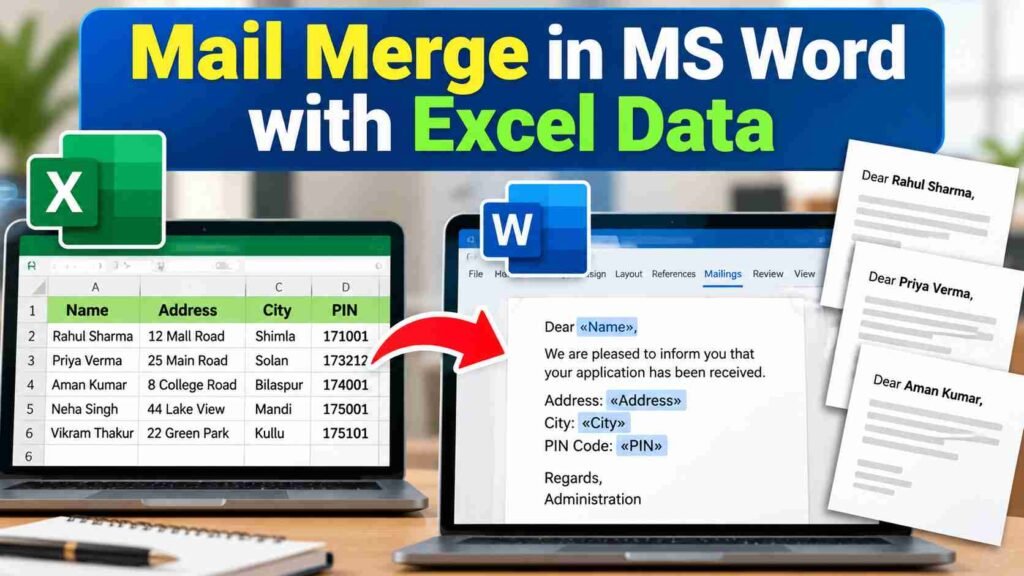
Mail Merge is a Microsoft Word feature that combines a main document with a data source to create multiple personalized documents. When Excel is used as the data source, Word reads information from the spreadsheet and inserts the appropriate values into predefined merge fields.
The main document contains information that is common to everyone. The Excel file contains information that changes from one recipient to another.
For example, an Excel worksheet might contain:
| Name | Roll Number | Class | City |
|---|---|---|---|
| Rahul Sharma | 101 | 10th | Shimla |
| Priya Verma | 102 | 10th | Solan |
| Aman Kumar | 103 | 10th | Bilaspur |
A Word document could contain:
Dear «Name»,
Your roll number is «Roll Number» and you are studying in Class «Class».
During the merge, Word replaces the fields with actual Excel values.
The first record could produce:
Dear Rahul Sharma,
Your roll number is 101 and you are studying in Class 10th.
The second record could produce a version for Priya, and so on.
Therefore, Mail Merge is essentially a method of automating personalized document creation.
How Does Mail Merge Work?
Mail Merge generally works with three important components.
| Component | What it does |
|---|---|
| Main Document | Contains the common text, design, formatting, and structure |
| Data Source | Contains individual records such as names and addresses |
| Merge Fields | Placeholders that tell Word where data should be inserted |
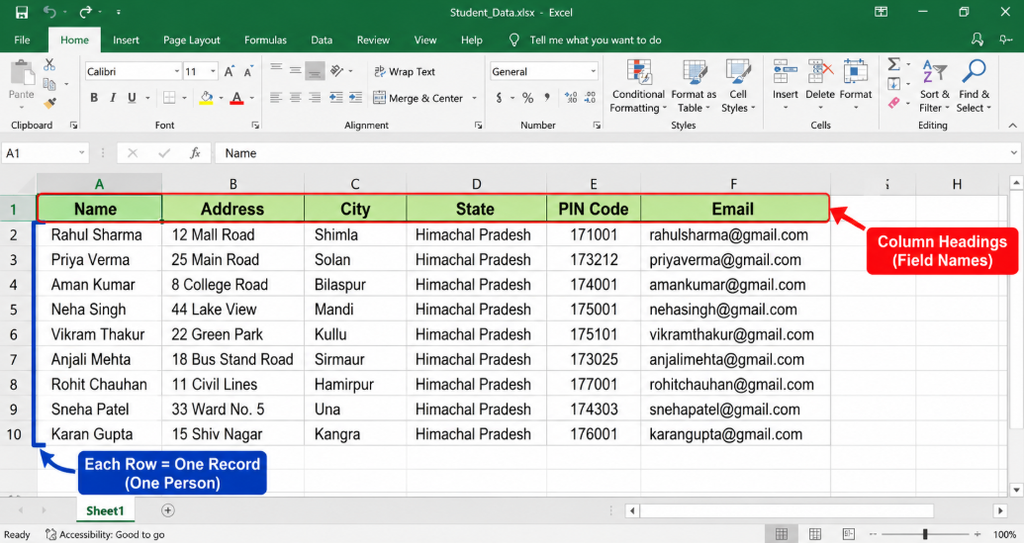
When Excel is selected as the data source, each row normally represents one record and each column represents a particular type of information.
For example:
| Name | Address | City | PIN Code |
|---|---|---|---|
| Rahul Sharma | 12 Mall Road | Shimla | 171001 |
| Priya Verma | 25 Hospital Road | Solan | 173212 |
Here:
- Name is a field.
- Address is a field.
- City is a field.
- PIN Code is a field.
- The first row below the headings is the first record.
- The second row is the second record.
Word uses this structure to create personalized output.
A useful way to remember the process is:
Excel = Data
Word = Document
Merge Fields = Connection between them
Why Use Mail Merge?
The biggest advantage of Mail Merge is that it eliminates repetitive manual typing.
Imagine you need to prepare 200 admission letters. The content of every letter is nearly identical, but the student’s name, course, registration number, and address are different.
Without Mail Merge, you would have to manually type or copy those details 200 times.
With Mail Merge:
- Store the student information in Excel.
- Create the common letter once in Word.
- Connect Word to Excel.
- Insert the required fields.
- Preview the records.
- Complete the merge.
This can reduce repetitive work and make personalization easier.
Common Uses of Mail Merge
Mail Merge can be used to prepare:
- Personalized letters
- Student notices
- Certificates
- Invitations
- Appointment letters
- Salary or employee documents
- Customer communications
- Address labels
- Envelopes
- Personalized emails
- Event notices
- Membership documents
- Examination communications
- ID-card information sheets
The exact options available can depend on the version of Microsoft Word and the type of merge you choose.
What Should an Excel File Look Like Before Mail Merge?
Preparing the Excel spreadsheet correctly is one of the most important parts of the process.
A poorly organized spreadsheet can create problems later when Word tries to read the records.
A simple Excel data sheet might look like this:
| First Name | Last Name | Course | City | |
|---|---|---|---|---|
| Rahul | Sharma | rahul@example.com | Computer Basics | Shimla |
| Priya | Verma | priya@example.com | Excel | Solan |
| Aman | Kumar | aman@example.com | MS Word | Bilaspur |
The first row should contain clear column headings.
Rules for Preparing the Excel Data
Before connecting the spreadsheet to Word, follow these practical rules:
- Keep field names in the first row.
Examples include Name, Address, Email, RollNo, Course, and City. - Use one type of information per column.
For example, keep the city in a City column rather than mixing city and PIN code in the same column. - Keep one person or record per row.
- Avoid blank rows inside the main data range.
- Avoid unnecessary blank columns in the middle of your data.
- Use simple and unique headings.
- Check spelling carefully.
Word will use the data exactly as supplied. - Save the Excel workbook before connecting it to Word.
- Do not randomly change column headings after creating the merge unless you are prepared to update the fields in Word.
A clean spreadsheet makes the merge much easier to manage.
Example of a Good Excel Data Source
Suppose you are preparing scholarship letters for students.
Your Excel worksheet could contain:
| StudentName | RollNo | Course | Amount | City |
|---|---|---|---|---|
| Rahul Sharma | 1001 | B.Com | 5000 | Shimla |
| Priya Verma | 1002 | B.A. | 5000 | Solan |
| Aman Kumar | 1003 | B.Sc. | 7500 | Bilaspur |
The Word document can contain common text such as:
Dear «StudentName»,
Your scholarship application has been processed. Your roll number is «RollNo». You are enrolled in «Course». The scholarship amount is ₹«Amount».
During the merge, Word automatically takes each row and inserts its values.
How to Use Mail Merge in MS Word with Excel Data Step by Step
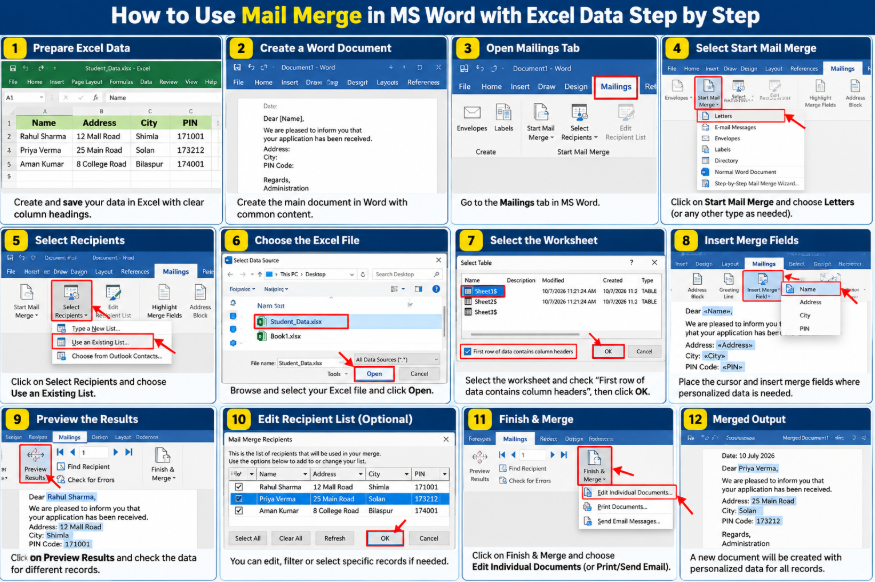
The following method explains the complete process in a beginner-friendly order.
Step 1: Create the Excel Data
Open Microsoft Excel and create the information you want to use.
For example:
| Name | Address | City | PIN |
|---|---|---|---|
| Rahul Sharma | 12 Mall Road | Shimla | 171001 |
| Priya Verma | 25 Main Road | Solan | 173212 |
| Aman Kumar | 8 College Road | Bilaspur | 174001 |
Check the information carefully.
Make sure every row represents a complete record. A missing value may result in an incomplete document later.
Save the workbook with a meaningful name such as:
Student_Data.xlsx
Step 2: Create the Main Document in Word
Open Microsoft Word and create the document you want to personalize.
For example:
Date:
Dear [Student Name],
We are pleased to inform you that your application has been received. Your registration information is provided below.
Name:
Address:
City:
PIN Code:Please keep this document for your records.
Regards,
Administration
At this stage, do not manually type the actual student’s name.
You will insert Mail Merge fields where personalized information is needed.
Step 3: Open the Mailings Tab
In Word, go to the Mailings tab on the Ribbon.
This tab contains the tools required for Mail Merge.
Depending on the Word version, you may see options such as:
- Start Mail Merge
- Select Recipients
- Edit Recipient List
- Address Block
- Greeting Line
- Insert Merge Field
- Preview Results
- Find and Merge
- Finish & Merge
The interface can look slightly different between Microsoft Word versions, but the basic Mail Merge process remains similar.
Step 4: Select Start Mail Merge
Click Start Mail Merge.
Word will display several document types.
Common options include:
- Letters
- E-mail Messages
- Envelopes
- Labels
- Directory
For a personalized letter, choose Letters.
The selection is important because Word prepares the document for the type of output you intend to produce.
For example:
- Use Letters for individual letters.
- Use Labels for address or product labels.
- Use Envelopes for envelopes.
- Use E-mail Messages for personalized emails.
- Use Directory for a list-style merged document.
Step 5: Select Recipients
Now click Select Recipients.
Word normally provides options such as:
- Type a New List
- Use an Existing List
- Choose from Outlook Contacts
Because the data is already in Excel, select Use an Existing List.
Then browse to the Excel workbook containing your information.
Select your Excel file.
Step 6: Select the Excel Worksheet
If the workbook contains multiple worksheets, Word will ask which sheet you want to use.
Select the worksheet containing your records.
You may also see an option indicating whether the first row contains column headings.
Make sure that option matches the structure of your spreadsheet.
For example, if the first row contains:
Name | Address | City | PIN
then Word needs to understand that those are field names rather than ordinary records.
Click OK to continue.
Step 7: Check the Recipient List
After connecting the Excel file, Word allows you to manage the recipient list.
Click Edit Recipient List.
You can check the records and decide which ones should participate in the merge.
For example, you might have 100 students in your Excel sheet but need to send letters to only 80 of them.
The recipient list can help you select or filter records.
This is useful because you do not always need to create documents for every row in the spreadsheet.
How to Insert Excel Data into a Word Document
Once the Excel data source is connected, the next important step is inserting merge fields.
Step 8: Place the Cursor Where the Data Should Appear
Suppose your Word document contains:
Dear
We are writing to confirm your registration.
Place the cursor immediately after Dear.
Then choose Insert Merge Field.
You may see fields such as:
- Name
- Address
- City
- PIN
- Course
Select Name.
Word inserts a merge field into the document.
It may appear similar to:
«Name»
Your document will now look like:
Dear «Name»,
We are writing to confirm your registration.
During the merge, «Name» will be replaced by the actual name from the corresponding Excel row.
Step 9: Insert Additional Fields
Repeat the same process wherever personalized data is required.
For example:
Name: «Name»
Address: «Address»
City: «City»
PIN Code: «PIN»
You can place merge fields inside paragraphs, tables, headings, envelopes, labels, and other suitable parts of the Word document.
The key idea is that a merge field is a placeholder, not the final data.
Using the Greeting Line
Word also provides a Greeting Line feature.
This can be useful when you want a standard greeting based on the recipient’s information.
For example:
Dear Rahul,
or
Dear Priya,
The exact output depends on the available field and greeting settings.
Greeting lines can save time when your document requires a common salutation.
However, for complete control, many users prefer inserting the Name merge field themselves.
Step 10: Preview the Merged Documents
Before generating the final output, always use Preview Results.
This is one of the most useful steps in Mail Merge.
When Preview Results is enabled, Word displays actual information from the Excel data source instead of showing only the merge-field names.
For example, the document may change from:
Dear «Name»,
to:
Dear Rahul Sharma,
Use the navigation controls to move between records.
Check several records rather than checking only the first one.
Look for:
- Incorrect names
- Missing data
- Wrong addresses
- Extra spaces
- Incorrect punctuation
- Unexpected blank values
- Number formatting issues
- Incorrect field placement
Previewing the records can help catch mistakes before generating all the final documents.
Step 11: Complete the Mail Merge
Once you are satisfied with the preview, click Finish & Merge.
Word normally provides options for completing the merge.
Depending on the merge type, you may see options such as:
- Edit Individual Documents
- Print Documents
- Send Email Messages
Edit Individual Documents
This option creates a new Word document containing the merged records.
For example, if your data source contains 50 recipients, Word can create a document containing the corresponding personalized results.
This option is particularly useful when you want to inspect or edit the merged documents before printing.
Print Documents
Use this option when you are ready to print the personalized documents.
You can generally choose whether to print:
- All records
- The current record
- A selected range of records
Be careful when printing a large number of documents because printer settings and paper requirements should be checked beforehand.
Send Email Messages
For an email merge, Word can use the email address stored in your data source.
You need an appropriate Email field in the Excel sheet.
For example:
| Name | Course | |
|---|---|---|
| Rahul | rahul@example.com | Excel |
| Priya | priya@example.com | Word |
The Email field tells Word where to send the message.
The availability and behavior of email merging can depend on the Microsoft Office setup and configured email application.
A Complete Mail Merge Example
Let’s understand the process through a simple example.
Imagine a coaching institute wants to send exam reminders to students.
Its Excel sheet contains:
| StudentName | ExamName | ExamDate | Centre |
|---|---|---|---|
| Rahul Sharma | Computer Test | 15 March | Shimla |
| Priya Verma | Computer Test | 15 March | Solan |
| Aman Kumar | Computer Test | 15 March | Bilaspur |
The institute creates this Word document:
Exam Reminder
Dear «StudentName»,
This is a reminder regarding your upcoming «ExamName».
Exam Date: «ExamDate»
Exam Centre: «Centre»Please check your examination instructions before appearing for the test.
Regards,
Examination Team
After previewing the first record, Word may display:
Dear Rahul Sharma,
This is a reminder regarding your upcoming Computer Test.
Exam Date: 15 March
Exam Centre: Shimla.
When moving to the next record, it displays Priya’s information.
This demonstrates why Mail Merge is useful: the document remains the same while the personalized fields change automatically.
How to Create Address Labels Using Excel Data
Mail Merge is not limited to letters.
You can also use Excel data to create address labels.
Suppose your Excel sheet has:
| Name | Address | City | PIN |
|---|---|---|---|
| Rahul Sharma | 12 Mall Road | Shimla | 171001 |
| Priya Verma | 25 Main Road | Solan | 173212 |
In Word:
- Open the Mailings tab.
- Select Start Mail Merge.
- Choose Labels.
- Select the appropriate label arrangement.
- Choose Select Recipients.
- Select Use an Existing List.
- Connect the Excel workbook.
- Insert the required merge fields into the first label.
- Use Update Labels so that the format is applied to the other labels.
- Preview the labels.
- Complete the merge.
Labels are particularly useful when a large number of envelopes or packages need recipient information.
How to Create Envelopes With Excel Data
You can also generate personalized envelopes from an Excel address list.
An Excel sheet might contain:
| Name | Address | City | State | PIN |
|---|---|---|---|---|
| Rahul Sharma | 12 Mall Road | Shimla | Himachal Pradesh | 171001 |
| Priya Verma | 25 Main Road | Solan | Himachal Pradesh | 173212 |
The Word Mail Merge tools can insert these fields into the envelope layout.
This is useful for organizations that regularly send correspondence to many recipients.
The exact envelope size and printer settings should be checked before printing.
How to Use Mail Merge for Personalized Emails
Mail Merge can also be used to prepare personalized email messages.
For example, an Excel spreadsheet might contain:
| Name | Course | |
|---|---|---|
| Rahul | rahul@example.com | Excel |
| Priya | priya@example.com | MS Word |
Your message can contain:
Hello «Name»,
Your enrollment for the «Course» course has been confirmed.
Word can replace the fields with information from the corresponding Excel records.
This is useful for sending individualized messages while keeping the main message consistent.
However, users should be careful with recipient privacy, email accuracy, and sending permissions. Mail Merge is a document automation feature; it does not remove the need to follow applicable communication and privacy requirements.
How to Filter Excel Records in Mail Merge
Sometimes you do not want to use every record in the spreadsheet.
Suppose your Excel sheet has students from three cities:
| Name | City | Course |
|---|---|---|
| Rahul | Shimla | Excel |
| Priya | Solan | Word |
| Aman | Shimla | PowerPoint |
Suppose you want to create letters only for students from Shimla.
You can use Edit Recipient List and filtering options to restrict the records included in the merge.
This is useful when your master Excel spreadsheet contains many categories but each document should be sent only to a particular group.
Filtering can make Mail Merge much more powerful because you can maintain one central data source while creating different groups of documents.
How to Sort Records Before Merging
You may also want your merged documents to appear in a particular order.
For example:
- Alphabetically by name
- By city
- By roll number
- By course
- By department
The recipient list tools can help organize the records before completing the merge.
For example, if you are producing certificates, sorting students by roll number may be more convenient than using the original order of the spreadsheet.
Mail Merge Fields and Why They Matter
Merge fields are the bridge between your Word document and Excel data.
Suppose the Excel headings are:
Name | Course | City
Your Word document could contain:
Dear «Name»,
Your selected course is «Course».
Your registered city is «City».
The field names correspond to the Excel column headings.
A common beginner mistake is to think that fields are ordinary text. They are not. They are special placeholders that Word uses during the merging process.
If you type:
«Name»
manually as ordinary characters instead of inserting an actual merge field, Word may not treat it as a Mail Merge field.
Therefore, use Insert Merge Field whenever you need information from the Excel data source.
What Happens When an Excel Field Is Blank?
Suppose your Excel sheet contains:
| Name | Phone | City |
|---|---|---|
| Rahul | 9876543210 | Shimla |
| Priya | Solan |
The Phone field for Priya is blank.
When Word creates the merged document, that field may simply produce no value.
This can create awkward sentences such as:
Phone: .
To avoid poor-looking output, review your data carefully and design the Word document so that missing information does not make the document confusing.
For important documents, check the source data before completing the merge.
How to Handle Dates and Numbers in Mail Merge
Dates and numbers deserve special attention.
For example, an Excel cell might contain a date such as:
15/03/2026
Depending on the data format and Word’s field interpretation, the result may not always appear exactly as you expected.
Similarly, numbers may display differently from the format used in Excel.
For important documents, preview the merged results carefully.
If a particular date, currency, decimal, or number format matters, check the field formatting and the underlying Excel data before finalizing the merge.
Example
Your Excel data might contain:
| Student | Fee |
|---|---|
| Rahul | 5000 |
| Priya | 7500 |
The desired output may be:
Fee Amount: ₹5,000
But the merged value may not automatically have the exact formatting you want.
Therefore, formatting should be checked during the preview stage.
Advantages of Mail Merge
Mail Merge offers several practical benefits.
Saves Time
You create the common document once rather than preparing every document separately.
Reduces Repetitive Typing
Names, addresses, IDs, and other details can be inserted directly from the Excel source.
Makes Personalization Easier
Every recipient can receive a document containing their own information.
Works With Large Data Sets
A properly organized spreadsheet can provide records for many personalized documents.
Useful for Different Document Types
Mail Merge supports more than letters. It can also be used for labels, envelopes, emails, and directory-style documents.
Keeps Data Separate From Design
Excel can be used for managing records while Word handles presentation and formatting.
This separation is useful because you can update the source data without rebuilding the entire document.
Limitations and Challenges of Mail Merge
Mail Merge is powerful, but it is not completely automatic in every situation.
Poor Data Causes Poor Output
If the Excel sheet contains spelling mistakes, missing addresses, or incorrect values, Word will use that incorrect data.
Formatting May Need Attention
Dates, numbers, currency values, and other information may require checking.
Complex Documents Need More Planning
If the document uses complicated conditions or highly customized layouts, Mail Merge may require additional configuration.
Preview Is Essential
A merge can technically complete successfully while still producing documents that look wrong.
Large Merges Need Careful Review
When many records are involved, checking the first few records, random middle records, and later records can help identify unexpected problems.
The important lesson is that Mail Merge automates repetition, not accuracy checking. The source data still needs to be correct.
Common Mail Merge Problems and Their Solutions
Excel File Is Not Showing
Make sure the workbook exists in the location you selected and that it has been saved.
Also check whether the Excel workbook is open or being used by another application when Word is attempting to access it.
Merge Fields Are Not Appearing
Confirm that an Excel worksheet was successfully selected as the data source and that the first row contains the intended field names.
Then check the Insert Merge Field menu again.
Wrong Data Appears in the Document
Check the Excel rows and columns carefully.
Remember that Word is reading what is actually present in the spreadsheet. If the third record contains Rahul’s information, Word cannot know that the information was intended for someone else.
Blank Spaces Appear
Blank spreadsheet cells can create empty areas in the final document.
Review the Excel data and consider how the Word document should behave when a value is missing.
Only One Record Is Visible
This does not necessarily mean the merge failed.
Before completing the merge, use the record navigation controls in Preview Results to move between recipients.
Labels Do Not Fill Correctly
When creating labels, check the label size and use the option that updates the remaining labels after designing the first one.
Printer settings and paper alignment can also affect physical output.
Email Merge Is Not Working as Expected
Check the email column in Excel carefully. Each recipient should have the correct email address, and your Office configuration must support the selected email workflow.
Common Mistakes to Avoid in Mail Merge
Beginners often make a few predictable mistakes.
Mistake 1: Leaving Blank Rows in the Data
Blank rows can make the data range confusing.
Keep the primary data area continuous.
Mistake 2: Using Unclear Column Headings
Instead of:
Data1 | Data2 | Data3
use meaningful names such as:
Name | Course | Email
Clear field names make the Word document easier to build.
Mistake 3: Entering Multiple Records in One Cell
Do not put five people’s names into a single cell when they should represent five separate records.
Use one record per row.
Mistake 4: Forgetting to Preview
Never immediately print hundreds of documents without previewing the merge.
Mistake 5: Using the Wrong Excel Sheet
A workbook may contain multiple worksheets. Make sure the correct worksheet is selected.
Mistake 6: Changing Source Headers Carelessly
If your Word document already contains fields linked to particular column headings, changing the Excel field names can cause confusion or require fields to be reinserted.
Mistake 7: Assuming Excel Formatting Will Always Appear Exactly the Same
Always check the final Word output, especially for dates, numbers, and currency values.
Mail Merge vs Copy and Paste
There is a major difference between Mail Merge and manually copying Excel data into Word.
| Feature | Copy and Paste | Mail Merge |
|---|---|---|
| Multiple personalized documents | Manual | Automated |
| Repetitive work | High | Lower |
| Uses structured source data | Not necessarily | Yes |
| Personalization | Manual | Automatic |
| Suitable for many records | Time-consuming | More practical |
| Preview of individual records | Manual | Built into workflow |
Copy and paste can be perfectly fine for a small task involving two or three records.
Mail Merge becomes especially useful when the number of records increases or when the same process will be repeated regularly.
Mail Merge vs Typing Each Document Manually
Manual document creation gives you complete control over every copy, but that comes with a major time cost.
Mail Merge is better when:
- The basic document is the same.
- Only certain details change.
- The data already exists in a structured list.
- Many documents need to be generated.
- Consistency is important.
Manual editing may be preferable when every document contains substantially different information and there is little common structure.
Practical Uses for Students and Teachers
Students can learn Mail Merge as part of their MS Office skills and practical computer training.
A student might use it to create:
- Certificates for a class project
- Personalized invitation cards
- Student information sheets
- Event notices
- Address labels
- Project completion letters
Teachers and school administrators can use it to prepare:
- Parent letters
- Student notices
- Certificate templates
- Examination communications
- Admission-related documents
- Event invitations
Learning Mail Merge also helps students understand how two different Office applications can work together.
Excel is particularly strong at organizing structured records, while Word is designed for document formatting. Mail Merge connects these two functions.
Mail Merge for Competitive Exams
Mail Merge is also a common type of topic in basic computer-awareness and MS Office questions.
Students preparing for government and banking examinations should remember the core concept instead of trying to memorize every screen option.
Important facts include:
| Question | Answer |
|---|---|
| What is Mail Merge? | A feature used to create multiple personalized documents from a common document and data source |
| Which application commonly provides the data? | Microsoft Excel |
| What is the common document called? | Main document |
| What contains individual records? | Data source |
| What is used to insert individual values? | Merge fields |
| Which Word tab contains Mail Merge tools? | Mailings |
| Which feature shows actual recipient data before final output? | Preview Results |
| Which command completes the process? | Finish & Merge |
Easy Memory Trick
Remember:
M-S-I-P-F
M = Main document
S = Source data
I = Insert fields
P = Preview
F = Finish
This gives you the basic sequence:
Main document → Source → Insert → Preview → Finish
For computer-awareness questions, understanding this sequence is generally more useful than memorizing isolated menu names.
Important Difference Between Main Document and Data Source
One of the most important Mail Merge concepts is the difference between the main document and the data source.
The main document contains information that is common to all recipients.
For example:
We are pleased to inform you that your application has been processed.
The data source contains information that changes.
For example:
Rahul Sharma
Solan
Application No. 1001
The merge combines both.
A simple formula for understanding the concept is:
Main Document + Data Source + Merge Fields = Personalized Output
How to Make Mail Merge Documents More Professional
A successful merge should not only contain correct data; the final document should also be easy to read.
Use clear spacing between sections.
Keep field placement consistent.
For example:
Student Details
Name: «Name»
Roll Number: «RollNo»
Course: «Course»
City: «City»
Tables can be useful when the document contains several fields.
Avoid inserting too many unnecessary fields. Every field should have a clear purpose.
Before printing or sending the documents, read a few completed versions as if you were the recipient.
This can reveal problems that are easy to overlook when you are focused only on the technical merge process.
Step-by-Step Checklist Before Completing a Merge
Use this checklist before selecting Finish & Merge:
- Is the Excel data complete?
- Are the column headings clear?
- Is the correct worksheet selected?
- Are the correct recipients included?
- Are the merge fields placed correctly?
- Have several records been previewed?
- Are names and addresses displaying correctly?
- Are dates and numbers formatted properly?
- Is the document layout correct?
- Have you selected the correct final action: edit, print, or email?
This simple review can prevent many avoidable errors.
Important Points to Remember
The following points summarize the Mail Merge process:
- Mail Merge is a Microsoft Word feature for creating personalized documents.
- Excel can be used as a structured data source.
- The Excel header row generally acts as the source of field names.
- Each spreadsheet row usually represents one record.
- Each column represents a type of information.
- Word’s main document contains the common content.
- Merge fields act as placeholders for individual data.
- Insert Merge Field is used to place source information into the document.
- Preview Results is used to check how merged data appears.
- Finish & Merge completes the process.
- Mail Merge can be used for letters, emails, labels, envelopes, and other supported outputs.
- Clean Excel data is essential for reliable results.
- Always preview before printing or sending a large number of documents.
A Simple Mail Merge Workflow to Remember
For beginners, the entire process can be reduced to these steps:
Step 1: Create the Excel list.
Step 2: Create the Word document.
Step 3: Open the Mailings tab.
Step 4: Select Start Mail Merge.
Step 5: Choose the required document type.
Step 6: Select Recipients.
Step 7: Choose the existing Excel file.
Step 8: Select the correct worksheet.
Step 9: Insert merge fields.
Step 10: Preview the records.
Step 11: Correct any mistakes.
Step 12: Select Finish & Merge.
This is the basic process to remember when learning Mail Merge in MS Word with Excel Data.
Frequently Asked Questions
What is Mail Merge in MS Word with Excel Data?
Mail Merge in MS Word with Excel Data is a method of combining a Word document with records stored in an Excel spreadsheet to create multiple personalized documents. The common text remains in Word, while individual information such as names, addresses, and IDs comes from Excel.
Can I use an Excel file as a data source for Mail Merge?
Yes. Microsoft Word can use an existing Excel workbook as a data source for Mail Merge. You generally connect the workbook through Mailings → Select Recipients → Use an Existing List, then select the required worksheet.
What should the first row of an Excel Mail Merge sheet contain?
The first row should normally contain field names or column headings, such as Name, Address, Email, RollNo, Course, or City. These headings help Word identify the information that can be inserted into the document.
What is a merge field in Word?
A merge field is a placeholder in the main Word document that represents information from the selected data source. For example, «Name» can represent the Name column in Excel. During the merge, Word replaces the field with the value belonging to each record.
How do I insert an Excel name into a Word document?
After connecting the Excel workbook, place the cursor where the name should appear and choose Insert Merge Field from the Mailings tab. Select the relevant field, such as Name. Word will then use the corresponding Excel value during the merge.
How can I check the data before printing Mail Merge documents?
Use Preview Results in the Mailings tab. It allows you to view actual values from the connected data source. Move through multiple records and check names, addresses, dates, numbers, and formatting before completing the merge.
Can Mail Merge create labels and envelopes?
Yes. Mail Merge supports different document types, including labels and envelopes. The basic concept remains the same: Word provides the document layout and Excel provides recipient information.
Can I send personalized emails using Mail Merge?
Yes. Word supports email merge workflows where recipient email addresses and personalization fields can be taken from the data source. The exact email process depends on the Microsoft Office and email configuration being used.
Why is my Mail Merge showing blank information?
Blank information usually occurs when the corresponding cell in the data source is empty or when the wrong field or data source has been selected. Check the Excel records, field names, selected worksheet, and inserted merge fields.
Why should I preview Mail Merge results before completing the merge?
Previewing helps identify mistakes before documents are printed, edited, or sent. It is especially useful for finding incorrect records, missing values, unexpected spaces, and formatting problems.
Can I use one Excel file for different Mail Merge documents?
Yes. A properly structured Excel workbook can act as a reusable data source for different Word documents. For example, the same student list could potentially be used for letters, certificates, labels, or notices, depending on the information required.
Is Mail Merge important for computer-awareness exams?
Yes, Mail Merge is a useful MS Word topic for students preparing for computer-awareness questions. The most important concepts are the main document, data source, merge fields, Mailings tab, Preview Results, and Finish & Merge.
Conclusion
Mail Merge is a practical way to combine the document-creation capabilities of Microsoft Word with structured information stored in Excel. The key idea is simple: Word contains the common document, Excel contains the individual records, and merge fields connect the two.
To use Mail Merge in MS Word with Excel Data, first prepare a clean Excel spreadsheet with clear headings and one record per row. Then create the common Word document, choose the appropriate Mail Merge type, connect the Excel workbook through Select Recipients, insert the required merge fields, preview several records, and finally complete the merge.
For students, teachers, office employees, and anyone who regularly prepares repetitive documents, understanding this workflow can make document preparation much more organized. The most important thing to remember is not to treat Mail Merge as merely a printing feature. It is a practical data-to-document automation process that can personalize large numbers of documents while keeping the main template consistent.
Once the basic workflow becomes familiar, you can move beyond simple letters and explore labels, envelopes, directories, and personalized email messages. The best results come from maintaining accurate Excel data and carefully checking the preview before completing the final merge.
1 thought on “How to Use Mail Merge in MS Word with Excel Data”