
The internet has become a normal part of studying, working, communicating, shopping, banking, and entertainment. Students use websites to attend online classes, download study material, fill out applications, prepare for competitive exams, submit assignments, and communicate with teachers. Office workers use the internet for email, cloud applications, video meetings, document sharing, online banking, customer communication, and many other daily tasks.
This convenience also creates opportunities for cybercriminals. A suspicious email, a fake login page, an unsafe browser extension, a weak password, or an accidental download can expose personal information or workplace data. The good news is that many common cyber risks can be reduced through simple habits.
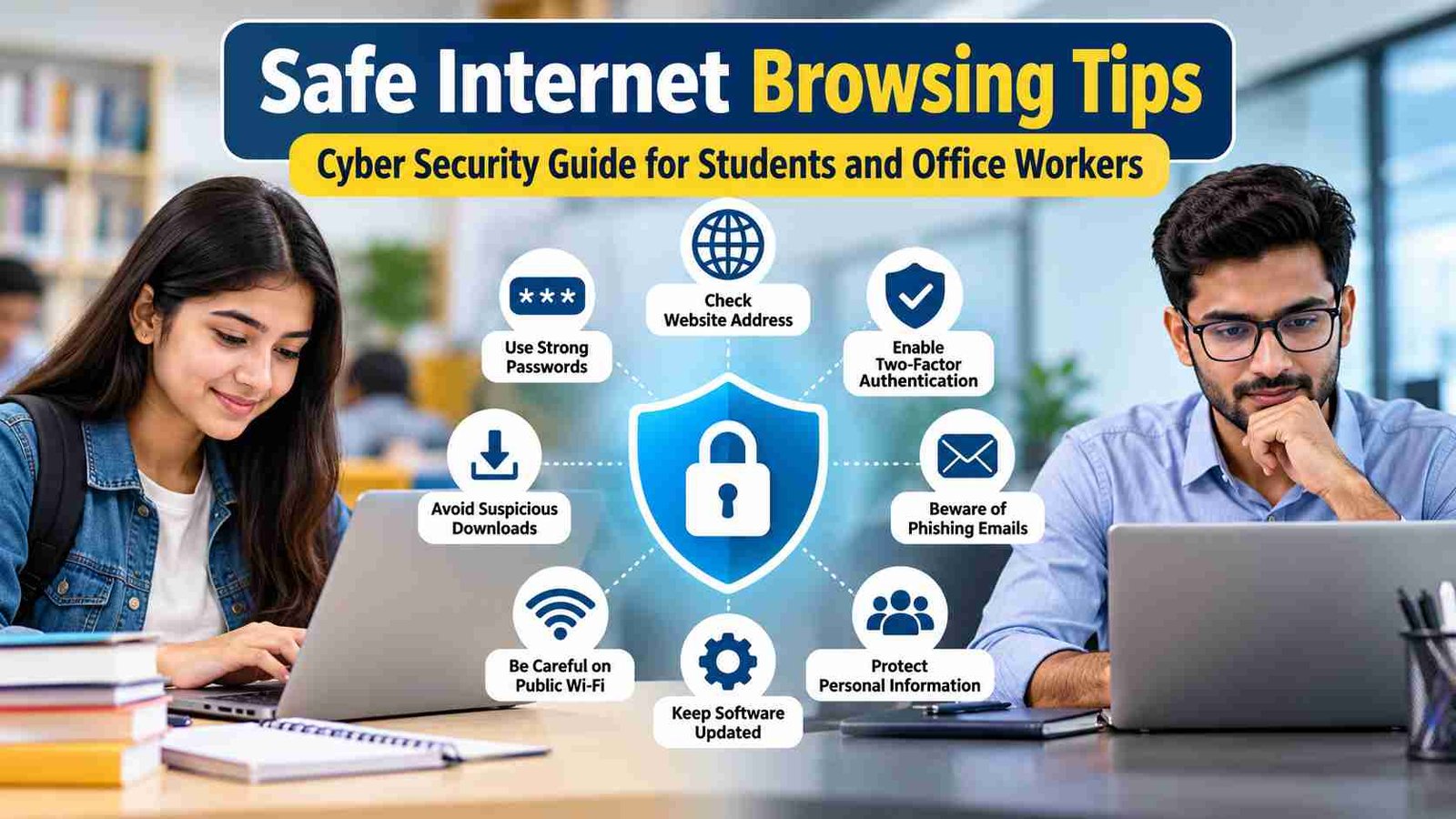
These Safe Internet Browsing Tips are designed for students, competitive-exam aspirants, employees, teachers, and general internet users. The aim is not to make browsing difficult. Instead, it is to help people recognize common threats and make safer decisions before clicking a link, downloading a file, entering a password, or sharing personal information.
Cyber security is not only about advanced software or technical knowledge. Everyday decisions matter. Knowing how to identify a fake website, use strong passwords, enable multi-factor authentication, update devices, and handle suspicious messages can prevent many avoidable problems.
Visit More:-
- MS Word Tutorial
- MS Excel Tutorial
- MS PowerPoint Tutorial
- MS Paint Tutorial
- Top 10 Daily Computer Tasks Every Office Clerk and Assistant Must Know
What Is Cyber Security?
Cyber security is the practice of protecting computers, smartphones, networks, online accounts, applications, and digital information from unauthorized access, misuse, damage, disruption, or theft.
For an ordinary internet user, cyber security can be understood through a few familiar activities:
- Protecting passwords and login credentials
- Keeping devices and software updated
- Avoiding suspicious links and attachments
- Using secure websites
- Protecting personal and financial information
- Installing software only from trusted sources
- Recognizing phishing and online scams
- Securing public Wi-Fi connections
- Backing up important files
- Reviewing account activity and security alerts
Cyber security is therefore not something limited to IT professionals. A student signing into an examination portal and an employee accessing a company email account both need basic cyber security awareness.
What Are Safe Internet Browsing Tips?
Safe Internet Browsing Tips are practical habits that help users browse websites, open online services, download files, and communicate on the internet while reducing common security and privacy risks.
They include checking website addresses, avoiding suspicious links, protecting login details, using updated browsers, enabling multi-factor authentication, and thinking carefully before sharing sensitive information.
The most useful principle is simple: pause before you click. Many online attacks succeed because users act quickly without checking what they are opening.
Why Safe Internet Browsing Matters for Students and Office Workers
Students and office workers often handle information that should not be exposed to strangers. A student’s personal details may include their phone number, address, academic records, application information, identification details, and payment information. An employee may have access to internal documents, customer information, company email, financial data, or confidential projects.
A compromised account can have consequences beyond one device. For example, if someone obtains an email password, they may attempt to reset other accounts linked to that email address. Similarly, if a workplace account is compromised, the attacker may try to reach other employees or internal systems.
Safe browsing also protects against less dramatic but still frustrating problems, such as malware infections, unwanted browser changes, fraudulent subscriptions, fake software updates, and stolen social media accounts.
| Online Risk | Possible Impact | Safer Habit |
|---|---|---|
| Phishing website | Password or personal data theft | Check the URL before signing in |
| Malicious attachment | Malware infection | Verify the sender and file |
| Weak password | Account takeover | Use a unique strong password |
| Fake software update | Malware installation | Update through trusted settings |
| Unsafe browser extension | Data exposure | Install only reputable extensions |
| Public Wi-Fi misuse | Account or data exposure | Avoid sensitive activity on unknown networks |
| Oversharing online | Privacy and scam risks | Share the minimum necessary information |
How to Check Whether a Website Is Safe
Before entering a password, payment detail, or personal information, take a few seconds to examine the website.
Check the Website Address Carefully
Look at the complete web address in the browser’s address bar. Attackers often create websites that visually resemble legitimate services while using a different domain.
For example, a genuine service might use a domain such as:
example.com
A suspicious website could use something like:
example-security-login.com
or a misspelled variation of the original domain.
Do not rely only on the website’s logo, colors, or overall appearance. A fraudulent website can be designed to look very professional.
Look for HTTPS, but Do Not Treat It as Proof of Legitimacy
HTTPS means that the connection between your browser and the website is encrypted. The padlock or secure connection indicator is useful, but it does not automatically mean the website itself is trustworthy.
A fraudulent site can also use HTTPS. Therefore, check both the connection and the actual domain name.
Be Careful With Login Pages Reached Through Messages
Suppose you receive a message saying, “Your account will be blocked today. Click here to verify.”
Instead of clicking the link immediately, open the official website directly through a trusted bookmark or by typing the known address into your browser.
This reduces the chance of being redirected to a fake login page.
Safe Internet Browsing Tips for Students
Students often browse from phones, laptops, tablets, school computers, college networks, and public Wi-Fi. Their online activity can include educational platforms, scholarship websites, recruitment portals, social media, gaming services, and file-sharing websites.
Use Official Websites for Applications and Results
Students frequently search for admission forms, exam results, admit cards, recruitment notifications, and scholarship information. Search engines may show multiple websites for the same topic.
Before entering personal information, verify that you are on the official website of the relevant university, board, government department, examination authority, or institution.
Pay particular attention when a website asks for:
- Registration details
- Identity documents
- Banking information
- Card details
- OTPs
- Passwords
- Application fees
A website claiming to provide an “instant result” or “guaranteed selection” should be treated cautiously, especially when it asks for unnecessary information or payment.
Do Not Share OTPs
One-time passwords are frequently used for account verification and transactions. Treat an OTP as private information.
A person who claims to be a bank employee, recruiter, customer-care representative, teacher, or platform administrator should not automatically be trusted merely because they know some details about you.
Do not share an OTP simply because someone says it is needed to “cancel a transaction,” “verify your account,” or “unlock a service.”
Be Careful With Free Study Material Downloads
Students often search for PDFs, software, question banks, mock tests, and study tools. Malware can sometimes be disguised as useful files.
Before downloading:
- Check the website and its reputation.
- Avoid suspicious pop-ups and redirects.
- Be cautious with executable files from unknown sources.
- Scan downloads when appropriate.
- Prefer official or trusted educational sources.
A file named “important_exam_notes.pdf.exe” should immediately raise suspicion because the visible name may hide the actual file type.
Secure Your Email Account
Your student email or personal email account may be connected to many other services. Use a unique password and enable multi-factor authentication where available.
Review account recovery options periodically. Make sure the recovery email address and phone number are still under your control.
Safe Internet Browsing Tips for Competitive-Exam Aspirants
Competitive-exam aspirants frequently visit recruitment portals, government websites, coaching platforms, test portals, payment pages, and document-upload services.
One common mistake is assuming that every website appearing in a search result is an official source.
Before applying for an examination or recruitment process, verify:
- The exact website domain
- The organization conducting the examination
- The notification source
- Application deadlines
- Payment instructions
- Contact information
- Required documents
Do not provide sensitive information to an unknown website simply because it uses the name of a popular examination.
A good habit is to locate the official notification first and use the application link provided by the competent authority.
Safe Internet Browsing Tips for Office Workers
Workplace internet usage creates an additional responsibility because one compromised account can potentially affect business information.
Keep Personal and Work Accounts Separate
Do not mix workplace credentials with personal accounts. Use your organization’s approved applications and storage systems for work-related files.
Avoid uploading confidential company documents to random online tools merely because they are convenient.
Before using an unfamiliar website to convert, compress, edit, or analyze a work document, check whether your organization’s policies permit it.
Verify Unexpected Email Requests
Imagine receiving an email that appears to come from a manager:
“Please purchase these gift cards immediately and send me the codes.”
Do not act solely because the message appears to use a familiar name.
Check the sender’s actual email address, not just the display name. If the request is unusual, verify it through a separate trusted communication channel.
This simple step can help prevent business email scams.
Be Careful With Shared Documents
Attackers may send documents that look like invoices, reports, resumes, purchase orders, or meeting files. Some files may contain malicious macros or links.
If an unexpected attachment asks you to enable content, disable security protections, or sign in again, stop and verify the request.
Lock Your Computer
An unlocked computer in an office, classroom, library, or shared workspace can expose information even without sophisticated hacking.
Use your device’s screen-lock feature whenever you step away, even for a short period.
How Phishing Attacks Work
Phishing is a social-engineering technique in which an attacker attempts to trick a person into revealing information, opening malicious content, transferring money, or performing another unsafe action.
Phishing can arrive through:
- SMS
- Messaging applications
- Social media
- Fake customer-support chats
- Phone calls
- QR codes
- Fake advertisements
- Search results
Common Phishing Warning Signs
Be cautious when a message includes several of these characteristics:
- Unexpected urgency
- Threats of account closure
- Requests for passwords or OTPs
- Unusual payment requests
- Strange sender addresses
- Suspicious links
- Unexpected attachments
- Claims that seem too good to be true
- Requests to bypass normal procedures
None of these signs alone proves that a message is fraudulent, but multiple warning signs should prompt verification.
Example of a Phishing Scenario
You receive an email saying your email storage is full. It contains a button labeled “Increase Storage.”
Instead of clicking the button, open your email provider through its official website or app and check the account status there.
The basic rule is:
Verify the message independently instead of using the message itself as your source of truth.
Password Security: One of the Most Important Cyber Security Habits
Passwords are still a major part of online account security. A weak or reused password can create problems across multiple services.
Use Unique Passwords
Avoid using the same password for your email, banking, social media, education portal, and shopping account.
Suppose one website experiences a password leak. If you reused that password elsewhere, an attacker may attempt to use the same credentials on other services.
Unique passwords reduce this chain reaction.
Use a Password Manager
A reputable password manager can generate and store strong passwords so that you do not need to memorize every one.
Instead of remembering dozens of passwords, you mainly protect the password manager with a strong master credential and additional security controls.
Avoid Easily Guessable Passwords
Do not rely on obvious personal information such as:
- Name
- Birth year
- Mobile number
- Favorite sports team
- School name
- Simple number sequences
The goal is to make passwords difficult to guess and different from one account to another.
Multi-Factor Authentication: An Extra Layer of Protection
Multi-factor authentication, often called MFA or two-step verification, requires an additional authentication factor beyond the password.
Depending on the service, the second factor may involve:
- An authenticator application
- A security key
- A verification code
- Device approval
- Biometric authentication
MFA does not make an account invulnerable, but it can provide an important additional layer of protection when a password is compromised.
For important accounts such as primary email, financial services, and work systems, enabling available strong authentication options can significantly improve account security.
Browser Security Settings You Should Check
Modern browsers provide several security and privacy controls. Users do not need to understand every advanced setting, but a few basics are worth checking.
Keep the Browser Updated
Browser updates often contain security fixes as well as performance improvements and new features.
Enable automatic updates where practical, and restart the browser when an update requires it.
Review Saved Passwords
Periodically inspect saved login information and remove credentials you no longer need.
Never save passwords on an unfamiliar or shared computer.
Control Website Permissions
Browsers may allow websites to request access to:
- Location
- Camera
- Microphone
- Notifications
- Clipboard
- Pop-ups
- Other browser features
Grant permissions only when they are necessary.
For example, a video-meeting website may need microphone and camera access, but a simple news website usually does not need permanent microphone access.
Browser Extensions: Useful but Not Risk-Free
Browser extensions can add useful features such as productivity tools, grammar checking, note-taking, password management, and accessibility support.
However, extensions may have access to information from websites depending on their permissions.
Before installing an extension, check:
- The publisher
- The extension’s purpose
- Requested permissions
- Recent updates
- Whether you actually need it
Remove extensions that you no longer use.
Avoid installing multiple extensions simply because a website suggests them during browsing.
Safe Internet Use on Public Wi-Fi
Public Wi-Fi can be convenient in libraries, airports, cafes, hotels, coaching centers, and workplaces.
The safest approach is to assume that an unfamiliar network deserves caution.
Avoid Sensitive Activities on Unknown Networks
When using public Wi-Fi, consider avoiding highly sensitive activities unless you have appropriate protections in place.
For important accounts, using a trusted network or a properly configured secure connection can reduce exposure.
Confirm the Network Name
Attackers can create Wi-Fi networks with names that resemble legitimate networks.
Before connecting, verify the official network name with the venue when possible.
Do not assume that a network is legitimate simply because its name looks familiar.
Turn Off Automatic Connection
Devices that automatically connect to previously used wireless networks may connect to unsafe networks under certain circumstances.
Review your device’s Wi-Fi settings and remove old networks you no longer use.
Why Software Updates Matter
Ignoring updates can leave known security weaknesses unpatched.
Updates may be available for:
- Operating systems
- Web browsers
- Mobile applications
- Productivity software
- Antivirus tools
- Drivers
- Network equipment
Enable automatic updates for systems that support them, particularly for security-sensitive software.
Do not postpone essential security updates indefinitely simply because the current version appears to work normally.
Recognizing Fake Downloads and Software Updates
A common online trick is to display a fake warning such as:
“Your browser is outdated. Click here to update now.”
A safer approach is to update the browser through its built-in settings or the official website.
The same principle applies to applications, operating systems, media players, PDF readers, and other software.
Avoid downloading critical software from pop-ups or unknown websites simply because the message says the update is urgent.
Protecting Personal Information Online
Not every piece of information needs to be public.
Before posting or sharing information, consider whether it could be used against you later.
Examples include:
- Full date of birth
- Home address
- Personal phone number
- Travel plans
- Identity documents
- Academic credentials
- Financial details
- Account recovery information
Privacy is not only about hiding from strangers. Limiting unnecessary sharing reduces the amount of information available for scams, impersonation, and social engineering.
Social Media Safety for Students and Employees
Social media platforms are useful for networking, learning, communication, and entertainment. However, public posts can reveal information that attackers may use to make fraudulent messages appear convincing.
For example, a public post about:
- A new job
- A college admission
- A particular exam
- A birthday
- A vacation
- A family event
- A manager’s name
may provide clues about a person’s identity or relationships.
Review your privacy settings regularly and think carefully before accepting unknown connection requests or sharing personal details publicly.
Safe Internet Browsing Tips for Smartphones
A phone often contains email, banking applications, photographs, documents, social media accounts, and authentication tools. Losing access to the phone can therefore create significant problems.
Use a strong screen lock and keep the operating system updated.
Install applications through trusted official app stores whenever possible. Review application permissions and uninstall apps that you no longer need.
Be especially cautious about apps that request permissions unrelated to their purpose.
For example, a simple calculator application should not automatically need extensive access to contacts, messages, or microphone functions.
How to Handle Suspicious Links
When you receive an unexpected link, do not click automatically.
Ask yourself:
- Was I expecting this message?
- Do I recognize the sender?
- Does the link point to the expected domain?
- Is the message creating unnecessary urgency?
- Is it requesting sensitive information?
- Can I access the service another way?
For a financial account, government service, examination portal, or workplace platform, opening the official website independently is often safer than using an unexpected link.
What to Do If You Accidentally Click a Suspicious Link
Do not panic. Clicking a suspicious link does not always mean that your account or device has been compromised.
The appropriate response depends on what happened afterward.
If you only opened the page and did not enter information or download anything, close it and continue monitoring your accounts.
If you entered your password, change it promptly from the legitimate website or application. If that password was reused elsewhere, change it on those services as well.
If you entered payment information or financial credentials, contact the relevant financial institution through an official channel.
If you downloaded or installed an unexpected file or application, disconnecting the affected device from networks and seeking trusted technical assistance may be appropriate, especially if unusual behavior appears.
Backup: The Safety Net Many Users Forget
Backups protect against data loss caused by device failure, accidental deletion, malware, ransomware, or other incidents.
Important files may include:
- Academic projects
- Notes
- Certificates
- Office documents
- Presentations
- Photographs
- Research material
- Personal records
A backup is most useful when you can actually restore your files from it. Therefore, do not simply assume that files are safe because they exist somewhere online.
For critical data, maintain a sensible backup approach using trusted storage and periodically verify that important files can be recovered.
Common Internet Security Mistakes to Avoid
Even users with good intentions can make mistakes during routine browsing.
Clicking Because a Message Looks Urgent
Urgency is often used to reduce careful thinking. Pause before acting.
Reusing the Same Password Everywhere
One compromised website can turn into multiple compromised accounts.
Trusting a Logo or Familiar Design
Visual appearance can be copied. Verify the domain and context.
Installing Unknown Browser Extensions
Extra functionality is not worth unnecessary risk.
Ignoring Security Updates
Old software can contain known vulnerabilities.
Sending Sensitive Information Through Unverified Channels
Use official communication methods for confidential data.
Leaving Accounts Logged In on Shared Computers
Always sign out and avoid saving credentials on devices used by other people.
Assuming a Secure Connection Means a Safe Website
HTTPS protects the connection but does not prove that the website is legitimate.
Safe Internet Browsing Tips Checklist
The following checklist can be used as a quick daily reminder:
| Check | Safe Practice |
|---|---|
| Website | Verify the domain before entering information |
| Password | Use a unique, strong password |
| MFA | Enable multi-factor authentication |
| Browser | Keep it updated |
| Downloads | Use trusted sources |
| Links | Verify unexpected URLs |
| Check the real sender address | |
| Wi-Fi | Treat unfamiliar networks cautiously |
| Phone | Use a screen lock and updates |
| Extensions | Install only necessary, trusted extensions |
| Privacy | Share only necessary information |
| Backup | Keep important files backed up |
How Students Can Build Better Cyber Security Habits
Cyber security becomes easier when good practices become routine.
A student can create a simple personal security routine:
Before clicking: Read the message and inspect the link.
Before logging in: Check the website address.
Before downloading: Confirm the source and file type.
Before sharing: Ask whether the information is actually necessary.
Before paying: Verify the organization and payment page.
Before trusting a message: Confirm unusual requests independently.
This approach does not require advanced technical knowledge. It mainly requires attention.
How Office Workers Can Build a Safer Digital Routine
Employees can also adopt a few repeatable habits.
Start the day by checking important security notifications and account alerts. Keep work applications updated. Lock the computer when stepping away. Verify unusual payment or data requests separately. Avoid transferring confidential information to unauthorized services.
Organizations may have specific policies regarding passwords, removable storage, cloud applications, messaging, and remote access. Employees should follow the rules established by their organization rather than using personal workarounds.
When in doubt, ask the organization’s IT or security team instead of taking a risky shortcut.
Cyber Security Awareness at Home
Parents and teachers can help students understand online safety without making the internet seem frightening.
The goal should be to teach practical decision-making.
Children and young adults should know that they can ask for help when they encounter:
- Threatening messages
- Suspicious websites
- Unknown contacts
- Fake prizes
- Cyberbullying
- Account problems
- Unexpected payment requests
- Strange downloads
A user who feels comfortable reporting a suspicious incident early is more likely to receive timely help.
Cyber Security and Privacy Are Related but Different
Cyber security and online privacy overlap, but they are not identical.
Cyber security focuses on protecting systems, accounts, devices, and information from unauthorized access or harmful activity.
Privacy focuses on how personal information is collected, used, shared, stored, and exposed.
For example, a person may have a very strong password but still share too much personal information publicly. Conversely, a person may limit public sharing but use a weak password.
Good internet habits address both areas.
Safe Browsing Does Not Mean Avoiding the Internet
Internet safety is not about becoming afraid of websites, apps, email, or technology.
The objective is controlled and informed use.
Students need the internet for education. Professionals need it for work. Families use it for communication and everyday services. The practical goal is to enjoy these benefits while reducing unnecessary risk.
A few seconds of verification can sometimes prevent hours or days of recovery work.
Important Cyber Security Concepts Students Should Know
Students preparing for competitive exams or studying computer awareness may encounter several basic cyber security terms.
| Term | Simple Meaning |
|---|---|
| Malware | Malicious software designed to cause harm or unauthorized activity |
| Phishing | Deceptive communication intended to trick users |
| Ransomware | Malware that can block access to data or systems and demand payment |
| Spyware | Software designed to secretly monitor or collect information |
| Firewall | A security control that helps regulate network traffic |
| Antivirus | Software designed to detect and help deal with malicious software |
| Encryption | Converting information into a protected form that requires a method or key to read |
| MFA | Authentication using more than one factor |
| VPN | A technology that can create a protected network connection |
| Social Engineering | Manipulating people into taking unsafe actions or revealing information |
These definitions are useful for beginners and can also support basic computer-awareness preparation.
What Is the Difference Between Phishing and Malware?
Phishing is primarily a deception technique, while malware is malicious software.
A phishing email may attempt to steal a password by directing the victim to a fake login page. Malware, in contrast, is software designed to perform harmful or unauthorized actions.
The two can appear together. For example, a phishing message might trick a user into downloading malicious software.
Understanding this difference helps users identify the type of threat they may be facing.
What Is the Difference Between Privacy and Security?
Privacy concerns how personal information is handled, while security concerns protecting information and systems from unauthorized access or harm.
They support each other but solve different problems.
Keeping an account password secure is primarily a security practice. Limiting how much personal information you publish publicly is primarily a privacy practice.
Both are part of responsible internet use.
A Simple Five-Second Rule for Safer Browsing
A useful mental shortcut is the Pause–Check–Proceed method.
Pause
Do not respond immediately to unexpected messages, pop-ups, or warnings.
Check
Inspect the website address, sender, request, attachment, or download source.
Proceed
Continue only when the action makes sense and you have verified the important details.
This method is especially useful during stressful situations because attackers often depend on urgency and distraction.
How Teachers and Parents Can Teach Safe Internet Habits
Cyber security education should focus on situations students actually encounter.
Instead of only explaining technical terminology, teachers and parents can discuss examples such as:
- A fake scholarship message
- A suspicious examination link
- An unknown social-media account
- A fake job offer
- A fraudulent payment request
- A request for an OTP
- A software update appearing through a pop-up
Students learn more effectively when they understand what a safe response looks like.
The lesson should also make one point clear: reporting a mistake is better than hiding it. Delaying a report can sometimes increase the damage.
Common Misconceptions About Internet Security
“I Have Nothing Valuable, So Hackers Won’t Target Me.”
Personal accounts contain data that can be misused even when the user does not consider themselves important.
“The Website Has a Padlock, So It Must Be Genuine.”
A secure connection does not guarantee that the website itself is trustworthy.
“Antivirus Software Will Stop Everything.”
Security software is useful, but it cannot replace cautious browsing and good account practices.
“Only Computer Experts Need Cyber Security Knowledge.”
Most users can learn basic habits that significantly improve their security posture.
“A Friend Sent the Link, So It Is Safe.”
A friend’s account can be compromised. Verify unexpected links, even when they appear to come from someone you know.
Important Points to Remember
For quick revision, remember these core principles:
- Check the website address before entering sensitive information.
- Do not share passwords, OTPs, or security codes with others.
- Use unique passwords for important accounts.
- Enable multi-factor authentication where available.
- Keep your operating system, browser, and applications updated.
- Download software only from trusted sources.
- Be cautious with unexpected links and attachments.
- Treat public Wi-Fi as an untrusted environment.
- Review browser extensions and website permissions.
- Back up important academic and professional files.
- Verify unusual financial or workplace requests through another channel.
- Share only the personal information that is genuinely necessary.
- Lock devices when leaving them unattended.
- Report suspicious incidents quickly rather than hiding them.
Frequently Asked Questions
What are Safe Internet Browsing Tips for students?
Safe Internet Browsing Tips for students include checking website addresses, avoiding suspicious links and downloads, protecting passwords, enabling multi-factor authentication, keeping devices updated, and using official websites for applications and educational services.
How can students identify a fake website?
Students should inspect the full domain name, check for spelling errors or unusual addresses, avoid suspicious redirects, and verify the website through a trusted source. A professional-looking design alone does not prove that a website is genuine.
Is HTTPS enough to make a website safe?
No. HTTPS helps protect the connection between the browser and the website, but it does not guarantee that the website itself is legitimate. Always verify the domain and the context of the website.
Should I use the same password for different accounts?
No. Reusing passwords increases the impact of a stolen credential. Use unique passwords, especially for important accounts such as email, financial services, education platforms, and workplace systems.
What should I do if I receive a suspicious email?
Do not click links or open attachments immediately. Check the sender’s real address, inspect the request, and verify it through a trusted channel. When possible, access the relevant service directly rather than through the email link.
Is public Wi-Fi safe for online banking?
An unfamiliar public network should be treated cautiously. For sensitive activities, a trusted connection is preferable. Users should also keep devices updated and use secure account practices.
Why is multi-factor authentication important?
Multi-factor authentication adds another verification step in addition to a password. This can provide additional protection when a password has been exposed or stolen.
Are browser extensions safe to use?
Browser extensions can be useful, but they may request permissions that provide access to browser content or other functions. Install extensions only from reputable sources and review their permissions before installation.
What should I do after entering my password on a suspicious website?
Change the password immediately using the legitimate website or official application. If the same password was used elsewhere, change it there too. Review account activity and enable additional security controls such as multi-factor authentication where available.
Why should I keep my browser updated?
Browser updates can include security fixes for known vulnerabilities. Running an outdated browser may leave the device exposed to risks that have already been addressed by the developer.
How can office workers avoid email scams?
Employees should verify unexpected payment requests, password resets, confidential-data requests, and unusual instructions through a separate trusted channel. They should also check the actual sender address and avoid opening suspicious attachments.
What is the easiest Safe Internet Browsing Tips rule to remember?
A simple rule is: Pause before you click, check before you trust, and verify before you share. This habit can help users avoid many common online mistakes.
Conclusion
The internet is an essential tool for education, employment, communication, and everyday life. Staying safe online does not require advanced technical expertise. It requires consistent habits and a willingness to slow down when something feels unusual.
The most useful Safe Internet Browsing Tips are practical: verify website addresses, use strong and unique passwords, enable multi-factor authentication, keep software updated, avoid suspicious downloads, protect personal information, and verify unexpected requests independently.
Students can use these habits while browsing examination portals, scholarship websites, educational platforms, and social media. Office workers can apply them to email, cloud services, workplace systems, shared documents, and remote work.
Cyber security is not a one-time task. Threats and technologies change, so users should continue learning and reviewing their security practices. The strongest everyday defense often begins with a simple question: “Before I click this, have I checked what it really is?”