
Working in an office today requires much more than simply knowing how to type. From sending emails and preparing documents to updating spreadsheets, organizing files, scanning papers, and handling online information, computer work is part of the everyday routine of almost every clerk and office assistant.
For beginners, these tasks may look complicated at first. In reality, most office computer work is built around a small set of practical skills that become easy with regular practice. Learning the Top 10 Daily Computer Tasks Every Office Clerk and Assistant Must Know can help students, job aspirants, and new employees feel more confident while handling routine office responsibilities.
The goal is not to become an advanced computer programmer. An office clerk usually needs practical computer knowledge: how to create and edit documents, enter data accurately, manage folders, communicate through email, print or scan documents, work with PDFs, use spreadsheets, search for information online, and protect important files.
This guide explains these tasks in simple language, with practical examples, common mistakes, useful keyboard shortcuts, and beginner-friendly tips.
Visit More:-
- MS Word Tutorial
- MS Excel Tutorial
- MS PowerPoint Tutorial
- MS Paint Tutorial
- Safe Internet Browsing Tips: Cyber Security Guide for Students & Office Workers
What Are the Top 10 Daily Computer Tasks Every Office Clerk and Assistant Must Know?
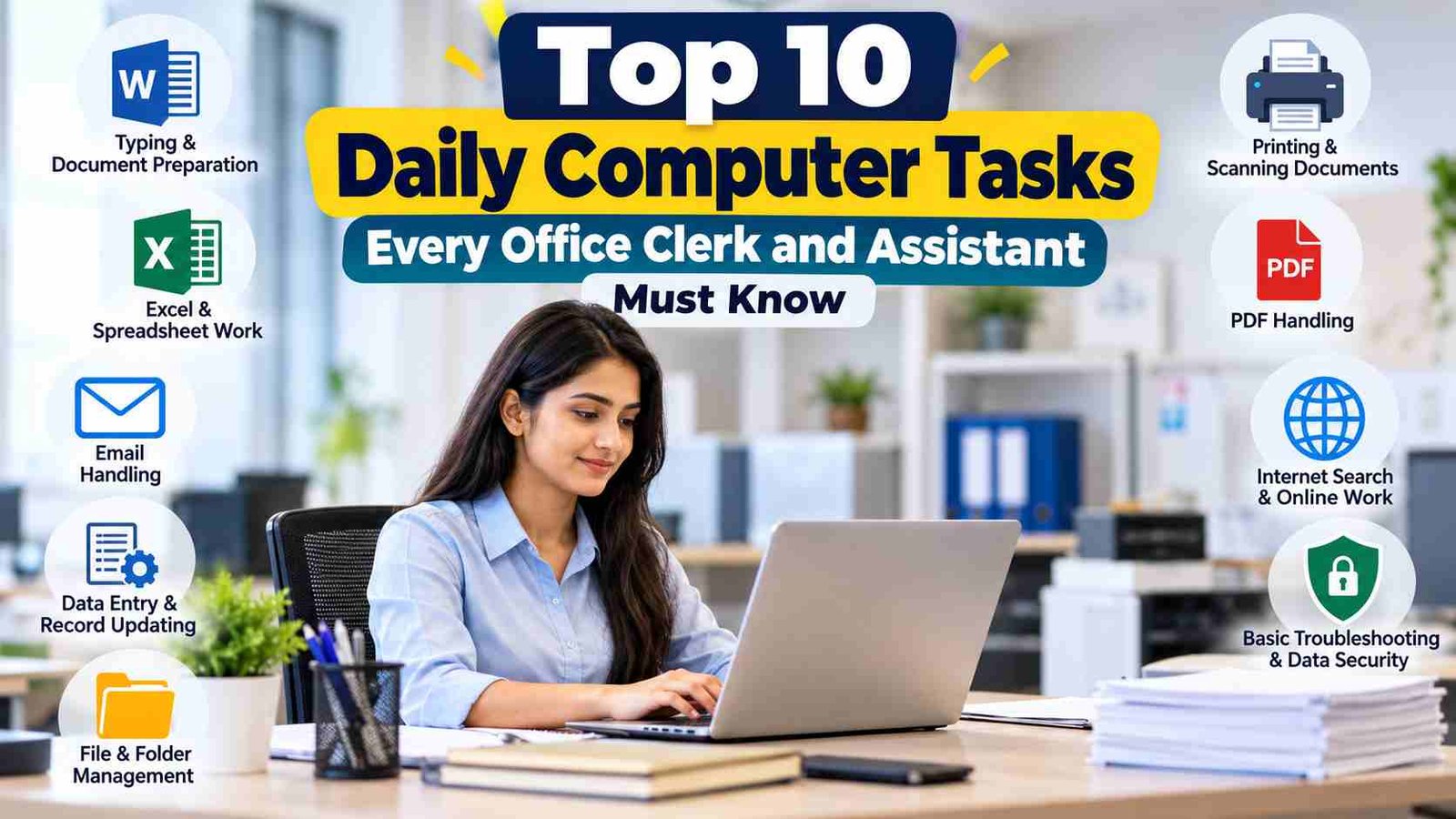
The Top 10 Daily Computer Tasks Every Office Clerk and Assistant Must Know are practical activities commonly performed during routine office work. They include document preparation, spreadsheet work, email communication, data entry, file management, printing and scanning, PDF handling, internet research, basic computer troubleshooting, and data security.
Here is a quick overview:
| Task | What It Usually Involves |
|---|---|
| 1. Typing and document preparation | Creating letters, notices, applications, reports, and office documents |
| 2. Microsoft Word or similar word processors | Formatting, editing, tables, page setup, and printing |
| 3. Excel and spreadsheet work | Data entry, formulas, sorting, filtering, and basic calculations |
| 4. Email handling | Sending, receiving, replying, forwarding, and attaching files |
| 5. Data entry and record updating | Entering information accurately into sheets, forms, or software |
| 6. File and folder management | Creating folders, renaming files, copying, moving, and finding documents |
| 7. Printing, scanning, and photocopy-related computer work | Preparing files for print and managing scanned documents |
| 8. PDF handling | Opening, saving, merging, converting, and sharing PDF documents |
| 9. Internet and online office work | Searching information, using portals, downloading documents, and uploading files |
| 10. Basic troubleshooting and data security | Solving simple computer issues and protecting office information |
These skills overlap with one another. For example, an employee may receive an email, download an attachment, edit it in Word, enter related figures into Excel, save the files in the correct folder, convert the document to PDF, and print or send it back.
That is why basic computer knowledge is so valuable in clerical work.
Why Are These Computer Skills Important for Office Clerks and Assistants?
Computer skills save time, reduce paperwork, improve accuracy, and make communication easier. An office clerk may handle dozens of small tasks every day, and knowing the correct method for each task can make the entire workflow smoother.
Consider a simple example.
Suppose an office receives a list of 200 applicants. A clerk may need to download the list, check names, enter missing details into Excel, prepare a notice in Word, convert it into PDF, send it by email, and store the files in a department folder.
Without computer skills, the same work may take much longer and lead to avoidable mistakes.
Strong basic computer skills also help job seekers during recruitment processes. Questions about MS Word, Excel, email, keyboard shortcuts, file management, and basic computer operations are common in various computer-awareness tests, clerical skill assessments, practical tests, and office-related interviews. The exact syllabus and test pattern depend on the employer or examination authority, so candidates should always check the latest official instructions for a particular recruitment.
1. Typing and Preparing Office Documents
Typing is one of the most basic and frequently used computer tasks in an office. A clerk or assistant may have to prepare letters, applications, notices, meeting notes, circulars, reports, memos, lists, and other documents.
Good typing is not only about speed. Accuracy matters just as much.
A document with incorrect names, dates, amounts, addresses, or reference numbers can create unnecessary problems.
What should you know?
A beginner should learn how to:
- Type using a keyboard comfortably
- Use capital letters and punctuation correctly
- Create paragraphs
- Correct spelling mistakes
- Select and edit text
- Copy, cut, and paste information
- Undo and redo changes
- Save a document
- Rename a document
- Print a document
Keyboard shortcuts are especially useful.
| Shortcut | Use |
|---|---|
| Ctrl + A | Select all |
| Ctrl + C | Copy |
| Ctrl + X | Cut |
| Ctrl + V | Paste |
| Ctrl + Z | Undo |
| Ctrl + Y | Redo |
| Ctrl + S | Save |
| Ctrl + P | |
| Ctrl + F | Find text |
For students preparing for clerical examinations, practicing these shortcuts can save time during computer-based tests and practical assignments.
Practical example
Imagine your supervisor gives you a handwritten application and asks you to prepare a clean digital copy.
You would type the content, check spelling and punctuation, format the heading, correct spacing, save the document using a meaningful filename, and then either print or email it.
That entire process is a common example of everyday computer work.
2. Using Microsoft Word for Office Work
Microsoft Word and similar word-processing applications are widely used for creating professional documents. Knowing how to type is not enough; an office worker should also understand basic document formatting.
A well-formatted document is easier to read and looks more professional.
Basic Word skills you should learn
You should be comfortable with:
- Changing font style and size
- Applying bold, italic, and underline
- Adjusting alignment
- Changing line spacing
- Creating numbered and bulleted lists
- Inserting tables
- Setting margins
- Adding headers and footers
- Adding page numbers
- Using Find and Replace
- Checking spelling
- Saving in different formats
- Printing documents
Working with tables
Tables are useful when information needs to be organized clearly.
For example, an office may maintain a table like this:
| Employee Name | Department | Joining Date | Status |
|---|---|---|---|
| Amit Kumar | Accounts | 10 March 2026 | Active |
| Neha Sharma | Administration | 17 April 2026 | Active |
| Rahul Singh | Records | 22 May 2026 | Active |
Instead of writing this information in long paragraphs, a table makes it easier to read and update.
Find and Replace
The Find and Replace feature is particularly useful for large documents.
Suppose a 20-page document contains an old department name that must be changed throughout the document. Manually searching every page would waste time. Using Find and Replace can make the process much faster.
This is one of those small features that becomes extremely useful once you start handling real office documents.
3. Excel and Spreadsheet Work
Excel is one of the most important computer applications for office clerks and assistants because offices frequently deal with lists, numbers, records, attendance, expenses, inventory, employee information, and other structured data.
You do not need advanced Excel skills to start office work. A strong understanding of basic spreadsheet operations is more important for beginners.
Essential Excel skills
Learn how to:
- Enter and edit data
- Adjust row height and column width
- Format cells
- Use basic formulas
- Sort information
- Filter data
- Freeze rows or columns
- Create simple tables
- Find information
- Copy formulas
- Print a worksheet
- Save and share files
Basic formulas
Some common formulas include:
=SUM(A1:A10)
=AVERAGE(B1:B10)
=MAX(C1:C10)
=MIN(C1:C10)
=COUNT(D1:D10)
These formulas are useful for calculations involving marks, salaries, expenses, quantities, attendance, and other office records.
Example
Suppose a clerk maintains monthly office expenses:
| Item | Amount |
|---|---|
| Stationery | 2,500 |
| Printing | 1,200 |
| Electricity | 4,000 |
| Internet | 1,000 |
The total can be calculated using:
=SUM(B2:B5)This is faster and less error-prone than adding every amount manually.
Sorting and filtering
Suppose a spreadsheet has 500 employee records. You may need to display only employees from one department or sort people by joining date.
Filtering lets you temporarily show the records you need without deleting the others.
For office work, understanding the difference between sorting and filtering is important:
- Sorting changes the order of records.
- Filtering displays only records matching selected conditions.
This distinction can also be useful in computer-awareness and clerical skill exams.
4. Managing Office Email
Email is a core part of professional communication. Clerks and assistants may use it to send documents, receive instructions, forward messages, contact departments, communicate with customers, or submit reports.
Knowing how to send an email is only the beginning. You should also understand professional email habits.
Basic email tasks
A clerk may need to:
- Compose an email
- Reply to a message
- Forward an email
- Add attachments
- Download attachments
- Use CC and BCC correctly
- Search old emails
- Organize messages into folders or labels
- Identify spam or suspicious emails
How to write a professional email
A basic office email should normally have:
- A clear subject
- A polite greeting
- A short and direct message
- Relevant attachments
- A professional closing
For example, if you are sending a report, the subject should make the purpose clear rather than saying something vague like “Document.”
A subject such as Monthly Attendance Report – September 2026 gives the recipient immediate context.
Check attachments before sending
One of the most common office mistakes is sending an email without the intended attachment.
Before clicking Send, check:
- Is the correct file attached?
- Is the filename clear?
- Is the file readable?
- Is the recipient correct?
- Is the subject appropriate?
- Have you accidentally attached confidential information?
This five-second check can prevent an embarrassing mistake.
5. Data Entry and Updating Records
Data entry is a major part of clerical work. It involves entering information into Excel sheets, office software, databases, online forms, registration systems, or other digital records.
Data entry may appear simple, but it requires concentration.
Accuracy is the priority
A single incorrect digit in an account number, phone number, employee ID, date, or payment amount can change the meaning of the entire record.
When entering information, pay attention to:
- Names
- Dates
- Numbers
- Codes
- Amounts
- Addresses
- Contact information
- Reference numbers
Practical data-entry habits
Do not rush simply to increase typing speed. Develop a system:
Read → Enter → Check → Save
For long lists, periodic verification is helpful.
Suppose you are entering 100 student records. Instead of waiting until the very end to discover errors, check your entries after a manageable group of records.
Data validation in Excel
Excel’s Data Validation feature can help restrict the type of information entered in a cell.
For example, a status column could allow only:
- Pending
- Approved
- Rejected
This reduces accidental variations such as “approve,” “APPROVED,” “Aprvd,” or other inconsistent entries.
6. File and Folder Management
A computer can contain thousands of files. Without proper organization, even a skilled employee can waste time searching for documents.
File management is therefore one of the Top 10 Daily Computer Tasks Every Office Clerk and Assistant Must Know.
Basic file management skills
You should know how to:
- Create folders
- Create subfolders
- Rename files
- Copy files
- Move files
- Delete files
- Restore deleted files when possible
- Search for files
- Sort files by name or date
- Identify file extensions
- Use meaningful filenames
Use logical folder structures
Instead of keeping every document on the desktop, organize files by purpose.
For example:
Office Records
 ├── Attendance
 ├── Salary
 ├── Letters
 ├── Reports
 └── Important Documents
Inside the Reports folder, you could further organize:
Reports
 ├── 2025
 └── 2026
      ├── January
      ├── February
      ├── March
      └── April
This structure makes old documents easier to locate.
Use meaningful filenames
Compare these two filenames:
Document1.docxand
Staff_Attendance_September_2026.docxThe second filename tells you exactly what the document contains without opening it.
Avoid random names whenever you are creating important office files.
7. Printing, Scanning, and Working with Physical Documents
Even in offices that rely heavily on digital systems, printing and scanning are still common tasks.
A clerk may need to print a notice, scan signed pages, create copies, or prepare documents for submission.
Basic printing knowledge
Before printing, check:
- Paper size
- Page orientation
- Number of copies
- Selected pages
- Print preview
- Printer selection
- Color or black-and-white settings
Print Preview is particularly useful because it can help identify formatting problems before paper is wasted.
Scanning documents
When scanning a document, pay attention to:
- Page orientation
- Image clarity
- Correct page order
- File format
- Filename
- Storage location
A scanned file named:
Scan001.pdfmay be difficult to identify later.
A better name might be:
Signed_Letter_Employee_Name_September_2026.pdfCommon scanning mistake
Sometimes a person scans a document and immediately sends the file without opening it. Always check the resulting PDF or image to make sure all pages are present and readable.
8. Handling PDF Files
PDF files are common in offices because they preserve document formatting across different devices and applications.
A clerk or assistant may receive PDFs through email, download them from websites, print them, archive them, or send them to another department.
Basic PDF skills
You should know how to:
- Open a PDF
- Save a PDF
- Download a PDF
- Rename a PDF
- Print a PDF
- Search within a PDF
- Convert documents to PDF
- Combine multiple PDFs when the available software supports it
- Extract or reorder pages using suitable software
- Check whether a PDF is readable before sharing
Why PDF knowledge matters
Suppose a supervisor asks you to send four scanned pages as one file.
Instead of sending four separate attachments, you may be asked to combine them into a single PDF.
Similarly, a Word document may need to be converted to PDF before being emailed to another office.
Be careful with PDF conversions
Formatting can sometimes change when a document is converted between file types. Tables, page breaks, fonts, and images should be checked after conversion.
Never assume that the converted file is perfect simply because it opened successfully.
9. Internet Search and Online Office Work
The internet is now an everyday office tool. Clerks may use websites to check information, download forms, access portals, submit data, verify notices, or communicate with online services.
But effective internet use is more than knowing how to search Google.
Good online work habits
When looking for information:
- Use specific search terms
- Check the source
- Look for the date of the information
- Compare details when necessary
- Avoid downloading files from suspicious websites
- Do not share confidential information on untrusted pages
Example
Suppose you are asked to find the latest application form from an official organization.
A careless approach is to download the first PDF that appears in search results.
A better approach is to identify the official website, verify the page, confirm the form’s date or status, and then download the document.
This habit is especially important for students and job aspirants because recruitment notices, schedules, application instructions, and forms can change.
Uploading documents
Many online office tasks involve uploading:
- PDF files
- Photographs
- Identity documents
- Scanned signatures
- Excel sheets
- Application forms
Before uploading, check the required:
- File format
- File size
- Dimensions
- File name
- Number of pages
If a portal specifies a particular format or size, follow its current instructions rather than relying on older information from another website.
10. Basic Troubleshooting and Data Security
A good office clerk does not need to be a computer technician. However, knowing how to handle common problems can save time.
Common basic troubleshooting steps
If a program stops responding, you can try simple steps such as:
- Wait briefly to see whether the application responds.
- Save your work when possible.
- Close the affected program.
- Reopen the application.
- Restart the computer if necessary.
- Check whether the issue affects one application or the entire system.
- Contact the appropriate technical support team when the problem continues.
Other common issues include:
- Keyboard not responding
- Printer not available
- Internet disconnected
- Application frozen
- File not opening
- Low storage space
- Wrong default printer selected
Do not randomly change system settings when you do not understand their purpose. A small software issue can sometimes become a larger problem after unnecessary changes.
Data security is part of basic computer knowledge
Office computers may contain confidential records. Security should therefore be treated as part of everyday computer work.
Good habits include:
- Use strong passwords
- Do not share passwords casually
- Lock your computer when leaving your desk
- Avoid unknown USB drives
- Be cautious with suspicious email attachments
- Keep important software updated
- Store files in approved locations
- Do not copy confidential records unnecessarily
A simple shortcut such as Windows + L can quickly lock a Windows computer when you step away.
Other Useful Computer Skills That Support Daily Office Work
The ten tasks above cover the most common fundamentals, but several related skills can make office work easier.
Screenshot and screen capture
Sometimes a supervisor may need a quick image of an error message, webpage, or document section.
Knowing how to capture a screenshot and save it appropriately is useful for reporting technical problems.
Clipboard use
The clipboard temporarily stores copied or cut information. Understanding copy, cut, and paste makes it much easier to move text and data between applications.
For example, you may copy an address from an email and paste it into a Word document or Excel sheet.
Switching between applications
Office work often requires several applications at once.
Common shortcuts include:
- Alt + Tab – switch between open applications
- Windows + D – show the desktop
- Ctrl + Shift + Esc – open Task Manager in Windows
These shortcuts can help users work faster without repeatedly using the mouse.
Difference Between Computer Knowledge and Computer Skill
Computer knowledge means understanding what a feature does. Computer skill means being able to use that feature correctly in a real task.
For example, you may know that Excel has formulas. But if you can create a simple attendance sheet, calculate totals, filter records, and correct an incorrect entry, you are applying practical skill.
This distinction matters for office jobs.
Employers often need people who can complete tasks, not simply describe software features.
How Students Can Learn These Office Computer Tasks
Students and job aspirants do not need expensive courses to start building basic office computer skills. Consistent hands-on practice is often more useful than simply watching tutorials.
Start with a small routine.
Practice typing
Spend some time typing letters, paragraphs, names, dates, and numbers.
Focus on accuracy before speed.
Practice Word
Create:
- A leave application
- A formal letter
- A simple notice
- A one-page report
- A table containing student or employee information
Practice formatting each one.
Practice Excel
Create simple sheets such as:
- Student marks
- Monthly expenses
- Attendance
- Inventory
- Employee records
Then practice SUM, AVERAGE, sorting, filtering, and basic formatting.
Practice email
Create sample emails for situations such as:
- Sending a report
- Requesting information
- Replying to a message
- Forwarding a document
Learn when CC and BCC are appropriate.
Practice file organization
Create a folder structure on your computer and organize sample documents by year, month, department, or document type.
This simple exercise can build a habit that becomes valuable in real office work.
A Simple Daily Practice Routine
A beginner can develop confidence by practicing for a short period every day.
| Practice Area | Suggested Activity |
|---|---|
| Typing | Type one page without looking at the keyboard too often |
| Word | Create and format a simple office document |
| Excel | Enter 20–30 records and perform basic calculations |
| Draft one professional email with an attachment | |
| File Management | Create folders and organize sample files |
| Convert and review a document as PDF | |
| Internet | Find information from an official website |
| Shortcuts | Practice five keyboard shortcuts |
| Troubleshooting | Learn one basic computer problem and solution |
| Security | Review password and file-safety habits |
The objective is not to memorize every computer feature. The objective is to become comfortable with common office situations.
Common Mistakes Beginners Should Avoid
Even people with good computer knowledge can make basic mistakes. These errors are often caused by rushing rather than lack of intelligence or technical ability.
Saving everything on the desktop
The desktop should not become a permanent storage location for every document.
Use organized folders instead.
Using unclear filenames
Names such as “New File,” “Final,” and “Final New” make records difficult to understand later.
Include useful information such as document type, subject, month, or year.
Forgetting to save
Develop the habit of pressing Ctrl + S regularly while working on an important document.
Some applications have autosave or recovery features, but you should not depend entirely on them.
Sending emails without checking attachments
Always verify the attachment before sending.
Editing the original file without a backup
When an important document needs major changes, keeping an original copy can be helpful, especially when workplace procedures require version control.
Entering data without checking it
Typing quickly does not help if many entries are incorrect.
Downloading files from unreliable websites
A document that looks useful may contain unwanted or harmful content. Use trusted sources, especially when handling office systems.
Ignoring file size limits
When uploading documents to online portals, always check current file-size requirements.
Practical Example: A Typical Office Task From Start to Finish
Imagine you are working as an office assistant and your supervisor asks you to prepare a monthly staff attendance report.
You might perform the following sequence:
Step 1: Receive the attendance data by email.
Step 2: Download the Excel attachment.
Step 3: Check whether all employee records are present.
Step 4: Correct obvious data-entry mistakes according to available records.
Step 5: Use Excel formulas to calculate totals if required.
Step 6: Format the worksheet so the information is easy to understand.
Step 7: Save the updated file in the correct monthly folder.
Step 8: Prepare a short summary in Word.
Step 9: Convert the summary into PDF if required.
Step 10: Email the completed files to the authorized recipient.
This one example shows why computer tasks cannot always be learned separately. In real office work, several basic skills are used together.
Keyboard Shortcuts Every Beginner Should Remember
Keyboard shortcuts are not mandatory for every task, but they can make routine work much faster.
| Shortcut | Function |
|---|---|
| Ctrl + A | Select all |
| Ctrl + C | Copy |
| Ctrl + X | Cut |
| Ctrl + V | Paste |
| Ctrl + Z | Undo |
| Ctrl + Y | Redo |
| Ctrl + S | Save |
| Ctrl + P | |
| Ctrl + F | Find |
| Ctrl + H | Find and Replace |
| Ctrl + B | Bold |
| Ctrl + I | Italic |
| Ctrl + U | Underline |
| Alt + Tab | Switch applications |
| Windows + L | Lock the computer |
Students preparing for computer-based examinations should understand what these shortcuts do rather than memorizing them without practice.
Important Points to Remember
The most useful lesson is that office computer work is based on consistency.
A person who knows hundreds of advanced features but frequently saves files in the wrong location may struggle with routine office responsibilities.
On the other hand, someone who can reliably perform basic operations—create documents, enter data carefully, manage files, use Excel, handle email, work with PDFs, print documents, search for information, and follow security practices—can handle a wide range of everyday tasks.
Keep these principles in mind:
- Accuracy comes before speed.
- Save files using meaningful names.
- Keep folders organized.
- Check attachments before sending emails.
- Verify important information before submitting it.
- Use trusted sources for online work.
- Protect confidential office data.
- Learn keyboard shortcuts through practice.
- Keep original files when version control matters.
- Ask technical support for problems beyond your basic troubleshooting skills.
Frequently Asked Questions
What are the Top 10 Daily Computer Tasks Every Office Clerk and Assistant Must Know?
The Top 10 Daily Computer Tasks Every Office Clerk and Assistant Must Know include document preparation, Word processing, Excel work, email handling, data entry, file management, printing and scanning, PDF handling, internet-based office work, and basic troubleshooting and security.
These skills form a practical foundation for many clerical and administrative responsibilities.
Is MS Word important for office clerk jobs?
Yes, basic MS Word knowledge is useful for office clerk work because many routine tasks involve preparing letters, notices, reports, tables, applications, and other documents.
A beginner should learn formatting, page setup, tables, find and replace, saving, and printing.
How much Excel knowledge does an office assistant need?
For many beginner-level office tasks, strong basic Excel skills are more useful than advanced features. You should be comfortable with data entry, formatting, SUM, AVERAGE, sorting, filtering, and simple tables.
The exact requirements can vary by organization and job role.
Why is typing accuracy important in clerical work?
Typing accuracy matters because office records often include names, dates, amounts, identification numbers, addresses, and other details. An error in one of these fields may lead to incorrect records or additional verification work.
Develop accuracy first and improve speed gradually.
What should an office clerk know about email?
An office clerk should know how to compose, reply to, forward, and organize emails, as well as attach and download files. Basic understanding of CC, BCC, subject lines, and suspicious messages is also useful.
Professional email habits are as important as technical knowledge.
Why is file management important in office work?
File management helps employees find documents quickly and reduces confusion. Creating logical folders, using descriptive filenames, and separating records by year, month, department, or document type can make digital records easier to maintain.
Are keyboard shortcuts really necessary for office work?
Keyboard shortcuts are not mandatory, but they can make repetitive tasks faster and more convenient. Shortcuts such as Ctrl + C, Ctrl + V, Ctrl + S, Ctrl + P, Ctrl + F, and Alt + Tab are especially useful for regular office work.
What PDF skills should a beginner learn?
A beginner should know how to open, download, save, rename, search, print, and create PDFs. It is also helpful to understand how to combine or reorder pages when suitable software provides those functions.
Always review the final PDF before sharing it.
What should I do when an office application stops responding?
First, avoid panicking and give the application a moment to respond. Save your work if possible, close and reopen the program, and restart the computer when necessary. If the problem continues, contact the organization’s technical support team.
Avoid changing advanced settings without understanding their purpose.
How can students prepare for computer-based clerical tests?
Students can practice typing, Word, Excel, email concepts, file management, keyboard shortcuts, and basic computer terminology. Hands-on practice is generally more useful than only reading definitions.
Candidates should also check the official syllabus and test instructions for the specific examination.
Which computer skill should a beginner learn first?
Typing, file management, Word processing, Excel, and email are good foundational areas. Start with basic operations and gradually combine them in practical exercises instead of trying to learn everything at once.
Conclusion
Good office computer skills are built from simple tasks performed correctly and consistently. You do not need advanced technical knowledge to become comfortable with everyday clerical work. What matters most is being able to handle documents, spreadsheets, emails, files, PDFs, online systems, printing, and basic troubleshooting with accuracy and care.
The Top 10 Daily Computer Tasks Every Office Clerk and Assistant Must Know provide a strong starting point for students, competitive-exam aspirants, job seekers, and beginners preparing for office-based roles. Once these fundamentals become familiar, learning more advanced tools becomes much easier.
For students, the best approach is simple: learn one skill, practice it with a realistic example, and then combine it with another task. Creating a document, entering data in Excel, attaching that file to an email, converting it to PDF, and storing it correctly is far more useful than memorizing software names.
Computer confidence comes from practice. Start with the basics, focus on accuracy, and gradually build a working routine.